
What to Check Before Sending a PDF: The Pre-Send Checklist
Every outbound PDF deserves a two-minute audit: content, hidden data, size, and signature order. Here's the checklist that prevents the classic mistakes.
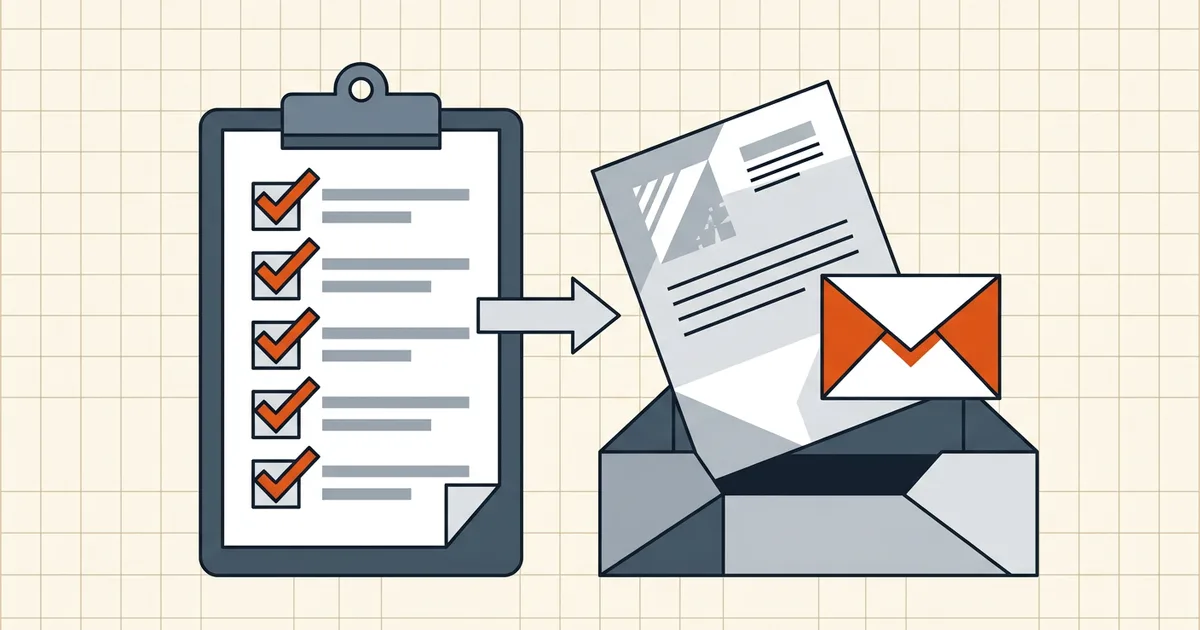
Most PDF disasters share a shape: nothing was wrong with the document — something was wrong with the file that left. Wrong export, stale draft, a comment balloon from review round two, a signature applied before someone "just compressed it." A two-minute pre-send pass kills all of it.
The checklist
Content (30 seconds)
- Right version. The accepted draft, not the one still named
DRAFT_v3. - Page order and orientation — every page, including the scanned signature page at the end (rotation fix if sideways).
- Readability at 100% zoom — fine print, stamps, table digits. Aggressive compression has victims (quality checks).
- Page count matches what you expect — a stray blank page from a print-area error embarrasses at the worst moment (Excel export traps).
Hidden layers (45 seconds)
- Comments and tracked changes gone — and the accepted state is what you meant.
- Attachments panel empty unless the attachments are deliberate (what rides along).
- Metadata scrubbed — author, producer, timestamps appropriate for the audience (field guide, scrub guide).
- Redactions actually redacted — search-test and selection-test if anything is blacked out (the full suite).
Delivery (45 seconds)
- Size under the destination's limit — undershoot ~10% for portal re-processing; target-size compression takes the number as input.
- Filename is the message you want sent —
2026-09-23_acme-contract_v4.pdf, notUntitled-3 (final).pdf(naming guide). - If password-protected: the password travels a different channel than the file (protection guide).
- If signed: the signature is the last edit — verify the seal in a second viewer and send that exact file (order of operations).
Run it as a tool, not a memory exercise
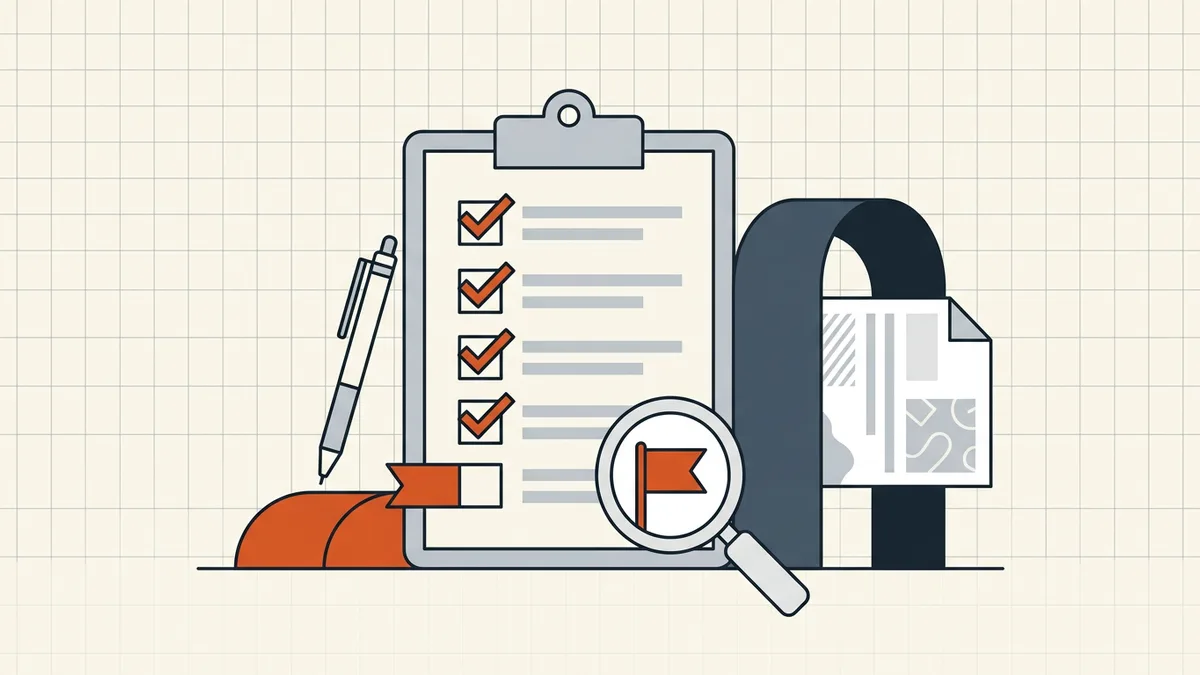
Checklists work better when something else holds the list. BytesPDF Check Before Sending is exactly that — a pre-send walkthrough covering size limits, metadata, personal data, page order and redaction risks, running in your browser alongside the tools that fix each finding (Compare Versions to confirm you're sending the right draft, Secure Cleanup for the hidden layers, Compress to Target Size for the limits).
When the destination is a portal
Government, visa and lender portals add their own rejection taxonomy on top — per-file size caps, password policies, scan-quality checks. The destination-by-destination numbers live in the limits hub, and why visa portals reject compressed PDFs covers the legibility line you must not cross.
Contracts and filings: one more rule
For anything signature-bound the checklist compresses into a single ordering law — finalize, clean, size, protect, sign, send — written out once in send a contract as a secure PDF. Break the order and you get the broken-seal dialog; keep it and the file that arrives is exactly the file you approved.
Frequently asked questions
What should I check before sending a PDF?
Twelve quick checks: right file version, page order and orientation, readability at 100%, redactions verified, comments and tracked changes removed, attachments cleared, metadata scrubbed, text searchable if needed, file size under the destination limit, filename professional, password sent separately if protected, and a signature applied last if required.
Why do PDFs get rejected by upload portals?
Mostly size over the per-file cap, unsupported security (password/permissions), corrupted exports, or scanned-image quality the portal's checks refuse. Test the exact file — portals re-validate what your viewer happily displays.
How do I make sure a PDF has no hidden data before sending?
Rebuild it with a cleanup tool or scrub it deliberately: check the attachments panel, document properties and comments, and search for text from deleted sections. BytesPDF Check Before Sending walks the checks interactively; the hidden-data guide has the manual routes.
Should I compress before or after signing a PDF?
Before. Compression rewrites the file and invalidates existing signatures. Order: finalize → clean → compress to the limit → protect → sign the exact file you send.
How big should a PDF be before emailing it?
Under the lowest limit on the path — Gmail's practical attachment cap is 25 MB ([details](/blog/gmail-25mb-attachment-limit-pdf-too-big)), portals often 2–5 MB. When in doubt, target-size compress slightly under the stated limit.
Related comparisons
Source-led comparisons written by BytesPDF, with the conflict of interest disclosed on each page. They link official provider documentation rather than fabricated tests.