
Convert HEIC to PDF for Applications, Scans, and Multi-Photo Packs
Visa forms, school packets, and claims want PDF; the iPhone shoots HEIC. How to convert without botched quality — and when a multi-photo pack beats one page per snap.
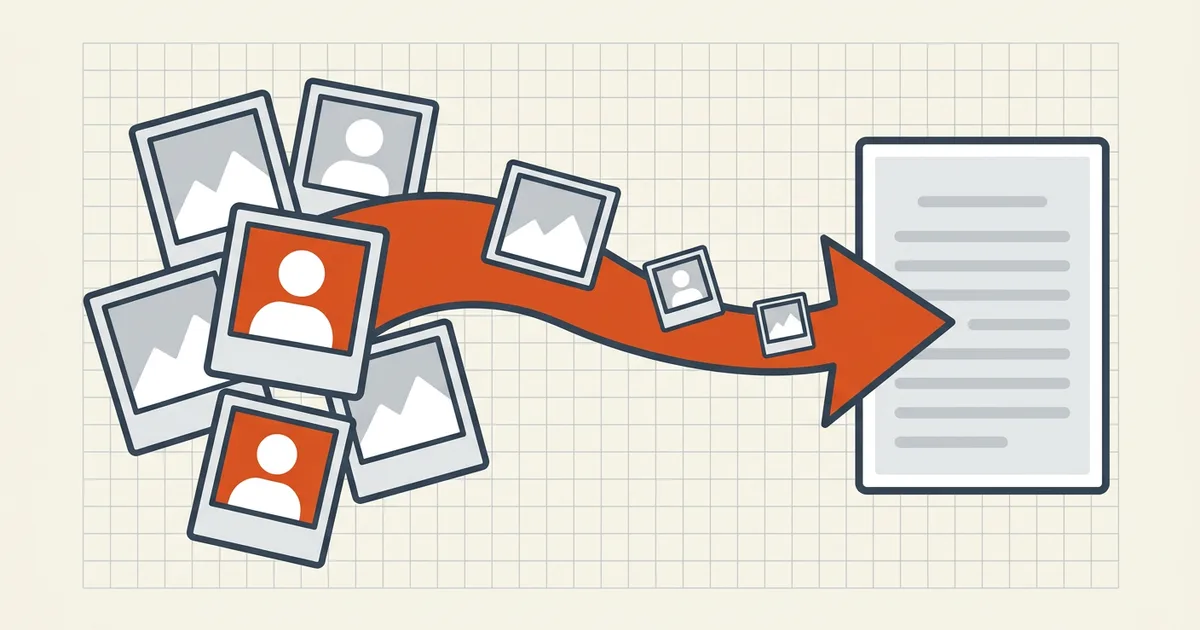
The portal says PDF only. The camera says IMG_4821.HEIC. Somewhere between them is a document — here's the unglamorous path that doesn't trash your scan.
First: does the field want PDF or image?
- Document slots (mark sheets, signed declarations, multi-photo packs) → PDF.
- Photo/signature slots with pixel dimensions → often
JPGspecifically; converting HEIC→PDF then uploading PDF into a JPEG field is a reject you did to yourself.
Screenshot the accepted-types line. It lies less often than memory.
Convert routes that work
On iPhone / Files: select the photo(s) → export/print-style PDF paths, or Shortcuts with a PDF action. Order multi-selects the same way you'd order a merge (iPhone merge rules).
On Mac: Preview/Photos open HEIC natively → export or print-to-PDF. On Windows: install Apple's HEIC codec (or use Phone Link/Photos ecosystem) → print to PDF.
Batch: pick a converter that takes N images → one multi-page PDF (order visible before export). One image per PDF × twelve uploads is how forms time out.
Quality without heroics
- Capture straight and well-lit first (capture guide); fix blur at source, not with hope.
- Convert at full quality — no mid-step "optimize."
- Only if the cap requires: one target-size pass.
- Zoom 200% on the data that matters: document numbers, faces, stamps.
- Orientation pass (rotate).
- Full pre-send checklist.
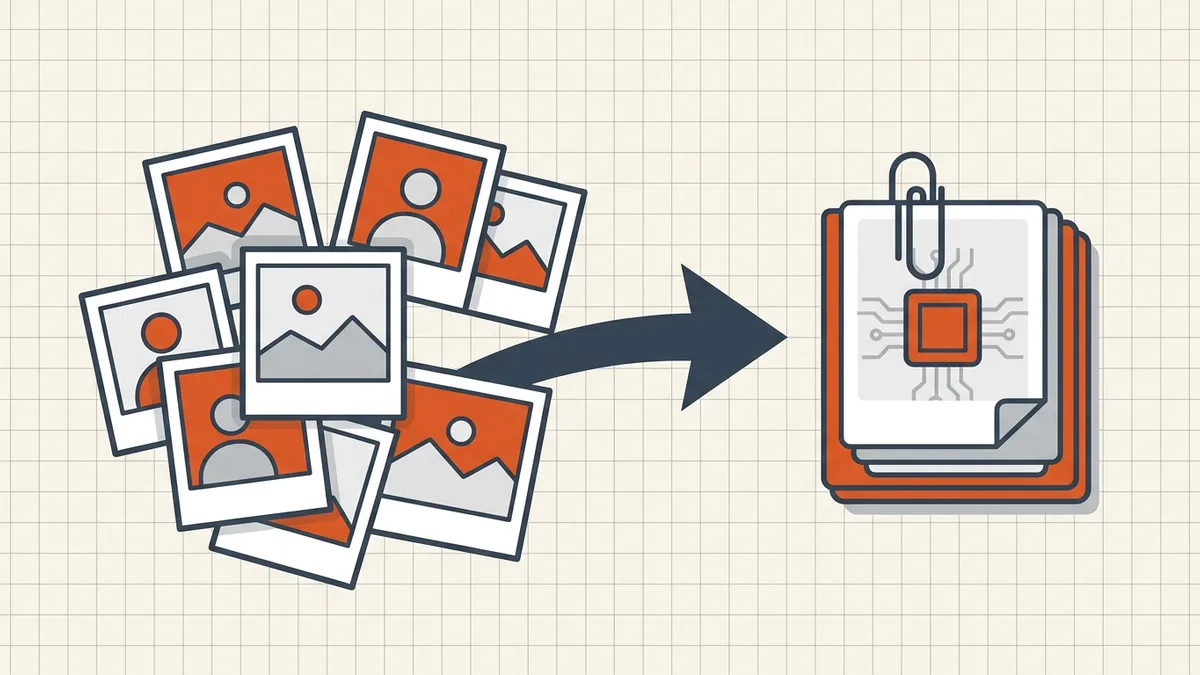
Multi-photo packs: caption pages (01_receipt.jpg → page 1) when reviewers must know what they're seeing — same discipline as scholarship packs.
Privacy
Application HEIC sets include IDs and faces. Prefer OS-native or browser-local pipelines; free "upload 50 HEIC" sites retain payloads longer than their marketing admits (tool privacy framing).
Honest BytesPDF scope
BytesPDF does not convert HEIC/JPG/PNG → PDF. Our converters: Word → PDF and Excel → PDF. Once you hold a real PDF, we cover the rest: merge packs, compress to caps, rotate, metadata, check, protect, redact, OCR (print text), compare, cleanup, sign.
Frequently asked questions
Why can't I upload a HEIC file to a portal?
Many portals whitelist JPEG/PNG/PDF only — HEIC (Apple's efficient image format) gets rejected by validators that were never taught the extension. Convert to PDF when the form wants a document; convert to JPG when it wants an image field. Read the accepted-types line before choosing.
What's the best way to convert HEIC to PDF on iPhone?
Share/shortcuts-style conversions and Files-based print/export flows can make a PDF from photos; on desktop, open in Preview/Photos and export/print to PDF. For multiple photos as one document, select them in order first (Files merge-by-name rules apply), or use a converter that builds a multi-page PDF in one pass.
Should each photo be its own PDF or one combined pack?
Match the upload UI: separate fields → separate files (or JPGs if accepted); one supporting-documents slot → one PDF with captions and order. Application portals usually prefer one ordered pack over a zip of singles — see the scholarship pack pattern.
Will converting HEIC to PDF lose quality?
A straight embed keeps the image data you had; quality loss comes from later *over-compression* or resizing below the portal's pixel minimums. Convert first at full quality, then do a single target-size pass only if the cap demands it — and zoom-check IDs, stamps, and faces.
Does BytesPDF convert HEIC to PDF?
No. BytesPDF's converters are Word (.docx) → PDF and Excel (.xlsx) → PDF (documented in how-it-works and llms). Image→PDF conversion for HEIC/JPG/PNG belongs in OS tools or dedicated converters. After you have the PDF, BytesPDF covers compress, merge, rotate, check, and the rest of the prep pipeline.
Related comparisons
Source-led comparisons written by BytesPDF, with the conflict of interest disclosed on each page. They link official provider documentation rather than fabricated tests.