
Fill a PDF Form on Your Phone (iPhone and Android, Fields That Actually Work)
Tapping boxes that won't accept text is a viewer problem more often than a file problem. A phone-first matrix: which app hears form fields, and what to do when none of them do.

The form opens. The boxes look right. Your thumb taps and… nothing. On phones, the failure is usually the door you walked through, not the form.
Phone viewer matrix
| Surface | Real AcroForms | Flat scan fields | First move |
|---|---|---|---|
| Mail/Drive preview | Often partial | No | Download first |
| Chrome/Safari viewer | Simple fields yes | No | Download → default reader |
| iOS Files / Preview | Yes (native fields) | Markup overlay | Tap field; Markup only if flat |
| Android Acrobat/Xero-class | Yes | Fill & Sign overlay | Install for real forms |
| BytesPDF site tools | — (no filler) | — | Rotate/protect only |
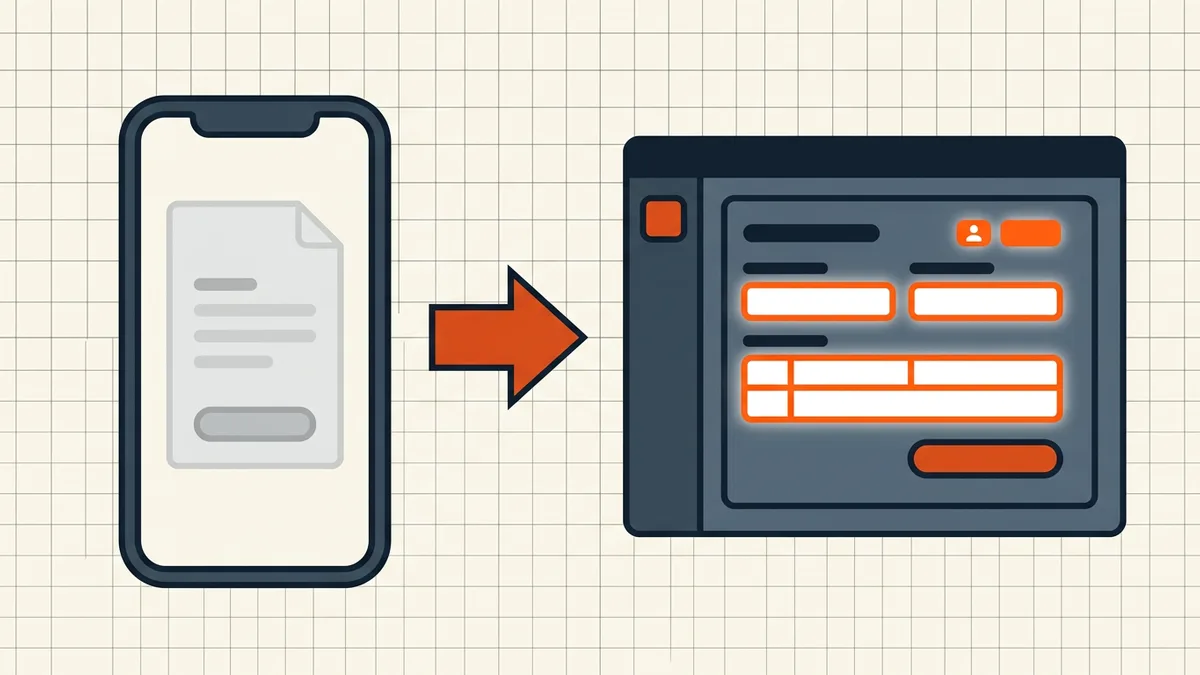
Decision path
- Download the file out of mail/chat/cloud preview.
- Tap-test a field: cursor + keyboard = live AcroForm. Big rectangle selection or dead tap = flat image (desktop diagnose).
- Live but stubborn: switch readers once (Preview ↔ Acrobat ↔ browser) before blaming the file.
- Flat: Markup/Fill & Sign overlays accept printed-style answers; if the issuer needs field values, ask for a fillable master or use their portal (author guide).
- Password on arrival: open password prompt ≠ form bug (separate-channel delivery).
- Before you send back: reopen the saved file and confirm answers stuck — phone save paths occasionally flatten or drop values (checklist).
Return-path caution
Overlay text is pixels; structured fields are data. Portals that parse applications want fields. Humans reading an invoice mostly want pixels. Match the return format to the receiver — and blank shared masters get cleared before the next respondent.
Honest BytesPDF scope
No mobile form filler at BytesPDF. Documented non-feature, same policy as split/booklet/word-count. BytesPDF phone guides cover rotate and protect; filling is reader territory.
Return-QA micro-protocol (phone)
- Fill → save/export (not just swipe away — some previews discard session state).
- Reopen from Files/Downloads, not from the mail thread cache.
- Spot-check three fields: first, middle, last visible answer; open a dropdown if the form has one.
- Confirm checkboxes stuck as states, not just pictures of checks.
- If the issuer parses fields, prefer an app known to write AcroForms properly over pure markup overlays — overlay text can vanish into a flatten on some export paths.
Thirty seconds of reopen-and-look beats a bounced application (checklist).
Author-side mirror
If you send forms to phone-heavy audiences: avoid XFA-only designs, keep hit targets thumb-sized, test on iOS Files + Android Chrome before release (form creation QA). Forms that only work in desktop Acrobat fail half your respondents — and support tickets follow.
When phones win
On-site inspections, sidewalk signatures, field claims: phone fill + camera capture of IDs is the right workflow (receipt packets, ID scanning). Just know whether the receiver needs structured fields or printable pixels before you tap Submit.
Frequently asked questions
Why won't my phone accept text in the form?
Three causes, in phone order: you're in a mail-app or browser *preview* (download the file first); the 'form' is a flat scan with no field objects; or the viewer lacks real AcroForm support. Download → open in a form-capable reader (Files/Preview on iOS, Acrobat or Xodo-class apps on Android) → tap a field again.
iPhone: what's the built-in path?
Files/Mail → open the PDF → tap fields if they're real AcroForms. For flat forms, Markup text boxes overlay answers (works, but the data is drawn text, not field values — fine for return-by-email, wrong if the recipient needs structured fields).
Android: what's the built-in path?
Similar split: Chrome's viewer handles simple AcroForms after download; heavier forms prefer Acrobat Reader or another field-aware app. Grant storage access — scoped-storage denials make 'can't open' look like 'can't fill'.
Browser preview vs download — why does download fix it?
In-page previews optimize for rendering, not full form scripting and save paths. Downloaded files open in the OS default reader, which is usually the form-capable one. Change the browser's PDF default to 'Download' if this bites you often.
Does BytesPDF fill forms on mobile?
No form filler at BytesPDF (documented boundary — we don't author or fill fields). Phone workflows above; our mobile guides cover rotate and protect. Authoring fillables is [the form creation guide](/blog/create-fillable-pdf-form-free); verifying returns is the [pre-send checklist](/blog/what-to-check-before-sending-a-pdf).
Related comparisons
Source-led comparisons written by BytesPDF, with the conflict of interest disclosed on each page. They link official provider documentation rather than fabricated tests.