
PDF Dark Mode / Black Background When Exporting Notes
Dark mode followed your notes into the PDF. Sometimes the app exported the theme; sometimes only your viewer is inverting. The fixes are different.
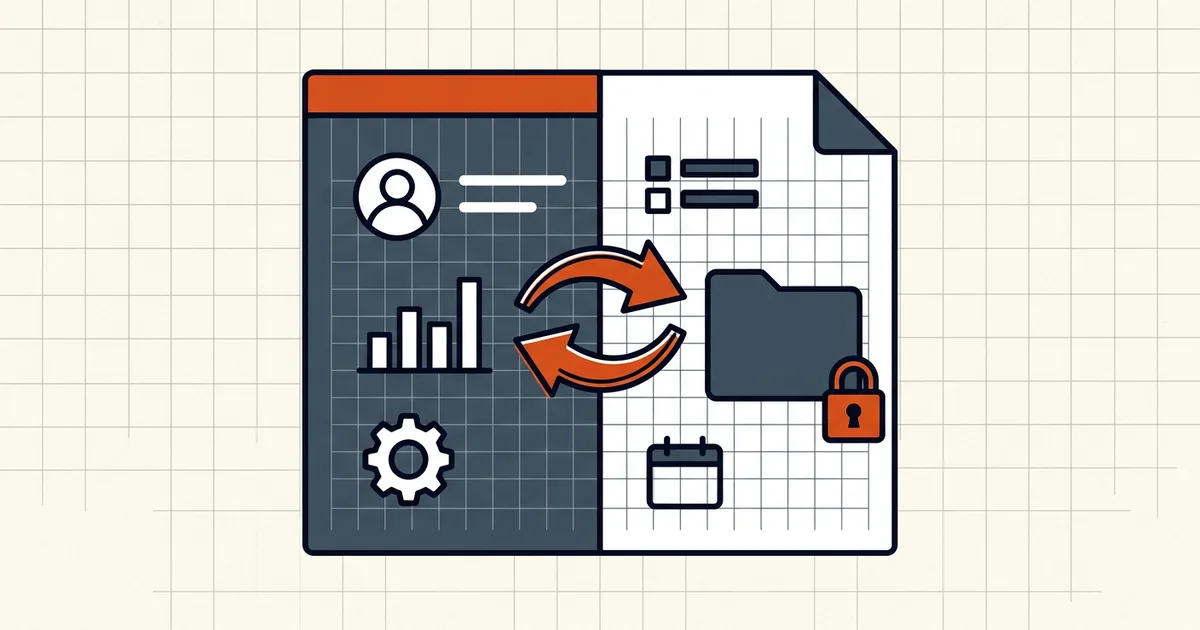
Dark mode is comfortable until it ships with the artifact. Split the problem first: file-baked theme vs viewer filter.
30-second split test
- Open the same PDF in a second viewer (browser vs desktop reader).
- Stays dark everywhere → colors are in the file (app exported the theme).
- Normal in the other viewer → night mode filter only; toggle it off.
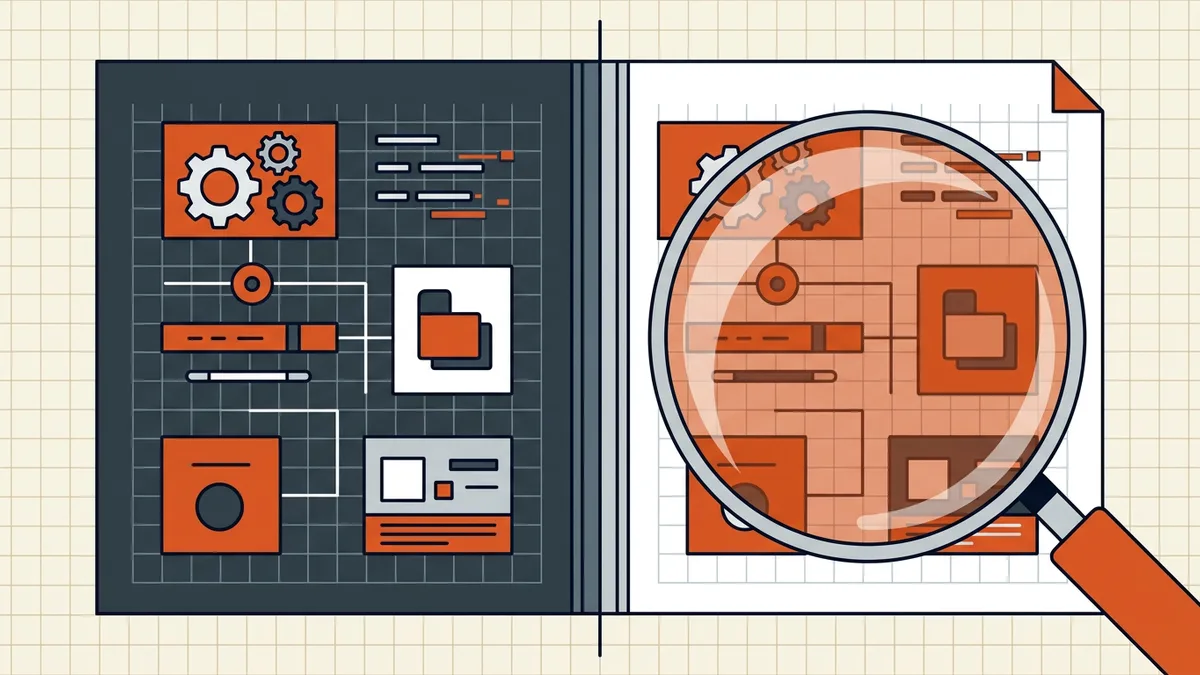
Fix: viewer filter
- Acrobat/Reader: disable Night mode / paper color overrides.
- Browser: extension or reader theme off.
- Phone PDF apps: night/sepia toggle in app settings.
Nothing about the file changes — display only (cousin of zoom/display overrides).
Fix: baked dark export
- Return to the source app (Notes, Docs, whiteboard).
- Set page background white in page style/template — system dark theme
alone often still writes dark pages.
- Or force light mode → Export / Print to PDF again.
- Replace the outbound file; verify on a second viewer before send.
Compress, merge, and clean do not repaint pages — do not chase this with a size tool.
Neighbors that look similar
| Look | Likely owner |
|---|---|
| Night filter on a normal PDF | This post |
| App baked inverted theme | This post (re-export path) |
| Scan too dark to read | Too dark/light scan |
| Gray dirty paper tone | Whiten background |
| Completely blank render | Blank white page |
Honest BytesPDF scope
No invert/dark-theme tool at BytesPDF (documented boundary). We document the failure class because users misattribute baked exports to corruption. Export light from the source; toggle the viewer for filters; ship the white file after the usual pre-send visual QA.
Platform-specific notes
| Source | Common trap | Fix |
|---|---|---|
| Notes apps (Samsung/OneNote-class) | System dark theme ≠ page style | Set page template background white, re-export |
| Browser print-to-PDF with extension | Extension inverts print stream | Disable extension for print |
| Reader night mode | Filter only | Toggle off — file was fine |
| Shared "dark template" org theme | Export always dark | Light template for outbound masters |
Outbound QA addition
Open on one phone + one desktop before send. Dark surprises die in review, not in the recipient's inbox. Pair with the standard visual QA checklist.
If the dark file is also huge (image-heavy whiteboard exports), run compress after you fix colors — never instead of fixing them.
Frequently asked questions
Why is my PDF black with white text?
Two causes: (1) the source app exported while dark theme was active, baking inverted colors into the file; (2) your PDF viewer's night/dark mode is filtering a normal file. Open the file in a second viewer — if it stays dark, the export is baked; if it goes white, only the viewer was filtering.
How do I export notes with a white background?
In the note app, set page style/template background to white (not just system dark theme), or temporarily switch to light mode before Export/Print-to-PDF. Old exports that already baked darkness need a re-export from the app source — not a compress pass.
Can I convert a dark PDF back to white pages?
Viewer night mode toggles off restores normal display for filter-only files. For baked-in dark exports, re-export from the authoring app; third-party invert tools exist but can wreck photos and are outside BytesPDF's toolkit — prefer source re-export.
Is a dark scanned page the same problem?
No — over-dark scans are capture/exposure issues ([too dark scan guide](/blog/fix-too-dark-or-light-scan)). Dark-mode exports are intentional theme colors from an app, not scanner density.
Does BytesPDF have a dark mode or invert tool?
No color-invert / theme tool ships in the toolkit (documented boundary). BytesPDF tools are browser-local utilities with their own UI; they do not rewrite your document's page colors. Fix theme at export source or toggle the viewer.
Related comparisons
Source-led comparisons written by BytesPDF, with the conflict of interest disclosed on each page. They link official provider documentation rather than fabricated tests.