
Print a PDF With Comments and Sticky Notes Visible
The review looks perfect on screen and comes out of the printer naked. Annotations are a separate layer — the print dialog has to be told to include them.
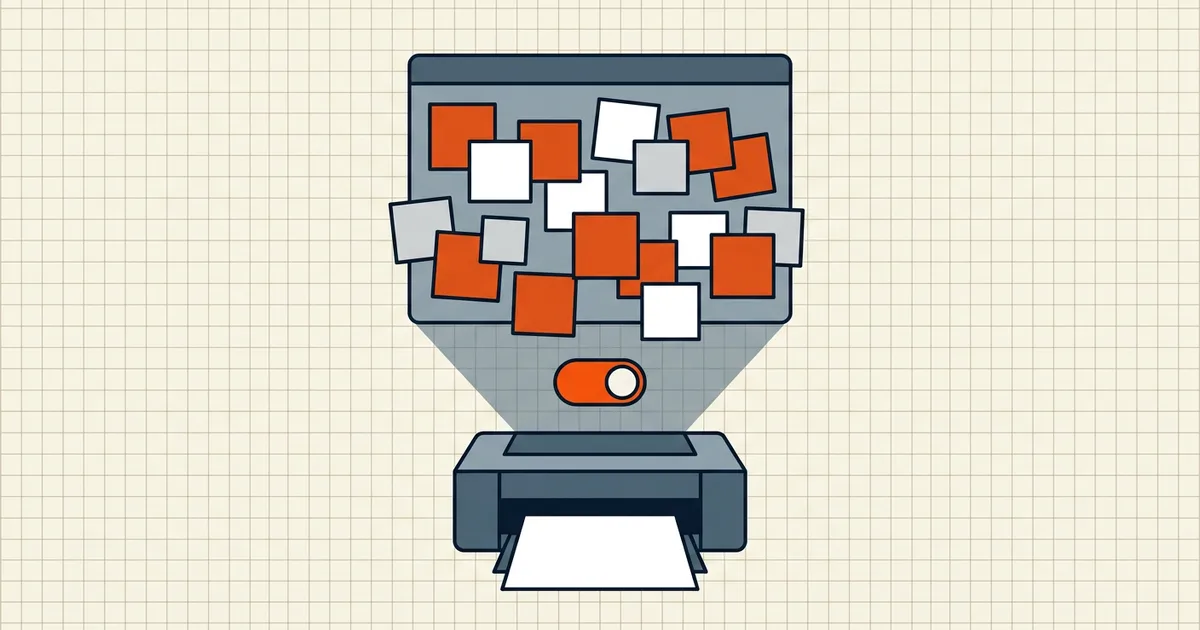
On screen: twelve sticky notes, three highlights, one stamped APPROVED. On paper: a clean document that pretends the review never happened.
Why the printer “forgets”
Annotations are a separate layer with their own print flags. Default print = Document only. You need Document and Markups — plus, for sticky notes specifically, a preferences toggle that prints the pop-up text.
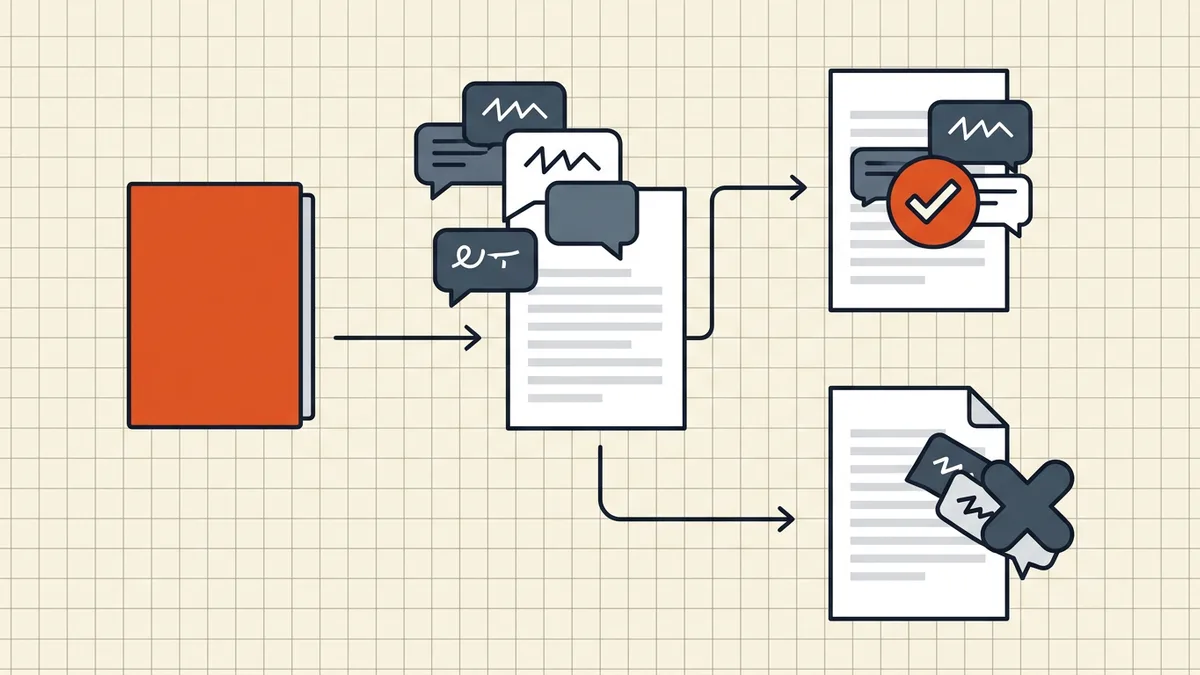
Two legitimate goals
A. Marks on the pages themselves
- File → Print.
- Comments & Forms → Document and Markups.
- Preferences → Commenting → Print notes and pop-ups (bubbles/text).
- Confirm the preview shows the marks before paying for toner.
B. A readable comment record
Summarize Comments → choose layout (connector lines on separate pages / single page / comments only). Print the summary as extra sheets — often cleaner than cramming callouts onto dense pages.
When not to print marks
External recipients usually want the clean version — strip with Remove Comments instead of wrestling print options (pre-send checklist). Internal review packets may want both: clean master + marked summary.
Honest BytesPDF scope
No comment summarizer at BytesPDF. Remove Comments deletes the annotation layer; print-with-markups lives in reader dialogs (documented here). For permanent freeze of form fields and marks, flatten — with the usual warning that flatten is one-way.
Viewer-by-viewer map
| Reader | Where markups print lives | Sticky-note text |
|---|---|---|
| Acrobat / Reader desktop | Print → Comments & Forms → Document and Markups | Needs Preferences → Commenting → Print notes and pop-ups |
| macOS Preview | Markup usually prints with the page; note bubbles often collapse | Open notes before print; summary is weak |
| Chrome / Edge viewers | Built for clean pages; markup support uneven | Download and use a desktop reader for review prints |
| Mobile readers | Rarely expose comment summaries | Screenshot or desktop path |
Always trust the print preview pane: if the preview lacks the sticky text, the tray will too. Preview is free; wasted toner and a re-meeting are not.
Audience fork (one paragraph)
Reviewer packet → Document and Markups + maybe a comment summary. Court/client final → strip annotations entirely (remove comments). Training example showing "how we mark up" → summary layout with connector lines beats in-place chaos. Pick deliberately; defaulting to "Document" is how perfectly reviewed files ship unreviewed.
Related traps
- Comment summary page size: older Acrobat remembered pre-crop page sizes when summarizing — check the summary's paper setup before duplexing (print size quirks).
- Flatten before archive: if marks must survive viewers that ignore layers, flatten a copy — keep the live original while review is open.
Frequently asked questions
Why don't my sticky notes print?
Annotations live on a layer the print job often omits. In Acrobat/Reader, set Comments & Forms to **Document and Markups** (not Document). Also enable Preferences → Commenting → Print notes and pop-ups so note *bubbles and text* appear, not just highlights.
How do I print comments as a separate summary?
Use Summarize Comments / Create Comment Summary: layouts include document with connector lines, comments-only pages, or numbered callouts. Ideal when the marked-up printout would be unreadable — the summary pages carry the discussion cleanly.
Some marks print, some don't — why?
Per-annotation Print flags and layer visibility. Highlights often default to printing; sticky note pop-ups and some stamps don't. Check the annotation's properties, and confirm the layer isn't set non-printing.
Browser viewers can print comments too?
Usually poorly. Chrome's PDF print path is built for the finished page, not markup layers. Download the file and print from a desktop reader that exposes Comments & Forms.
Does BytesPDF print or summarize comments?
No comment-summary tool at BytesPDF. **Remove Comments** strips annotations for clean shares; print-with-markups is a reader-dialog behavior we document here. If the goal is permanence rather than paper, flatten ([forms guide](/blog/flatten-pdf-forms-explained)) — knowing that flatten makes marks irreversible.
Related comparisons
Source-led comparisons written by BytesPDF, with the conflict of interest disclosed on each page. They link official provider documentation rather than fabricated tests.