
Word Headings Missing as PDF Bookmarks After Export
Your Word navigation pane is full of headings; the PDF outline is empty. The export path decides whether bookmarks ship — and two common routes silently skip them.
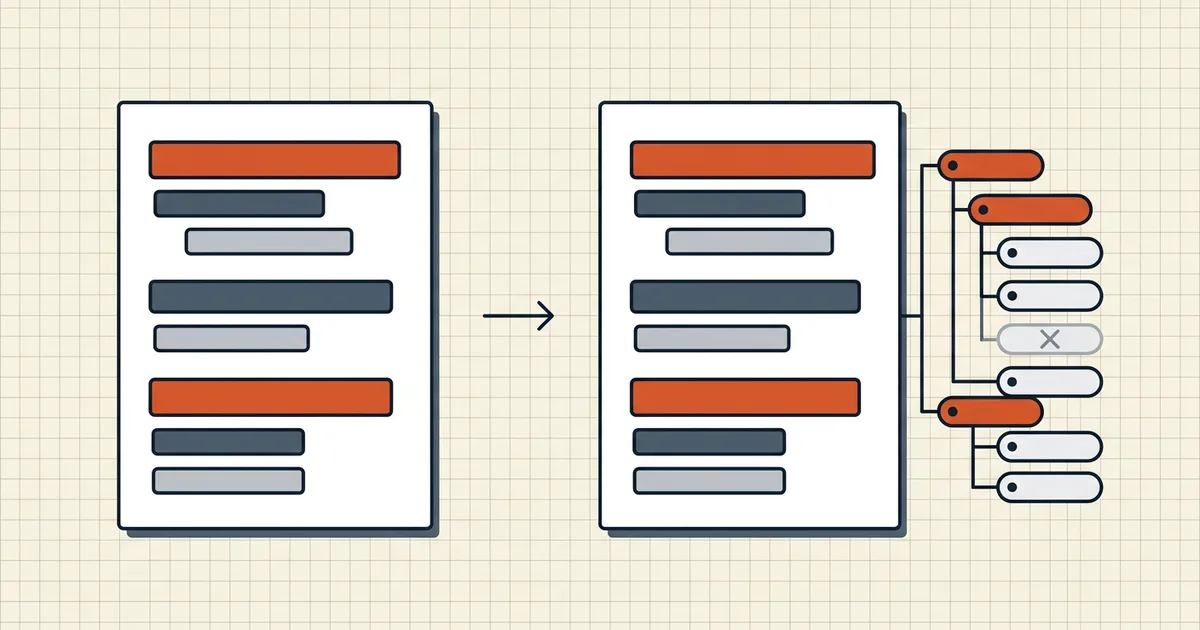
Word's Navigation pane is a tidy tree of Heading 1/2/3. The PDF you just exported opens with a blank Bookmarks panel. Someone will notice — especially if that someone is a reviewer jumping chapters under time pressure.
Bookmarks are an export decision
| Path | Outline behavior |
|---|---|
| Word Save As / Export → PDF → Options → Create bookmarks using Headings | Builds outline from heading styles |
| Options → Create bookmarks using Word bookmarks | Uses manual bookmark objects instead |
| Microsoft Print to PDF / other print-to-file drivers | Typically no heading outline |
| Google Docs → Download → PDF | No Word-style heading bookmark tree |
| Some online converters | Varies; often omitted by default |
The mechanism is simple: only export paths that read your heading hierarchy can turn it into /Outlines destinations. Printing paints pixels (well, glyphs) and leaves structure behind.
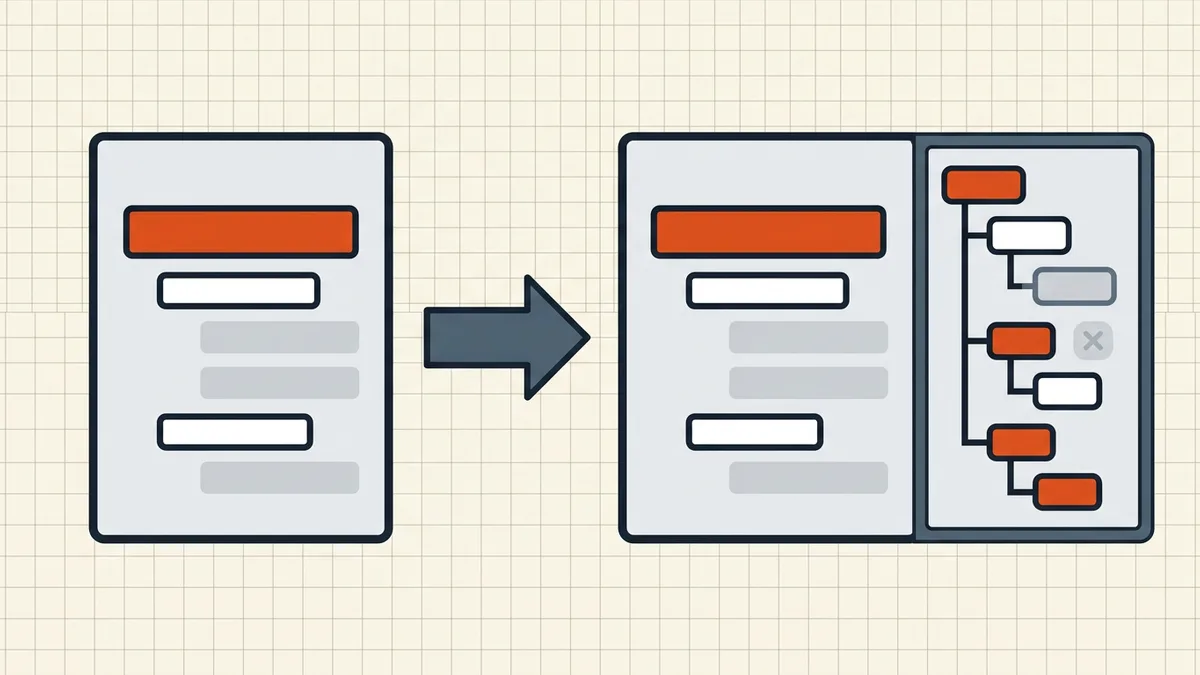
Fix checklist (Word desktop)
- Navigation pane (View → Navigation Pane) shows your structure. If it does
not, fix styles first — bold is not a heading.
- File → Save As or Export → PDF → Options.
- Check Create bookmarks using: → Headings (or Word bookmarks, if you
maintain those).
- Save over a test copy → open in a full reader → confirm the outline
(real reader, not browser tab).
- Repeat options every time in versions where the checkbox does not stick.
Print-to-PDF vs Save (bookmark split)
This is a concrete instance of the broader export-vs-print split (print to PDF vs save as PDF): hyperlinks, fonts, and outline structure follow the export path; the print driver is the wrong tool when structure matters.
After export: keep bookmarks through the pipeline
- Merging: not all merge implementations preserve document-level outline
trees — many drop, flatten, or first-file-wins (merge keep bookmarks).
- Terminology: panel labels say Bookmarks, PDF spec says Outlines, some
tools say Navigation — same feature family (bookmark vs outline).
- Pre-send QA: open the panel once before you ship a 80-page pack
Related Word→PDF fidelity traps
Headings→bookmarks is one strand of format fidelity; siblings include tracked changes markup modes, comment export, and layout shifts — all covered under convert Word to PDF without losing formatting. Do not conflate missing bookmarks with missing text: if body copy is wrong, you have a different bug.
Honest BytesPDF scope
BytesPDF offers Word→PDF conversion in the toolkit; there is no separate "map styles to outline" wizard beyond what the converter implements — verify the outline panel after convert (rule: describe only shipped features). We do not claim Google-Docs-equivalent gaps as our bug, and merge outline limits stay documented in the merge-bookmarks guide.
TL;DR: headings only become bookmarks when you Save As/Export with Create bookmarks from Headings — not when you print. Re-check Options every export, confirm in a real reader, and protect the tree through merge.
Frequently asked questions
How do I get PDF bookmarks from Word headings?
In desktop Word: File → Save As (or Export) → PDF → Options → check 'Create bookmarks using:' → select Headings (or Word bookmarks if you maintain those manually). Save. The PDF outline should list your heading tree. Styles must actually be Heading styles — bold manual text is not a heading.
Why does 'Microsoft Print to PDF' produce no bookmarks?
The print path renders a fixed layout stream; it does not carry the Save As/Export options that build an outline from headings. Use File → Save As/Export → PDF with Create bookmarks enabled when you need a navigable outline. Print to PDF is fine for WYSIWYG when bookmarks do not matter.
Google Docs → PDF export: any bookmarks?
Google Docs' PDF export does not build an outline/bookmark tree from document headings the way Word's Options dialog does. For outline-critical deliverables, export from Word desktop (or another authoring tool with an explicit bookmark option) and verify the panel.
I exported with Headings checked and the outline is still empty. What next?
Confirm paragraphs use real Heading styles (Navigation pane must show them), re-open Options (the checkbox is per-export, not sticky in some versions), and view the PDF in a reader that displays outlines — browser previews can hide the panel. For merged files, check the merge tool's outline policy as well.
Does BytesPDF create bookmarks from a Word file?
BytesPDF Word→PDF converts content; there is no separate 'build outline from styles' control in the toolkit beyond what the converter implements (match published capability language). Outline *preservation* through merge is documented as a limit in the merge-bookmarks guide — verify the PDF panel after any combine.
Related comparisons
Source-led comparisons written by BytesPDF, with the conflict of interest disclosed on each page. They link official provider documentation rather than fabricated tests.