
How to Redact a PDF Properly (A Black Box Is Not Redaction)
A black rectangle is a sticker, not a shredder. Here's how proper redaction works, how to verify the text is actually gone, and where redactions leak.
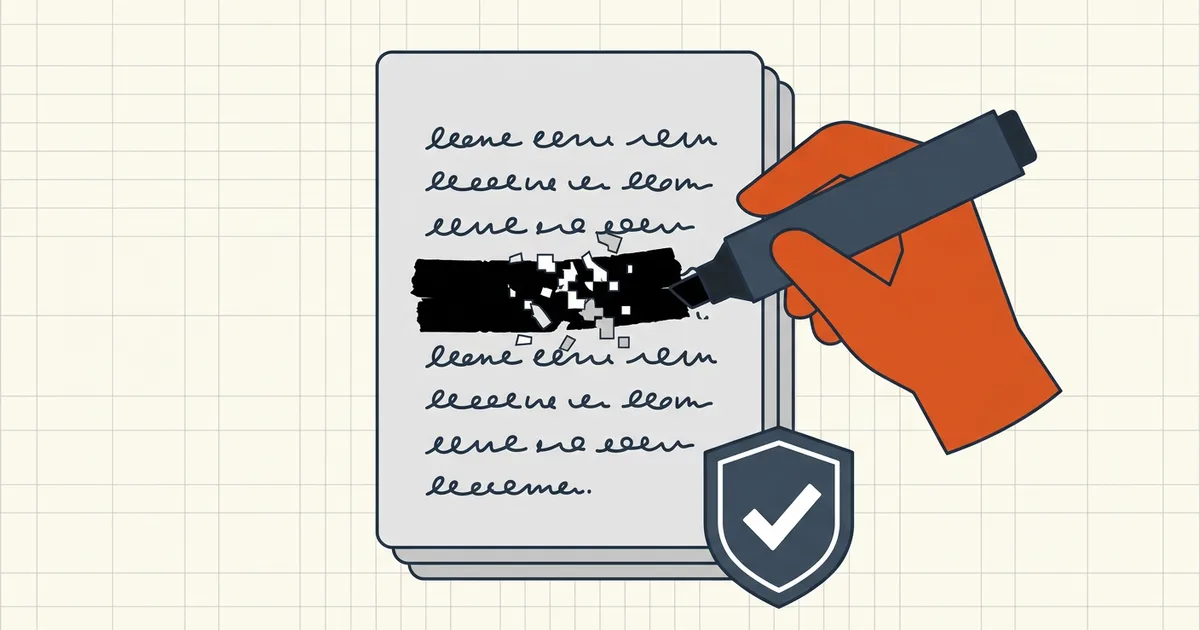
"Redact" gets used for two completely different operations. One removes content from a file. The other puts a shape on top of it. Only the first is redaction — and the difference has leaked court records, medical details, and government secrets for as long as PDFs have existed.
Why the black box fails
Draw a rectangle over a name in most free editors and what you've made is an annotation: one more object in the file, layered above the text. The sentence under it is untouched. A recipient can:
- highlight across the box and copy the "hidden" text into any notepad,
- delete the box object,
- search the document and watch the search hit land under the black bar,
- print to a new PDF and recover text where the annotation didn't render.
White text, white boxes, and image stamps fail the same way. The bytes are still there.
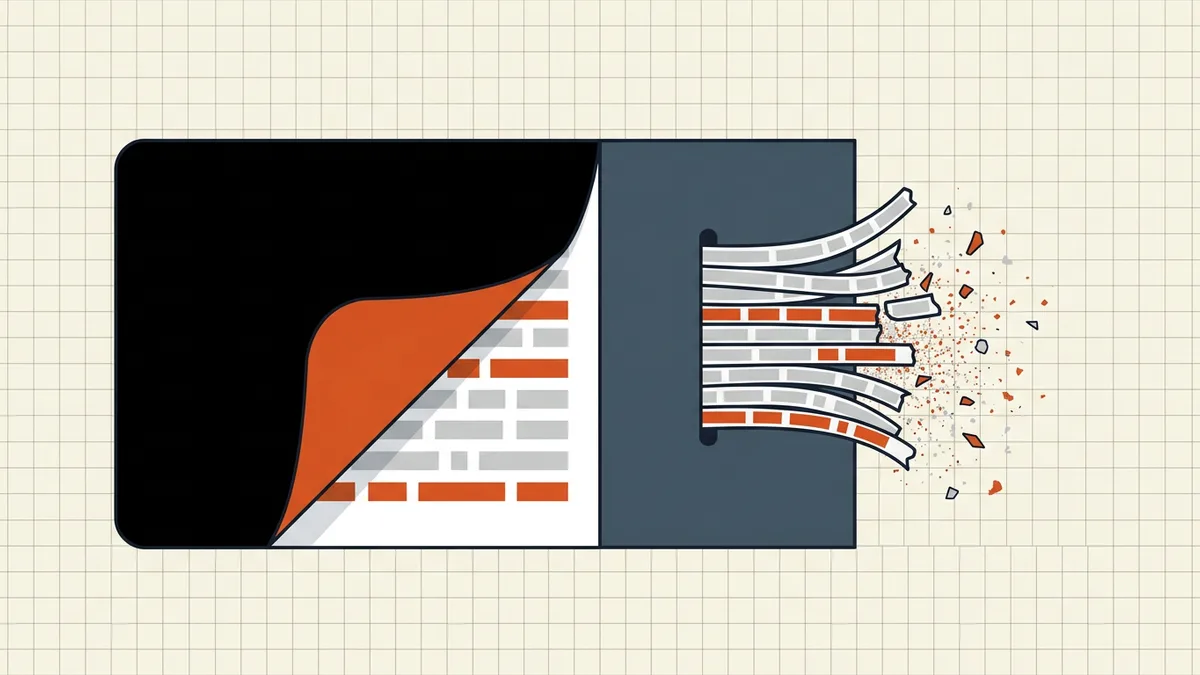
What proper redaction does
A true redaction tool works in three phases:
- Mark the regions to remove (text ranges or images). Nothing is destroyed yet — this is your review window.
- Apply. The tool rewrites the file so the covered content is removed from the text and drawing streams, and the black bar becomes part of the page artwork.
- Verify the result — the step that separates professionals from press releases.
BytesPDF Redact Text is built around that third phase: it destroys the targeted text and then verifies the text is actually gone from the file — processing everything in your browser so the unredacted original never uploads anywhere. For high-stakes releases, add your own independent checks (below) regardless of which tool you used.
The verification suite (do all three)
- The search test. Ctrl+F / Cmd+F a word that sat under a redaction. Zero hits is the pass. Any hit — even one that highlights invisibly — is a fail.
- The selection test. Drag the text cursor across every redacted region and the text around it. Copy, paste into a plain editor. Nothing recognizable should appear.
- The hidden-data pass. Inspect metadata, comments, attachments and layers — redactions are frequently undone by an untouched comment balloon or an OCR text layer. Our hidden data guide covers this sweep.
The traps specific to scanned and "cleaned" files
- Searchable scans. OCR text lives in an invisible layer under the page image. Boxing the image leaves every word copyable. True redaction must destroy that layer too.
- Re-redaction. If a document was redacted once with a bad tool, the leak is already in every copy downstream. Go back to the clean original and redo it properly.
- Metadata and revision trails. A perfectly redacted page with an author field, comments, or incremental-save history still tells stories. Metadata removal is part of redaction hygiene.
- Over-redaction. Destroying content is irreversible. Work on a copy; keep the unredacted master somewhere safe; consider whether a summary would serve better than a butchered document.
Choosing where to redact
The same care applies to tool choice as to the marks themselves: you are handing a document full of secrets to whatever performs the removal. Desktop software, offline open-source tooling, and browser-local tools share one property — the file is not uploaded. We wrote the full evaluation checklist in privacy risks of online PDF tools; redaction is the use-case where that checklist matters most.
For the horror-show tour of how each of these traps plays out publicly — and why "the intern pasted it into Word" is its own genre — read why black boxes in PDFs leak secrets.
Frequently asked questions
How do I redact a PDF properly?
Use a true redaction tool that deletes the underlying text — not an annotation box. Mark the regions, apply the redactions so the content is destroyed, then verify by searching for and selecting the removed text. BytesPDF Redact Text destroys the text and verifies it's gone.
Why is drawing a black box over text unsafe?
A drawn rectangle is a separate object layered on top. The original text remains selectable and searchable underneath; anyone can highlight the area and copy it, or delete the box.
What should I check after redacting?
Run three tests on the saved copy: search (Ctrl+F) for a word that was under a redaction, try to select text across the redacted area, and inspect hidden data — metadata, comments and any OCR text layer.
Does redacting a scanned PDF need extra care?
Yes. Scans often carry a hidden OCR text layer. A box over the image leaves that layer intact — the text can be copied even though you can't see it. Redaction must destroy both the visible pixels and the hidden text.
Related comparisons
Source-led comparisons written by BytesPDF, with the conflict of interest disclosed on each page. They link official provider documentation rather than fabricated tests.