
How to Remove Comments from a PDF (Review Notes, Annotations, Markups)
A clean-looking page can still carry every review comment, sticky note, and highlight in the file. Comments are annotations — they need an explicit strip before the PDF leaves your hands.
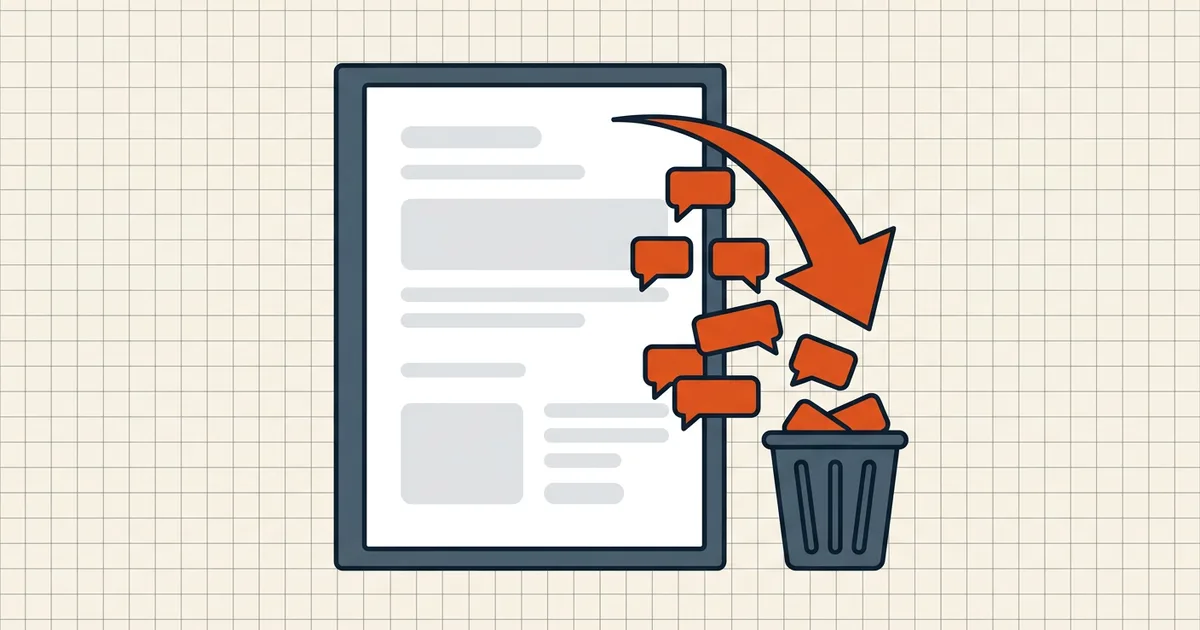
You exported the "final" PDF. Your reviewer opens it and the first thing they see is the sidebar: seventeen notes, three unresolved threads, and a highlight over the paragraph you already rewrote. Comments don't disappear when the document looks finished — they're objects in the file waiting for a viewer to show them.
Why comments survive your export
Annotations (sticky notes, highlights, strikeouts, drawing markups, replies) live in a layer above the page content. The main view can ignore them; the reader's comments panel never does. Exporting, "printing to PDF," or saving from an editor copies the annotation objects unless you strip or flatten them. That's why a clean-looking page still carries the full review trail.
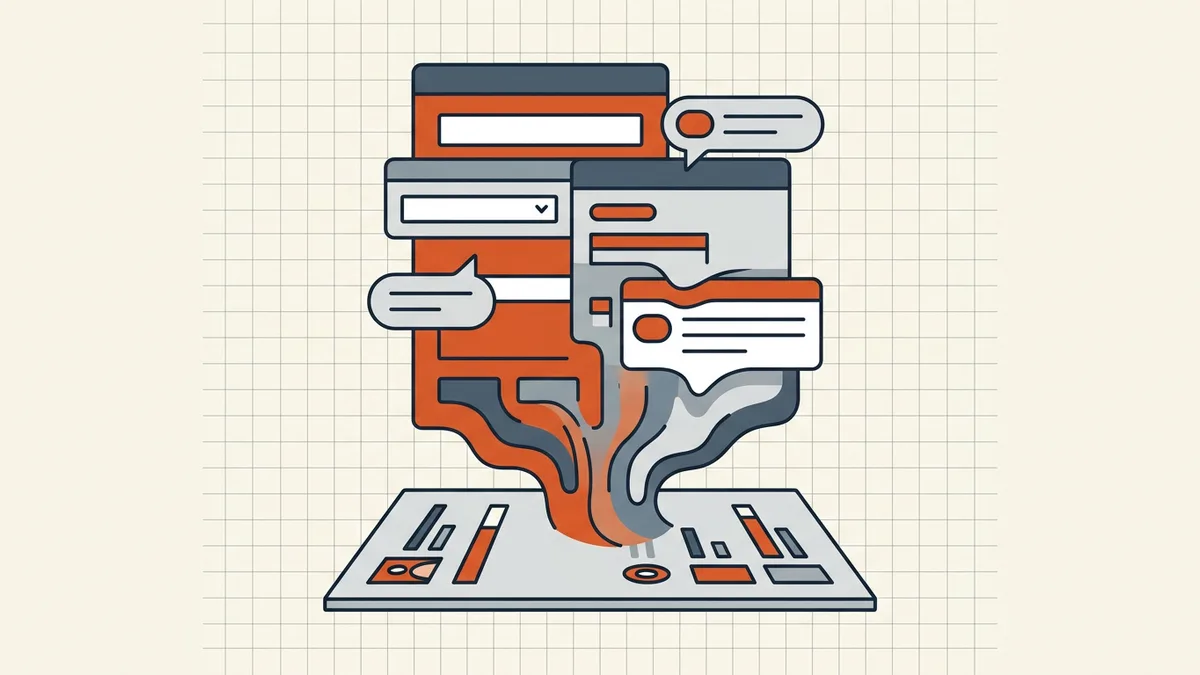
Related but different: hidden metadata (author, tool history) is invisible everywhere — cleanup targets that (hidden data guide). Comments are visible to anyone who opens the panel. Both can embarrass you; only one shows up in a screenshot.
Remove comments: the editor route (most reliable)
- Open the PDF in a desktop PDF editor (Acrobat, Preview for basic markups, PDF XChange, or equivalent).
- Open the comments/annotations list — not just the page view. This is the inventory of everything attached.
- Delete all (filter by type if you need to keep a few — e.g., keep signature-related notes, drop drafting chatter).
- If reply threads exist, delete resolves the whole thread — confirm none remain in the list.
- Save as a new file (
…_clean.pdf), then reopen it and check: comment sidebar empty? Page visuals unchanged? That's your verification, not the export dialog's promise.
The print-dialog shortcut (when you only need a quick pass)
Many viewers let you print without markups: Print → a Marks/Annotations option → choose Document only (no comment balloons) → print to PDF. Result: page content with comments left behind. Caveats: this can miss annotations you want (form field values usually survive; some stamp types don't), and it re-renders the file — check page count and vector text quality afterward. Use it for speed; use the editor route when the document matters.
Flatten: when comments should become the page
Sometimes the markup is intentional — a signed review, an accepted strikethrough the reader must see. Then you don't delete it; you flatten it: annotations convert to permanent page content and stop being editable/deletable objects (forms flatten guide). Choose deliberately:
| Goal | Move |
|---|---|
| Hide the review trail | Delete all annotations |
| Keep markups, block further editing | Flatten after review |
| Remove content under a note (PII, account numbers) | Redact, then clean (redaction done right) |
| Strip invisible baggage too | Editor pass + metadata cleanup (cleanup scope) |
What BytesPDF does and doesn't do here
Honest scope, matching the code: Secure Cleanup removes targeted metadata categories and explicitly keeps page annotations. It is not a comment stripper. So the layered workflow is:
- Editor or flatten pass → comments gone (or intentionally permanent);
- Cleanup → hidden metadata categories cleared;
- Redaction pass → only if the body content itself must be destroyed;
- Pre-send checklist → final eyeball, including one trip through the comments panel on the actual file you're about to send.
Skipping step 1 is how review trails ship to clients. Skipping step 2 ships tool history. Skipping step 3 ships the sensitive row a sticky note was about.
Frequently asked questions
Why can people still see my PDF comments after I exported it?
Comments are annotations stored as page objects, not pixels burned into the view. Exporting to PDF keeps them unless you explicitly remove or flatten them. What looks 'final' in the main view can still open a full comment sidebar on the reader's side.
How do I remove comments from a PDF before sending?
Open the document in a PDF editor, open the comments/annotations panel, delete all annotations (or export/print a markup-free copy with comment balloons off), then save a new file. Verify by reopening the saved file and checking the comment sidebar is empty. For forms, flattening is the related move — see the flatten guide.
Does BytesPDF's clean tool remove comments?
No — and it says so: Secure Cleanup removes targeted metadata categories while keeping page annotations. Comments are annotations. Use a comments panel delete or flatten pass in a PDF editor for markups; use cleanup for hidden metadata; use redaction when the *content under* a note must go too.
What's the difference between comments, annotations, and content?
Comments/annotations are layered objects: sticky notes, highlights, drawing markups, replies. Content is the page itself: text, images, form fields. Removing comments clears the review layer; redaction removes content. Often you need both before a document is truly 'clean.'
Can I remove comments without opening a PDF editor?
Sometimes: print to PDF with 'Document and Markups' vs 'Document' depending on the viewer (markups off in the print dialog drops balloons), or use a purpose-built annotation remover. Whatever route you take, reopen the output and inspect the comments panel — never trust the thumbnail.
Related comparisons
Source-led comparisons written by BytesPDF, with the conflict of interest disclosed on each page. They link official provider documentation rather than fabricated tests.