
Filled PDF Form Comes Back Empty (Recipient Sees Blank Fields)
You filled every box; they open the file and see a blank form. Values live in a separate layer from the page — when that layer fails to render, the form lies.
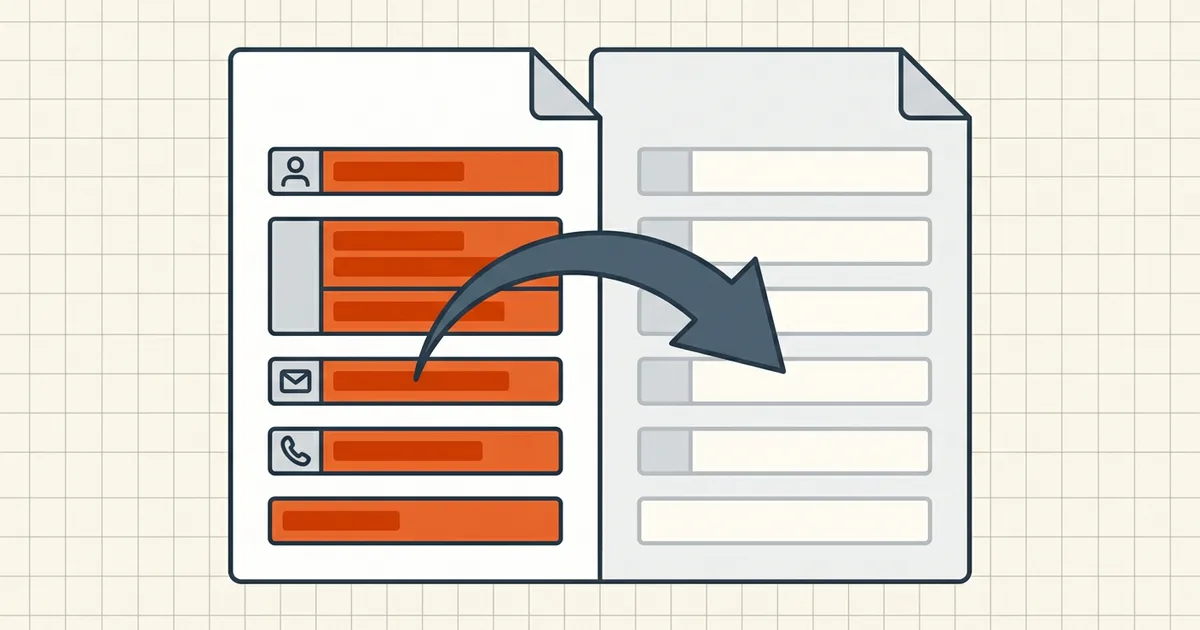
The form looked perfect on your screen. They reply "it came through blank." Neither of you imagined it — the values and the page are different layers, and the recipient's viewer failed to paint the value layer.
Why values go invisible
| Cause | What happened | Fix direction |
|---|---|---|
| Fill tool skipped appearance streams | Data in field dict; no /AP to draw | Re-save from a full reader; or flatten |
| Preview / browser plugin fill | Classic culprits per Adobe forums | Fill or re-export in Acrobat/Reader-class app |
| Reopened the wrong file | Edited original vs saved copy | Reopen the exact outbound filename |
| Save restriction on the form | Reader won't persist values | Different fill path that downloads with data |
| Print-to-PDF "snapshot" | Fields not in output | Don't use print as your save method |
| Highlight-color pref quirk | Values present but low-contrast UI | Toggle field highlight; check second viewer |

Filled-but-empty vs won't-fill vs dead totals
| Symptom | Owner guide |
|---|---|
| Keystrokes never stick | Form won't fill |
| Typing works; auto-totals blank | Calculations not running |
| Data saved; recipient sees blank | This post |
| Mobile-specific | Phone forms |
Safe delivery paths
- Full desktop reader: fill → File → Save (not print) → close → reopen →
spot-check → send that file.
- Need bulletproof display: complete the form, then flatten a copy
(flatten explainer) so values are page content — every viewer paints them.
- Blank template for someone else: never flatten the master; send the
interactive original (clear values first if you typed test data).
- Phone fills: follow download-first, then transfer the saved file
(phone forms).
Pre-send checklist (form edition)
- Reopened this outbound file (not the template)
- Values visible in two viewers without hovering
- Print preview shows values (if they will print)
- Calculation fields still correct after last save
- No leftover test data on shared blanks
- Usual what-to-check-before-sending pass
Honest BytesPDF scope
No form fill/flatten tool in the BytesPDF toolkit (documented boundary). We document the failure because it is misread as "the portal ate my form." After values are correct, compress only if size requires it — and remember rewrite rules for special files (signed PDFs refuse rewrite).
Frequently asked questions
Why does the filled PDF form I emailed look blank to them?
Form values are stored in the interactive field layer, not painted on the page. Fills made in Preview, browser plugins, or minimal editors sometimes lack appearance streams, so some readers draw empty boxes even though the data is in the file. Reopen in a full reader (or flatten a completed copy) and verify three fields before sending.
How do I know the values are actually saved?
Close fully, reopen the exact file you will send (not the original), and spot-check fields in a second viewer. If data only shows with the cursor in the field, appearance is broken — fix with a proper save from a full reader or flatten for delivery.
Should I flatten before sending?
For a final submission where nobody else must keep filling: yes — flattening merges values into the page so every viewer shows them. Keep an unflattened master. Do not flatten a blank template you still need as a form.
Can save restrictions strip my data?
Some forms allow filling but block Reader save, or print-to-PDF produces a snapshot without fields. If you see 'You cannot save data typed into this form,' fill and download through a path that persists values (full reader with save allowed, or a browser-local filler), then reopen-check.
Does BytesPDF fill or flatten forms?
No form-filling or flatten tool ships in the toolkit (documented boundary). This guide is diagnostic; compress/merge/rotate refuse or rewrite per documented rules and are not form-value fixes.
Related comparisons
Source-led comparisons written by BytesPDF, with the conflict of interest disclosed on each page. They link official provider documentation rather than fabricated tests.