
How to Remove Pages from a PDF Before You Send It (Without a Split Tool)
Page deletion is the cheapest privacy control there is — if you do it with a route that actually rebuilds the file. Native OS steps, print-range tricks, and the redaction line you shouldn't cross.
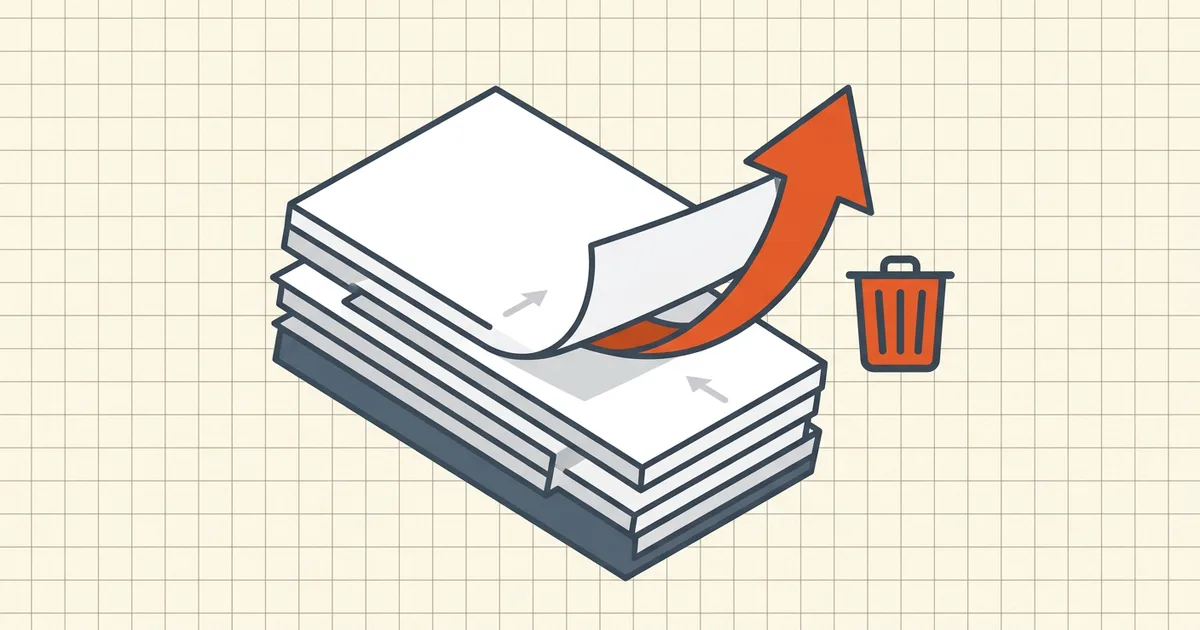
The invoice pack includes an internal notes page. The scan has three blank sheets at the end. The contract appendices contain the other party's privileged summary. Deleting pages before you hit send is the cheapest privacy and professionalism win available — provided the rebuild actually happens.
Route 1: Preview on macOS (cleanest native path)
- Open the PDF in Preview.
- View → Thumbnails (⌘Option2).
- Select the page(s) to remove — ⌘-click for multiples.
- Edit → Delete (or the Delete key).
- Save, then reopen and confirm page count and spot-check content.
Annotations on deleted pages go with them — intentional; check you didn't need a note that lived only there (annotations vs content).
Route 2: Windows — Edge or Acrobat organize view
- Edge (built into Windows): open the PDF → page thumbnails panel → select → trash control → save a copy.
- Acrobat (if installed): Organize Pages → select → Delete → Save As.
Same verification habit: close, reopen the output, count pages.
Route 3: Print-range re-export (works almost everywhere)
When a viewer can't delete but can print:
- Print → destination Save as PDF / Microsoft Print to PDF.
- Page range: enter the pages you keep (
1-4, 6-12style). - Save to a new file.
You get a rebuilt PDF containing only the range. Caveats: print path can drop links/structure (see Print vs Save); forms may flatten depending on dialog settings — fine when the form is finished, wrong when fields must stay live.
Route 4: Cut with merge (when you deleted too much or need ranges out)
Extract keepers by printing ranges to separate files, or rebuild order via a merger after dropping pages elsewhere. The mixed-size merge notes and document-level object limits apply to any rebuild: pages-in, structure-not-necessarily-in.
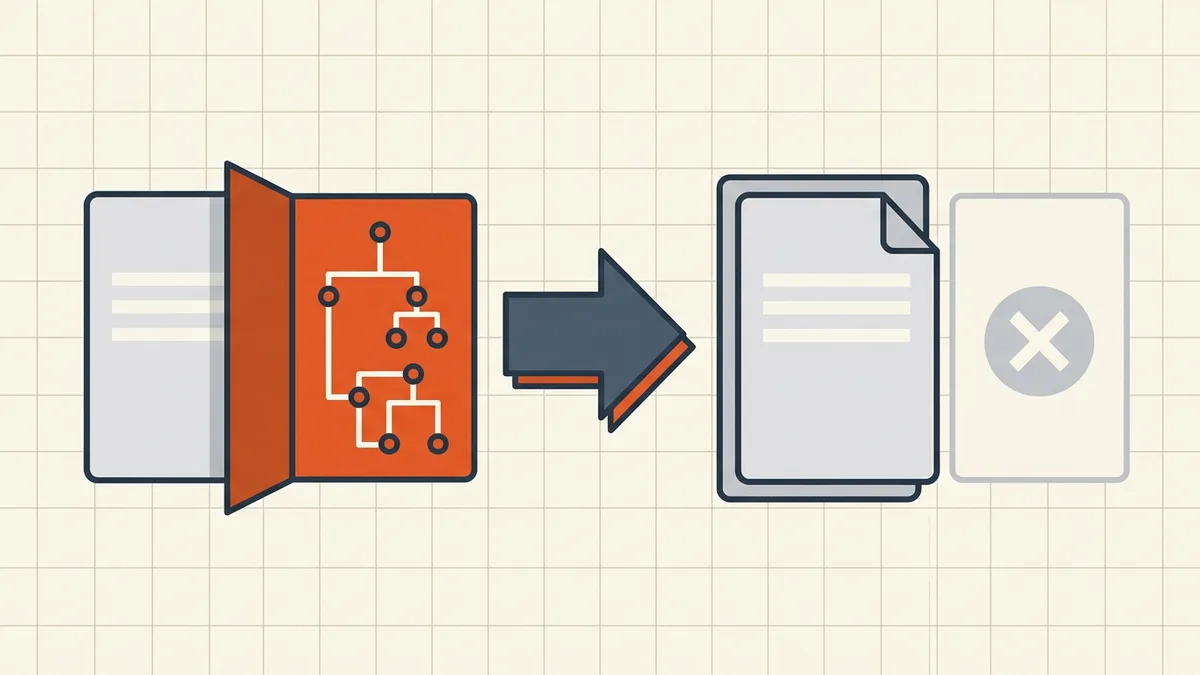
After the cut: what still travels
Page deletion rebuilds page list. It does not automatically handle:
- Metadata on the surviving file — scrub if the destination is uncontrolled (remove metadata);
- Hidden data / attachments riding on kept pages (cleanup scope);
- Sensitive content on pages you kept — that's redaction's job, not deletion's;
- Size — fewer pages helps, but image weight may still exceed caps (compress once after).
Run the pre-send checklist once on the rebuilt file — it's short.
Verify like an auditor
- Page count matches expectation.
- Old page numbers now show the right surviving content (no off-by-one).
- TOC/bookmarks/links still land correctly.
- Search for a string that lived only on a deleted page — zero hits.
- Properties/metadata glance for surprises.
Five checks, thirty seconds, and you never send the internal page again.
Scope note
BytesPDF doesn't currently ship delete-pages or split (tool list) — this guide sticks to OS-native routes you already own. Once pages are gone, compress, rename, or check before send the result with the local toolkit.
Frequently asked questions
How do I remove pages from a PDF for free?
On Mac, open in Preview → View → Thumbnails → select the page → Delete. On Windows, Edge's built-in PDF editor has page delete in the pages panel; Acrobat's organize-pages view also works (subscription for some builds). Browser-based page removers exist too — prefer ones that process locally when the content is sensitive.
Does removing a page actually delete the data?
If the tool rebuilds the file without those pages, the page content is gone from the output — that's the point. Verify: open the *saved output*, check page count, jump to old page numbers. Caveat: copies, backups, and email attachments of the original still exist; you've cleaned one artifact, not history.
Is deleting a page the same as redacting?
Only for that page's content in the rebuilt file. Redaction is for sensitive content *inside pages you're keeping* — hidden text, OCR layers, metadata. Deleting page 7 while page 3 still shows account numbers isn't redaction; it's filing. Use both when needed: delete pages you shouldn't share, [redact what remains](/blog/how-to-redact-a-pdf-properly).
Will links and bookmarks still work after I delete pages?
Not automatically. Internal links pointing at removed pages break; page-number bookmarks shift. After a page drop, click through the outline and any TOC links ([bookmark verification](/blog/merge-pdf-keep-bookmarks)). Rebuild bookmarks if the document still needs navigation.
Does BytesPDF have a delete-pages or split tool?
No — the current toolkit doesn't include split or page-delete (see [how it works](/how-it-works) for scope). This guide covers native routes you already have: Preview, Edge/Acrobat organize views, and print-range re-exports. When the cut is done, BytesPDF can still [compress](/compress-pdf) or [merge](/merge-pdf) the result.
Related comparisons
Source-led comparisons written by BytesPDF, with the conflict of interest disclosed on each page. They link official provider documentation rather than fabricated tests.