
Compress PDF for an Insurance Claim (Without Blurring Policy Numbers)
Claim adjusters reject blurry scans and oversized bundles in equal measure. Build claim PDFs that fit the portal's real number while keeping every number readable.
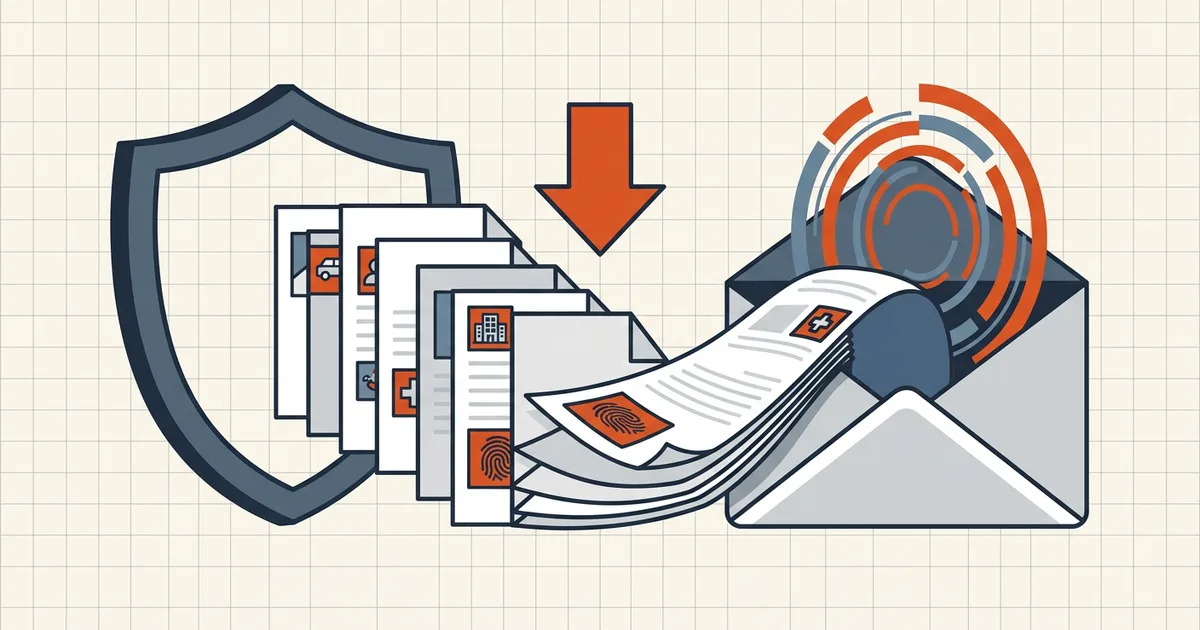
An adjuster's inbox is a legibility war. Your job: a claim pack that fits the portal's stated cap and survives close reading of every policy number, date, and amount. Size without sharpness is a bounce with extra steps.
Read the portal's number (the only number that matters)
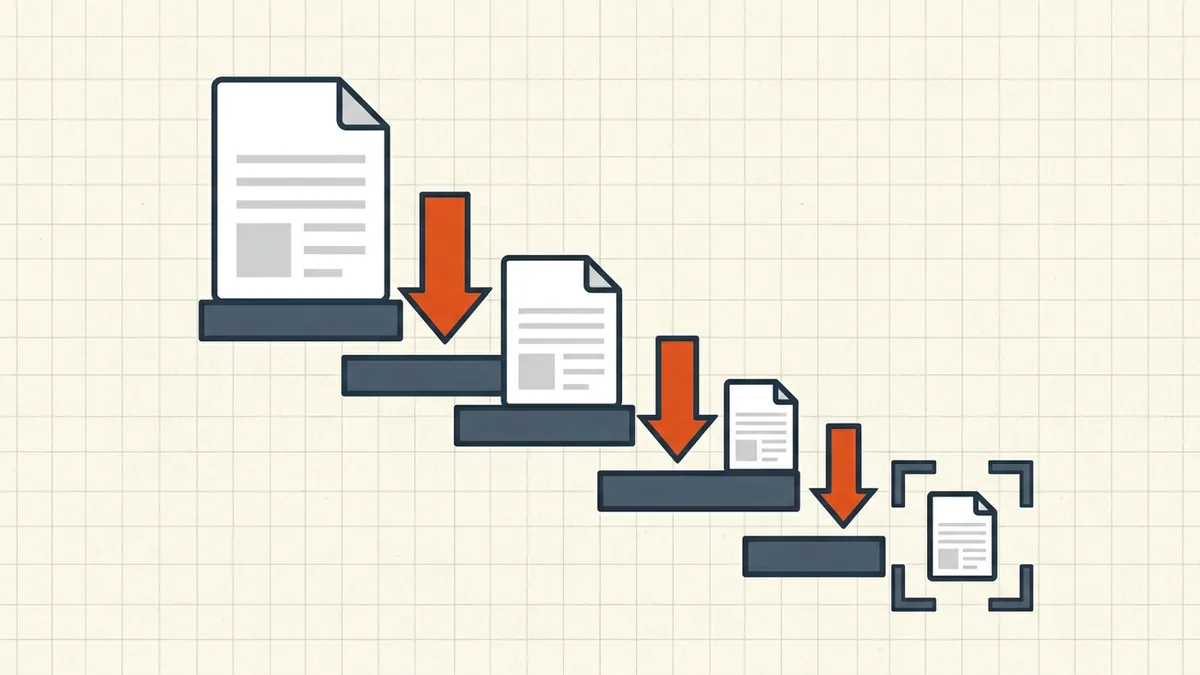
Insurer portals publish per-file and sometimes per-batch caps in the upload wizard itself. Blog tables — including this one — go stale the moment a carrier updates a limit. Practice: open your actual claim flow, screenshot the limit text, target ~10% under it (portal math and base64-style overhead are unforgiving at the exact boundary), then compress to that target.
What goes in a claim pack
Typical components (adjust to your policy and jurisdiction):
- Completed claim form (if the portal provides a PDF)
- Policy declaration page / policy number proof
- Identity document (if requested — redact unrelated IDs first if allowed)
- Invoices, repair estimates, medical bills, police reports — each legible
- Damage photos — as separate images or captioned PDF pages, per the form's accepted types
Keep originals uncompressed as your archive; ship the optimized pack.
Pack → compress → verify (the order)
- Scan/collect sources at sane resolution (capture guide; blurry-scan triage if something's already soft).
- Merge if one-slot (merge-then-compress sequence — don't compress five files then merge).
- One target-size pass to the portal's number (exact target).
- Legibility QA at 200%: policy numbers, amounts, dates, stamps, signatures. This is the step people skip and regret when the carrier asks for "a clearer copy."
- Metadata glance if the pack carries other people's data beyond the claim (scrub options).
- Pre-send checklist — orientation, order, filename, right file (checklist).
Bank-statement-heavy claims (financial loss evidence) rhyme with our portal statement guide: redaction only when the portal doesn't need the visible fields.
Photos vs multipage PDF
- Portal wants
PDF, JPG, PNGfields separately → upload photos as photos; don't force them into a PDF the form never asked for. - Portal wants "one supporting-documents PDF" → place photos as captioned pages (date + one-line description under each).
- Never let a 12MP photo × 30 images ride inside a "small" PDF without downsampling — that's how a 40MB monster misses a 5MB cap.
When the pack won't fit
Structural fixes beat deeper compression: split if the portal allows multiple documents (page deletion / ranges → use /blog/remove-pages-before-sharing), drop duplicate evidence, re-export born-digital sources instead of scanning paper. If numbers start softening, stop — illegible vs limits applies to insurers too.
Privacy posture
Claim PDFs are among the most sensitive files people handle (health, finance, identity). Prefer browser-local tools architecture for every prep step; then submit only through the insurer's official portal — never email claim packs to "adjuster" addresses you didn't verify.
Frequently asked questions
What size should an insurance claim PDF be?
Whatever the insurer's portal prints next to the upload field — they differ by company, product, and country (commonly low-single-digit MB per file, but that's an observation, not a guarantee). Read your claim wizard's number, target slightly under it, and verify. Don't trust blog tables that may be stale.
Should I combine all claim documents into one PDF?
If the portal has a single attachment slot, yes — order like a file folder: claim form first, then policy/ID, then invoices/reports, then photos-as-pages if required. If it has per-document fields, submit separately as labeled. Mixing the two formats is a common rejection cause.
How do I include damage photos in a PDF claim?
Either the portal accepts JPGs alongside PDFs (often simpler), or you place photos into a PDF page layout with captions (date/location). Avoid embedding huge full-resolution photos inside a multipage PDF when the portal wanted the photos as separate files — check the form's accepted types.
Will compression make medical bills or policy numbers unreadable?
It can, if pushed too far. Compress once at a moderate/target setting, then zoom to 200% on every critical field: policy numbers, dates, amounts, signatures, stamps. If a number softens, back off the aggressiveness or rescan that page at better settings — illegible evidence gets requests for resubmission, not approval.
Does BytesPDF upload my claim documents anywhere?
No — BytesPDF's compression, merge, and check tools run in the browser tab; selected PDFs aren't sent to BytesPDF servers. Claim content is sensitive (medical, financial, identity), so prefer local processing for any step before you hand the pack to the insurer's portal.
Related comparisons
Source-led comparisons written by BytesPDF, with the conflict of interest disclosed on each page. They link official provider documentation rather than fabricated tests.