
How to Remove Metadata from a PDF Before You Share It
The pages look clean. The file properties may still name you, your employer and your editor. Here's how to scrub PDF metadata properly and prove it worked.
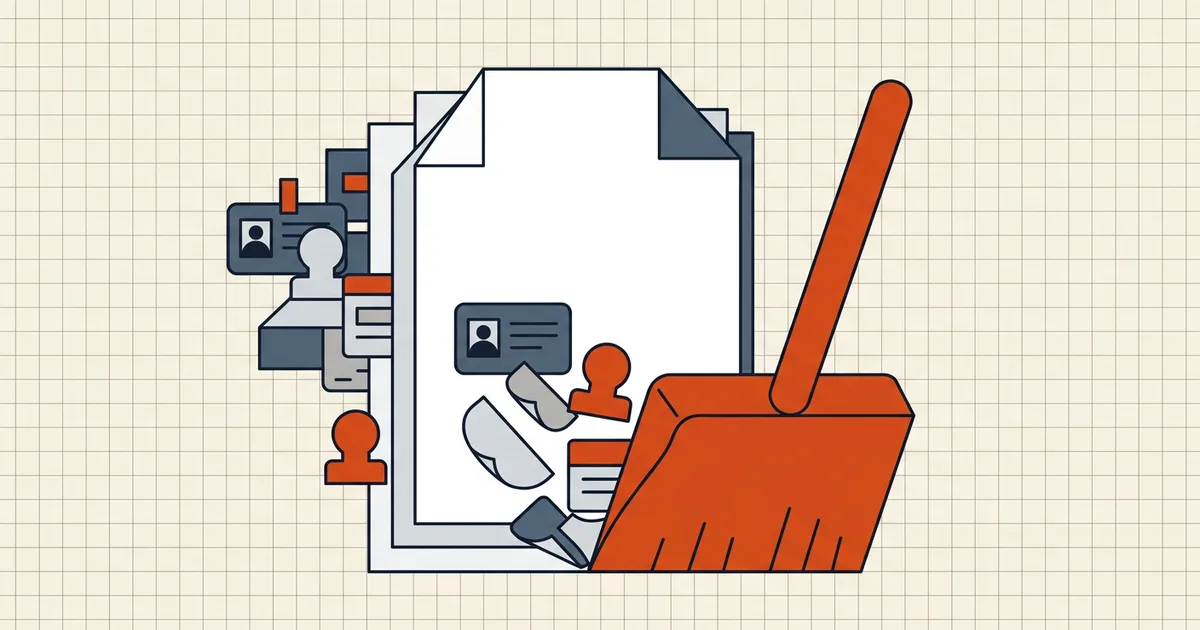
Every PDF carries a second, invisible document: the information panel. It can name the author, the employer's default user account, the exact software build that exported it, and a timestamped trail of edits. Before a file goes to a portal, a client, or a public records inbox, that panel deserves the same proofread the pages get.
What's actually stored in the file
Two overlapping stores hold PDF metadata:
- Document information dictionary — the classic fields: Title, Author, Subject, Keywords, Creator (the app that made the original), Producer (the app that wrote the PDF), CreationDate, ModDate.
- XMP packet — Adobe's XML metadata block, often carrying the same fields plus document IDs and history hints. Tools that clear only the classic fields leave XMP behind.
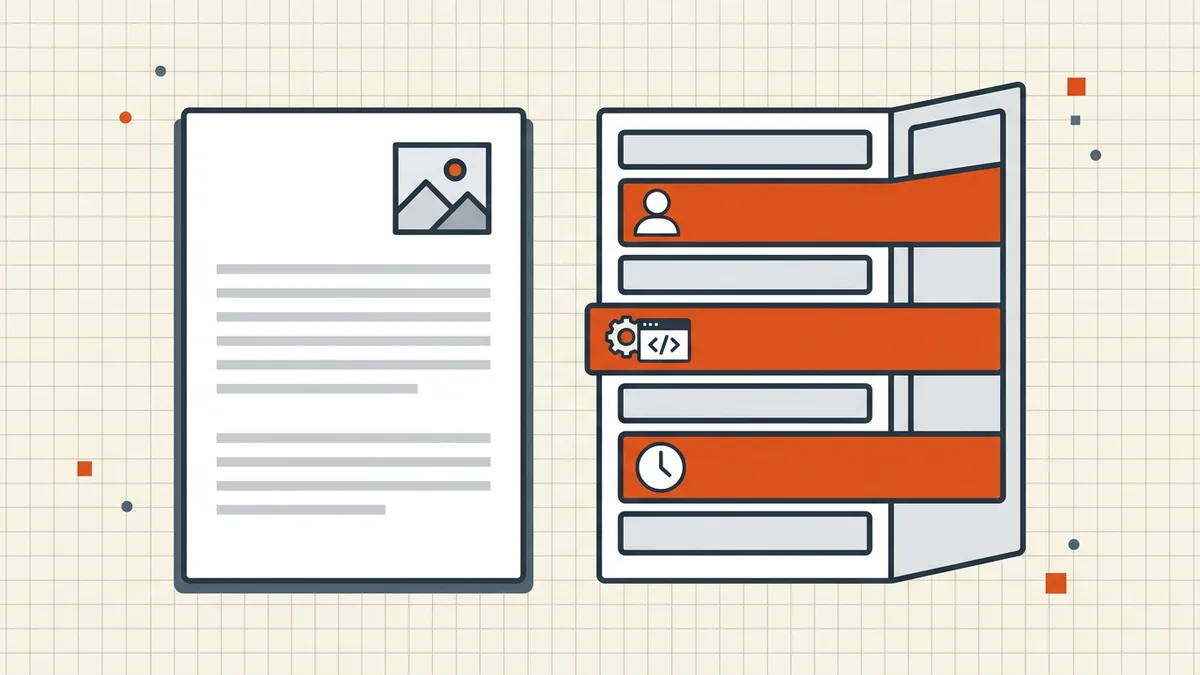
Embedded images can additionally carry EXIF-style tags from cameras and phones. And hidden content beyond metadata — attachments, comments, previous revisions — is a separate category covered in how to remove hidden data from a PDF.
Why it matters outside the paranoia use-case
- A public report can reveal who drafted it and which internal template it came from.
- A bid or application can expose that the "final" version was modified at 2 a.m. — useful context you did not mean to share.
- Uploaded documents get indexed. Search engines read PDF metadata; Author and Title fields surface in results and caches.
- Journalism and legal work treat metadata hygiene as standard practice for a reason: sources and work patterns leak through it. This is the same class of leak our what PDF metadata reveals guide walks through field by field.
Removing metadata, method by method
With a dedicated tool (fastest, verifiable)
BytesPDF Remove Metadata shows the fields it finds — author, app, timestamps — lets you scrub them, and runs entirely in your browser, so the file itself is never uploaded. That last property matters when the document is a bank statement or medical record; see our privacy risks of online PDF tools checklist for how to judge any tool, ours included.
With Adobe Acrobat Pro
File → Properties lets you clear the Description fields manually; Tools → Redact → Remove Hidden Information sweeps for metadata alongside comments, attachments and hidden text. Save as a new copy and re-inspect.
Command line: ExifTool
exiftool -all= file.pdf clears writable metadata in one pass; exiftool -Author= -CreatorTool= file.pdf removes selected fields. ExifTool is the verification gold standard precisely because it shows raw fields — run it on the file you're about to send.
What "Print to PDF" does and doesn't do
Printing to a fresh PDF rewrites the descriptive panel in most drivers and is a passable quick fix for text-only documents. It does not reliably remove embedded image EXIF, it re-compresses images (quality can drop), and it destroys digital signatures. Treat it as a fallback, not the scrub.
The step people skip: verify
A scrub you did not verify is a hope, not a control:
- Save the cleaned file under a new name (
report-clean.pdf). - Reopen it — in the Remove Metadata tool, or via right-click → Properties on Windows, Tools → Show Inspector in macOS Preview, or
exiftool report-clean.pdf. - Confirm the cleared fields are blank and no XMP surprises remain.
- Send that file — not the one still open in your editor.
Fit it into the pre-send routine
Metadata is item three on a five-minute list that also covers page order, orientation, file size limits and redaction sanity — all of it in what to check before sending a PDF. Working with contracts or anything signature-bound? The order of operations matters (edit → clean → compress → sign), explained in send a contract as a secure PDF.
Frequently asked questions
What metadata does a PDF contain?
Common fields are author name, title, subject, keywords, the creating application and its version (Creator/Producer), and creation and modification timestamps. Some files also carry XMP packets with editing-history identifiers.
Does removing metadata change the visible document?
No. Metadata cleanup targets hidden document properties, not page content. The pages render identically — only the file's information panel changes.
Why does metadata come back after I edit the PDF?
Most editors rewrite properties on save: fresh timestamps, their own Producer string, sometimes your account name. Run the scrub as the final step on the exact file you will send.
Does 'Print to PDF' remove metadata?
It resets some descriptive fields, but results vary by printer driver and it re-renders pages. For a deliberate scrub with verification, use a metadata tool instead — and note that image-level EXIF data inside the PDF can survive both approaches.
How do I check that the metadata is gone?
Reopen the cleaned file and inspect its properties (in BytesPDF's Remove Metadata tool the found fields are shown before and after; in Acrobat, File → Properties; command-line users can run `exiftool`). The fields you cleared should be blank.
Related comparisons
Source-led comparisons written by BytesPDF, with the conflict of interest disclosed on each page. They link official provider documentation rather than fabricated tests.