
Convert PDF to JPG (Every Page) — DPI, Quality, and What You Lose
Social posts, CMS uploads, and slide decks want images; the document is a PDF. How to rasterize pages sanely — and why PDF-to-JPG is a one-way quality street.
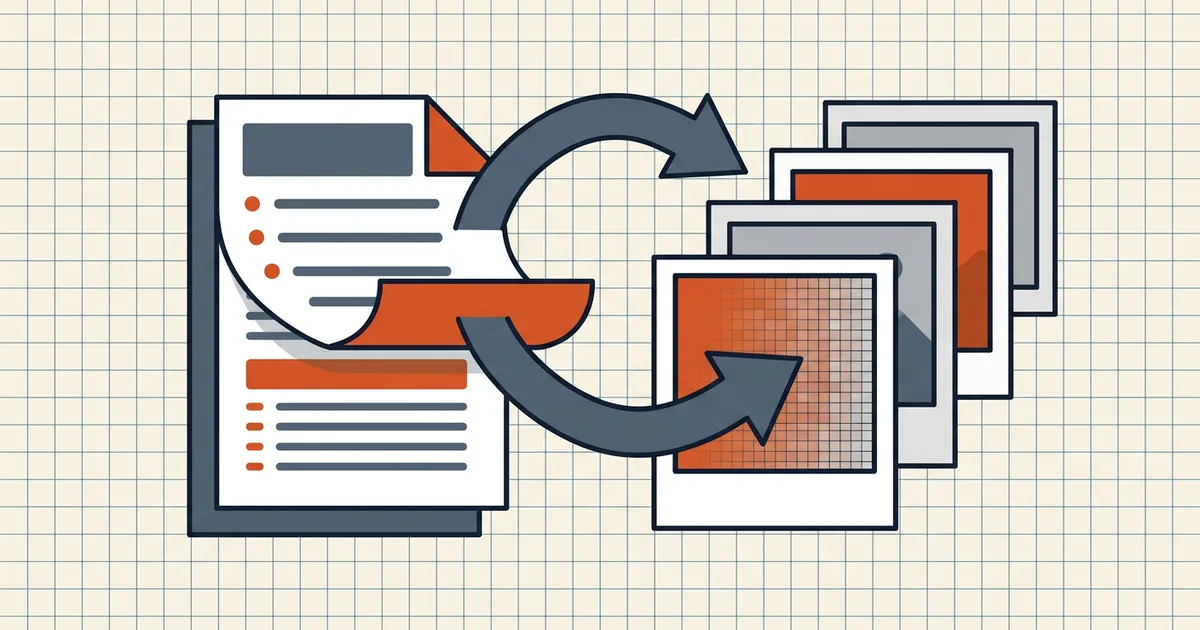
PDFs are for documents. JPGs are for everywhere else. Crossing the bridge is easy — doing it without regretting resolution five minutes later takes two decisions.
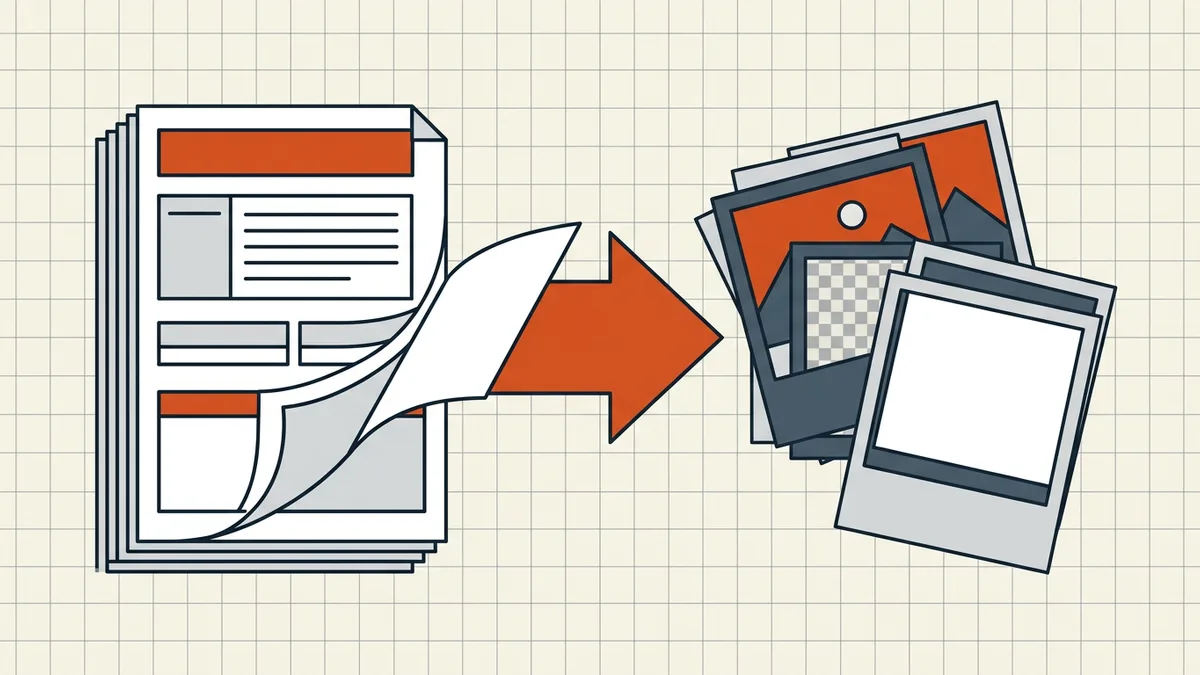
Decision 1 — Page raster or image extract?
| Page → JPG | Extract embedded images | |
|---|---|---|
| Output | One JPG per page, layout intact | Individual photos/graphics only |
| Text | Flattened into pixels | Stays behind in the PDF |
| Use | Social previews, CMS heroes, slide embeds | Asset recovery, redesign |
Wrong choice produces either a full-page meme nobody wanted or a floating logo missing context.
Decision 2 — DPI + quality
- Thumbnails: 72–96 DPI, quality ~70.
- Web share / email: ~150 DPI, quality 80–90.
- Print flyer / OCR assist: ~300 DPI, quality 90–100.
Quality sliders trade bytes for edge crispness on text — screenshots of text at 60% quality look sooty. When unsure, convert one representative page at two settings and zoom before batch-running a 40-page deck.
Pipeline habits
- Convert from the clean master (post-cleanup, correct pages only).
- Naming:
report_p01.jpg… keeps ZIPs sane (naming sense). - Re-import later? Images → packs pipeline closes the loop for portals that demanded images, then PDFs, then your patience.
- EXIF: some converters stamp fields — scrub if the JPGs travel publicly (hidden data).
- Master retention: keep the PDF; JPGs are derivatives, not archives (PDF/A mindset even if you don't certify).
What you lose (say it out loud)
Searchability, selectable text, accessibility tags, compression elegance (big photo-JPEGs of text-heavy pages can exceed the original PDF), and future editability. Vector text at 150 DPI is fine on screens and wrong for 600-DPI print runs — know your destination.
Honest BytesPDF scope
No PDF→JPG (or any image) converter at BytesPDF. Direction of travel for our converters: Word/Excel → PDF. Around the JPG workflow we still help: prep the source PDF (compress for smaller masters, check, metadata scrub) before someone else rasterizes it.
Platform constraints worth knowing
Some upload widgets (social, CMS media libraries, certain portals) accept image/jpeg only — that's the entire reason this conversion exists for many readers. Check pixel dimensions too: platforms reject undersized heroes and reject multi‑megabyte phone dumps alike. Convert for the slot: modest DPI, quality ~85, crop after if the template demands a ratio — from the JPG, not by mangling the PDF master.
Frequently asked questions
How do I convert a PDF to JPG images?
Use an image export in a desktop editor, or a PDF→JPG converter: each page renders to its own JPG at a chosen DPI/quality. Pick settings for the destination — ~150 DPI / 80–90% quality for web sharing, ~300 DPI for print-ish use — then download pages individually or as a ZIP.
What DPI should I use for PDF to JPG?
Match use: 72–96 for thumbnails; ~150 for screen/email; ~300 for print and OCR-friendly captures. Pixel dimensions scale with DPI × page size; file size scales roughly with pixels. Text stays sharp only while DPI is adequate — zoom past that and raster pixels show.
Is converting PDF to JPG lossy?
Yes, twice conceptually: pages rasterize (vector text becomes pixels) and JPEG compression adds artifacts. You cannot search, select, or reflow the result. Keep the PDF as master; treat JPGs as distribution derivatives for platforms that demand images.
PDF to JPG vs extracting embedded images — which do I want?
Page raster = whole page as one picture (layout included). Embedded-image extract = pull the original photos/logos out without surrounding text. Different jobs: social preview of page 1 wants raster; recovering a photo wants extract. Don't expect extract to reconstruct paragraphs.
Does BytesPDF convert PDF to JPG?
No — no image export tools ship in BytesPDF (Word/Excel → PDF only; documented boundary). Pipeline pattern: dedicated PDF→JPG for images you need; BytesPDF for compression, cleanup, check, and privacy passes on either the PDF master or surrounding workflow.
Related comparisons
Source-led comparisons written by BytesPDF, with the conflict of interest disclosed on each page. They link official provider documentation rather than fabricated tests.