
Excel to PDF Without Cut-Off Columns (Every Sheet, No Surprises)
Half the table lands on paper; the rest falls off the right edge. The fix is page geometry — here's how to make every column survive the export.
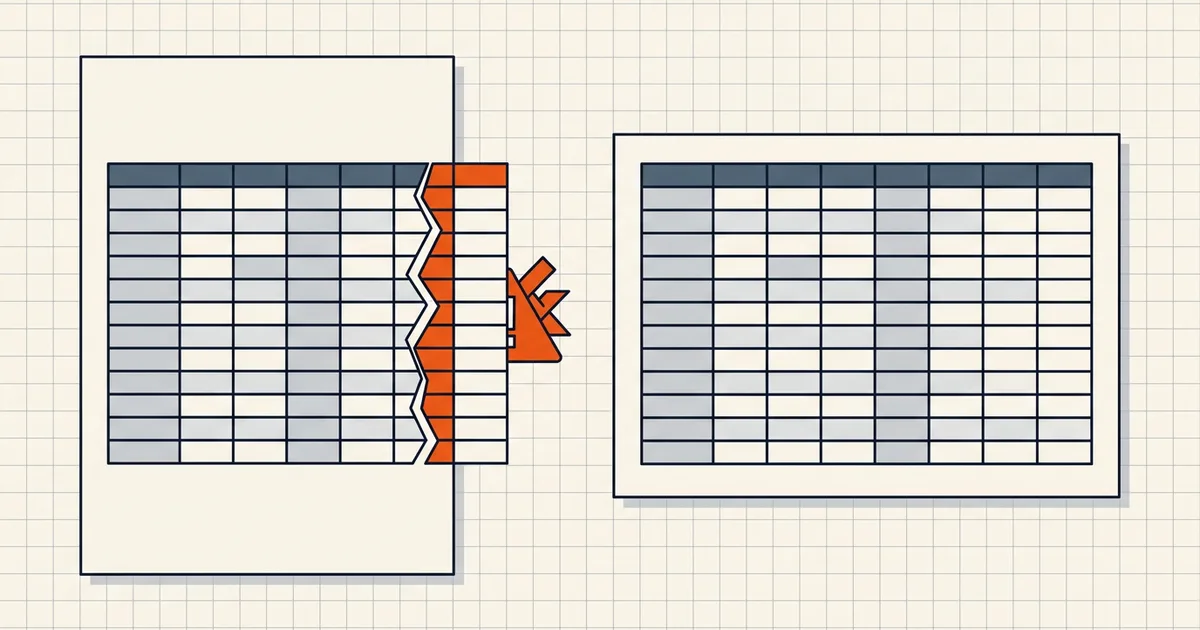
The spreadsheet is perfect. The PDF is missing its last four columns. Somewhere between the grid and the page, print geometry won — and the recipient of your "final" report reads half the story. Here's why exports clip, and how to make an Excel-to-PDF conversion that shows the whole sheet.
Why columns fall off the right edge
Excel's print engine lays a sheet onto paper: a printable area (page size minus margins), an orientation, an optional print area, and scaling rules. Content wider than the printable area does one of two things depending on settings — flows onto additional pages or gets clipped at the boundary. A PDF export is a print: it inherits the same geometry, or the converter invents its own.
Common culprits, in order:
- Scaling set to a fixed percentage (or 100%) on a wide table.
- Portrait orientation for a landscape-shaped table.
- Wide margins or header/footer bands eating the printable width.
- A stale print area defined for an earlier version of the sheet — hidden columns outside it simply don't print.
The fixes that work
In Excel itself (before any export)
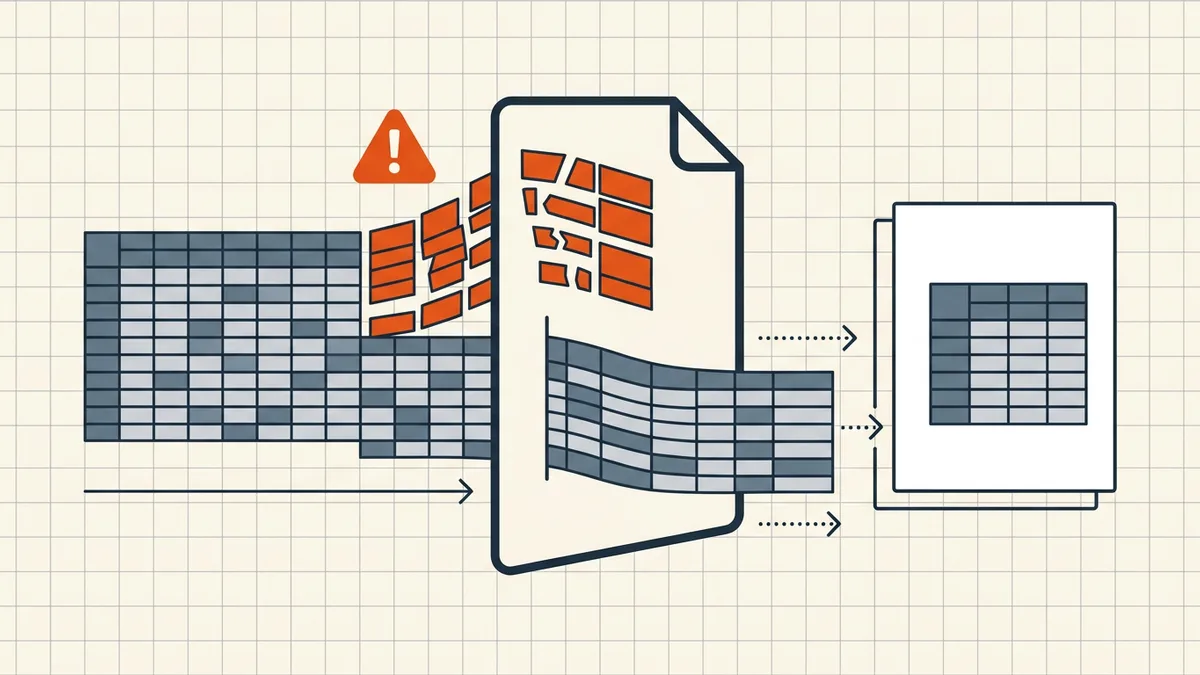
- Scale to fit width. Page Layout → Scale to Fit → Width: 1 page, Height: Automatic. This is the single fix for "right columns missing": rows may flow to more pages, columns never clip.
- Landscape for wide tables. Page Layout → Orientation → Landscape.
- Narrow margins. Page Layout → Margins → Narrow reclaims printable width cheaply.
- Clear stale print areas. Page Layout → Print Area → Clear.
- Repeat headers. Page Layout → Print Titles → Rows to repeat at top — multi-page tables that lose their header row on page 2 are a review hazard.
- Proof in Print Preview. Ctrl+P / Cmd+P shows exactly the PDF you'll get. Scroll every page.
In a local converter
BytesPDF Excel to PDF lays out every sheet as a clean grid locally in your browser — and it takes the spreadsheet-semantics problems seriously at the same time: dates come out as dates (formatted values, not serial numbers), and wide grids fit the page instead of silently cutting off. Nothing uploads; the workbook never leaves the device — relevant for payroll, financials and client data (how local processing compares).
The other export surprises worth checking
- Dates as raw numbers. The serial-number trap: what you see formatted on screen (
2026-09-23) is display; the cell holds a number. Export paths that ignore formats show45923. Proof dates in the output. - Vanishing gridlines. Sheet gridlines are view aids and don't print by default; borders do. If you rely on gridlines for readability, enable their print or apply borders before export.
- Hidden rows/columns and hidden sheets. Export behavior varies — a hidden payroll column may or may not travel. Make sensitive columns deleted in a copy, not merely hidden, and see the hidden-data guide for PDF-side traps.
- Formulas showing results vs. formulas. What displays is what exports; but a sheet saved in "show formulas" mode exports the formulas.
- Huge sheets at fit-to-width. A 40-column sheet scaled to one page width becomes unreadable — split the table across two exports or accept multiple pages wide with explicit page breaks rather than microtype.
The two-minute proofing ritual
- Page count matches expectation; no single-column orphan pages.
- Every column visible at 100% zoom on the last page too.
- Dates read as dates; long numbers didn't turn into
#####-style truncation or scientific notation. - Header rows repeated on each page of long tables.
- One open on a second device before the file leaves.
Same conversion family, different geometry: Word to PDF formatting failures follow their own rules — fonts and tables there, pagination and cell formats here.
Frequently asked questions
Why does Excel cut off columns when I convert to PDF?
The print layout has no room for them. Excel paginates by the print area, page size, orientation and scaling — content wider than the printable area either flows to extra pages or is clipped, depending on settings. Fit-to-width scaling, landscape orientation, or narrower margins fix it.
How do I fit all columns on one PDF page?
Set scaling to 'Fit All Columns on One Page' (Page Layout → Scale to Fit → Width: 1 page) and switch orientation to Landscape for wide tables. In a local converter that lays sheets out automatically, check the preview that all columns fit the page width before exporting.
Why do dates show as numbers in my PDF?
Spreadsheets store dates as serial numbers and display them with formats. Export paths that read raw cell values instead of formatted display text show 45923 instead of 9/23/2026. Use an export that respects the sheet's number formats.
How do I export every sheet of a workbook to PDF?
Choose 'Print Entire Workbook' / export all sheets rather than the active sheet. Check that each sheet's pagination is complete — hidden sheets and print areas can silently exclude data.