
How to Permanently Rotate a PDF and Save It So It Stays Rotated
Viewers can spin a page on screen without changing the file. Learn why rotations undo themselves and how to bake the rotation into the PDF for good.
You rotated a page, hit save, sent the document — and the recipient swears it arrived sideways. The file is not haunted. Almost every "my rotation keeps reverting" problem comes from one distinction that PDF viewers never explain: rotating the view is not the same as rotating the page.
Temporary view rotation vs. stored page rotation
PDF pages carry a rotation entry in their page dictionary — the \/Rotate key — holding 0, 90, 180, or 270. Every compliant viewer honors it when rendering the page. This is file-level state.
View rotation is different. Adobe Acrobat Reader's View → Rotate View, the arrow keys in browser preview panes, and many phone PDF viewers apply a temporary camera-turn to your screen only. Nothing in the file changes. Close the tab or send the file, and the original orientation is still there — because the original orientation was never touched.
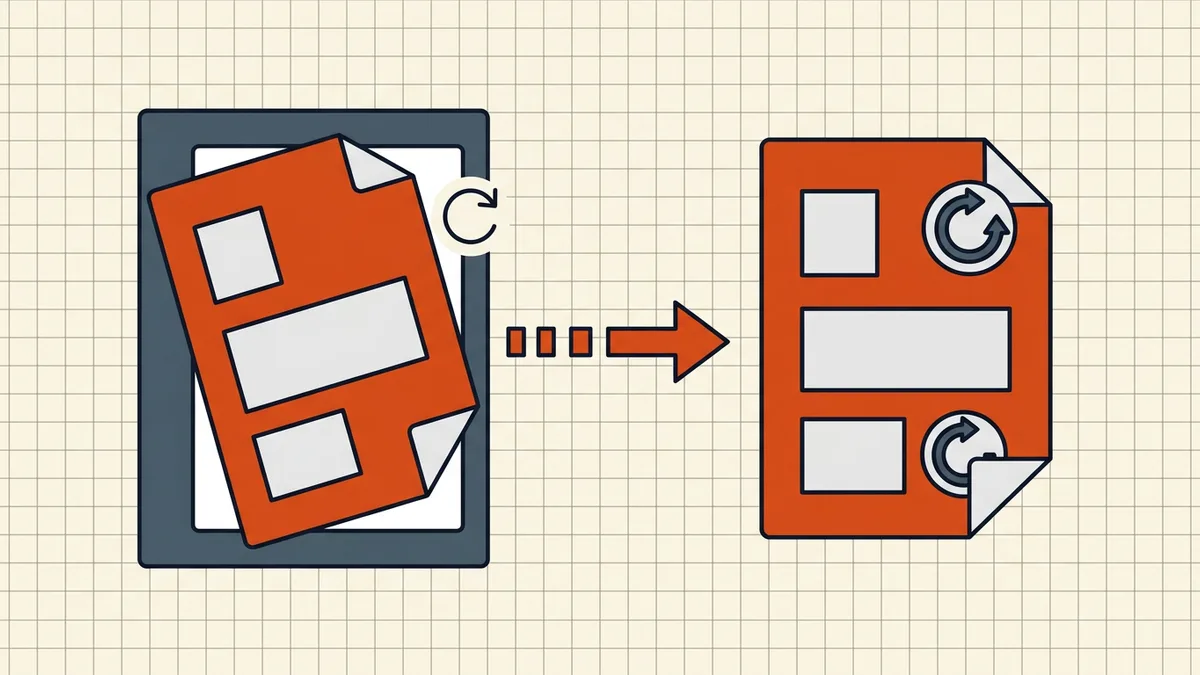
The tell: if rotating and then closing and reopening the file in the same viewer shows the old orientation, you rotated the view. A stored rotation survives every reopen, on every device.
How to permanently rotate a PDF
The goal is to write new \/Rotate values and save a new file:
- Open a rotate tool that re-saves the file (for example BytesPDF Rotate PDF, which processes the file in your browser and downloads rotated copies).
- Set the rotation per page or for the whole document — scanned stacks often need "every page", a single landscape exhibit needs "page 4 only".
- Download the rotated copy and reopen it once to confirm the orientation stuck.
The macOS Preview trap
Preview's rotate buttons (⌘L / ⌘R) followed by File → Save do write rotation in current macOS versions — but the widely reported failure is View-only rotation followed by a plain save of an unchanged file, or a Quick Look check that only shows the temporary view. If a Preview-rotated file still reverts for a recipient, re-export with File → Export As… to force a fresh write, and verify on a second device before sending.
Command-line and print-to-PDF routes
For scripted batch work, qpdf --rotate=+90:1-z in.pdf out.pdf rewrites every page's rotation directly (the 1-z page range means all pages). Print-to-PDF also produces a permanently rotated file — but it re-renders pages, which destroys the text layer on scanned files and invalidates signatures, so treat it as a last resort, not the default.
Rotating in batches
A folder of scans fed sideways is common (the "scan everything landscape" school of document photography). Rotating forty files one at a time is where pattern-based batch tooling earns its keep — Rename PDFs in Bulk style workflows and BytesPDF's rotate batch mode both apply one rule to many files and hand back a ZIP of corrected copies. Keep naming conventions consistent (2026-09-23_statement_rotated.pdf) so the corrected batch sorts back into order.
What rotation does not fix
- Wrong page order. Rotating page 5 does not move it. That is a merge/organize job — see how to merge PDFs in the right order workflows or the merge tool.
- Content that is genuinely sideways inside the page. If a chart image was inserted rotated, the page rotation flag turns the whole page around it. Rare, but it happens with phone scans of printed screenshots.
- Signatures. A rewritten file is a different file. Compress, rotate, and clean first, then sign the final copy — never the other way around.
Rotate PDFs without uploading them
Orientation of bank statements, medical records, and ID scans is not sensitive content — but the pages themselves are. BytesPDF rotates pages in your browser: the file is not uploaded to a server, which you can verify the same way you would for any web tool (our privacy risks of online PDF tools guide shows what to check). Limits are 150 MB per file on desktop and 50 MB on mobile, and files with detected digital signatures are refused rather than silently broken.
Before you send the corrected file
A rotated document is one item on a larger pre-send list: orientation on every page, page order, and — if the file went through any editor — hidden metadata and leftover revisions. Our pre-send checklist covers the full pass, and the free Check PDF tool walks through it interactively.
Rotated the wrong way on paper but fine on screen? That is a different problem — read why PDFs print sideways and how to fix it.
Frequently asked questions
Why does my PDF rotation disappear when I email it?
Most likely you rotated the view, not the file. Viewers like Adobe Reader and browser preview panes store temporary view rotation outside the document, so the emailed copy still has the original orientation.
How do I make a PDF rotation permanent?
Use a tool that rewrites each page's /Rotate entry and saves a new file. The rotation is then stored inside the PDF itself and every viewer honors it.
Does rotating a PDF change its content?
A stored page rotation changes the page's orientation flag and how the page is drawn; it does not rewrite text or images. Still, the file's bytes change, so an existing digital signature will no longer verify — sign after rotating, not before.
Can I rotate just one page of a PDF?
Yes. Per-page rotation is the normal case — page 3 scanned upside down does not mean the other pages need turning. BytesPDF's Rotate PDF tool saves permanent rotated copies with per-page or whole-batch control.
Related comparisons
Source-led comparisons written by BytesPDF, with the conflict of interest disclosed on each page. They link official provider documentation rather than fabricated tests.