
How to Make a Scanned PDF Searchable (Without Uploading It)
Ctrl+F finds nothing because the scan is a picture. OCR writes the words underneath — here's how it works, how to run it locally, and how to verify it.
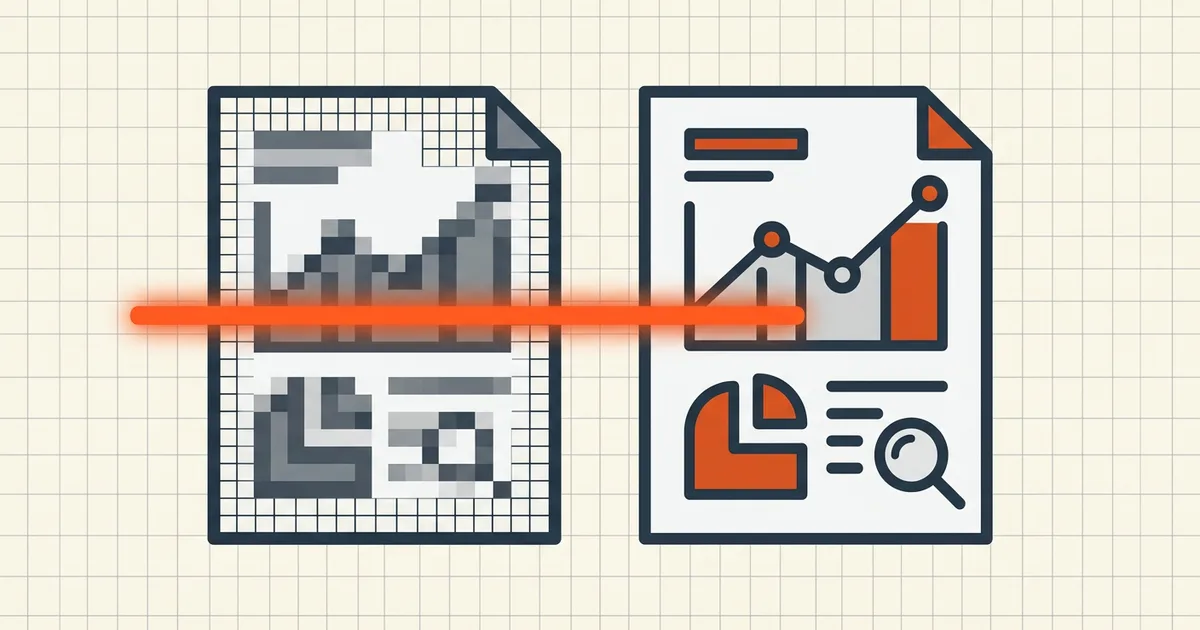
A scanned PDF is a photograph of paper. Your viewer shows words; the file contains pixels. That's why Ctrl+F finds nothing, copy returns garbage or nothing, screen readers skip the content, and portal search boxes treat your document as blank. The fix is OCR — and the interesting questions are where it runs and what it leaves behind.
What OCR actually adds
Optical character recognition analyzes each page image, recognizes characters and words, and writes an invisible text layer aligned under the image. The document looks identical; now the words underneath are real text: searchable, selectable, and readable by assistive technology and indexing engines.
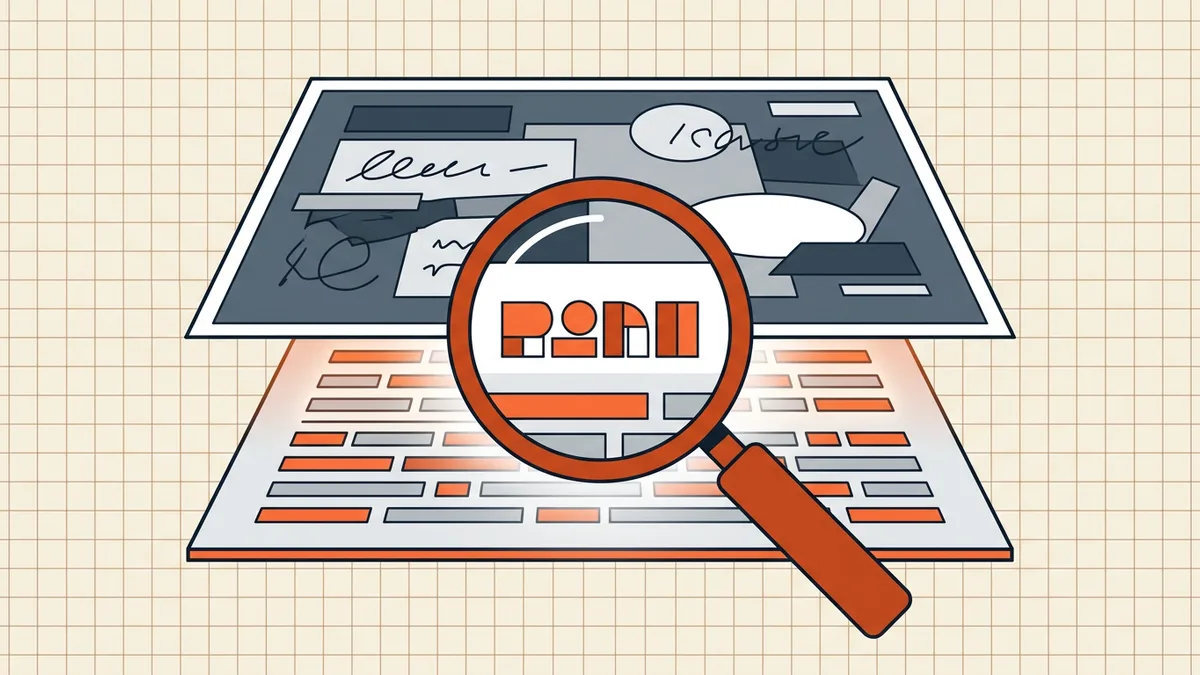
That layer is the whole trick behind "searchable PDF" scanning defaults, portal full-text search, and e-discovery. It's also why the layer deserves respect on the way out of your organization (below).
Making a scan searchable, step by step
- Check whether it's needed. Try selecting text with your cursor. If nothing selects, it's an image. (Our how to tell if a PDF is scanned answer covers the quick tests.)
- Run OCR in a place you trust. BytesPDF OCR recognizes pages with a local engine in your browser — the pages never leave the device, which matters for passports, statements and medical scans (is online OCR safe?). On macOS, opening a scan in Preview exposes Live Text selection on clear scans; open-source Tesseract covers scripted desktop use.
- Pick the document language if the tool offers it — recognition quality measurably depends on matching the language model.
- Proofread the risky fields. OCR is very good and imperfect: proper names, dates, account digits and amounts are where errors cluster. Check them against the image.
- Verify the layer. Ctrl+F a phrase from the middle of the document and confirm search lands on it; select and copy a sentence.
When to OCR — and when to leave a scan alone
| Situation | OCR? | Why |
|---|---|---|
| Archiving, portals, e-discovery | Yes | Search and indexing are the point |
| Accessible public documents | Yes | Screen readers need the text layer |
| Before keyword-based batch renaming | Yes | Renaming tools read the text layer |
| Before redaction, carelessly | No | See below |
| Artwork-only scans where text is noise | Optional | OCR may add misreads to search |
The redaction interaction (read before blacking anything out)
The text layer OCR adds is a feature until the day you redact. Box over the image of a name and the invisible text still contains the name — copy-paste from the "empty" region returns it verbatim. This is one of the black-box leak modes in its purest form.
If the document needs redaction: destroy the text under the marks with a true redaction tool (how to redact properly), and only then consider re-running OCR on the clean output.
Keeping the workflow private end to end
Recognition is the most invasive step in most scan workflows — it's the one that reads everything. If the documents are the sensitive kind (and scans usually are: IDs, statements, records), where OCR runs is a first-order decision, not fine print. The full evaluation — upload flows, verification techniques, what "we delete after processing" does and doesn't promise — is in is online OCR safe? Where your document goes.
Once the text layer is in, the file is ready for the rest of the outbound list — pre-send checks, metadata hygiene, size limits — like any born-digital PDF.
Frequently asked questions
Why can't I search or copy text in a scanned PDF?
A scan stores the page as an image — pixels, not text. Search and copy need a text layer. OCR (optical character recognition) reads the image and writes that layer into the PDF.
How do I make a PDF searchable for free?
Run OCR on it. BytesPDF's OCR tool recognizes the text locally in your browser and saves a searchable PDF; the pages never leave your device. Desktop options include Preview on macOS (Live Text) and open-source Tesseract.
Does OCR change how the PDF looks?
A standard searchable-PDF output keeps the scanned appearance and adds an invisible text layer underneath. The visual page stays the same.
How accurate is OCR on scans?
It depends on scan quality. Clean 300-DPI straight-on scans read well; skewed, low-contrast, or handwriting-heavy pages produce errors. Always proofread names, dates and amounts against the image.
Does the hidden text layer matter for redaction?
Critically. If you black out part of a searchable scan without removing the text layer, the 'hidden' words remain copyable. Redact with a tool that destroys the text, or flatten and re-OCR carefully — see the redaction guide.
Related comparisons
Source-led comparisons written by BytesPDF, with the conflict of interest disclosed on each page. They link official provider documentation rather than fabricated tests.