
How to Improve OCR Accuracy on Scanned Documents (Fix Garbled Text)
Garbled OCR output is almost never the engine's fault. Match the error pattern to its root cause — low DPI, skew, noise, fading — and fix it upstream for once.
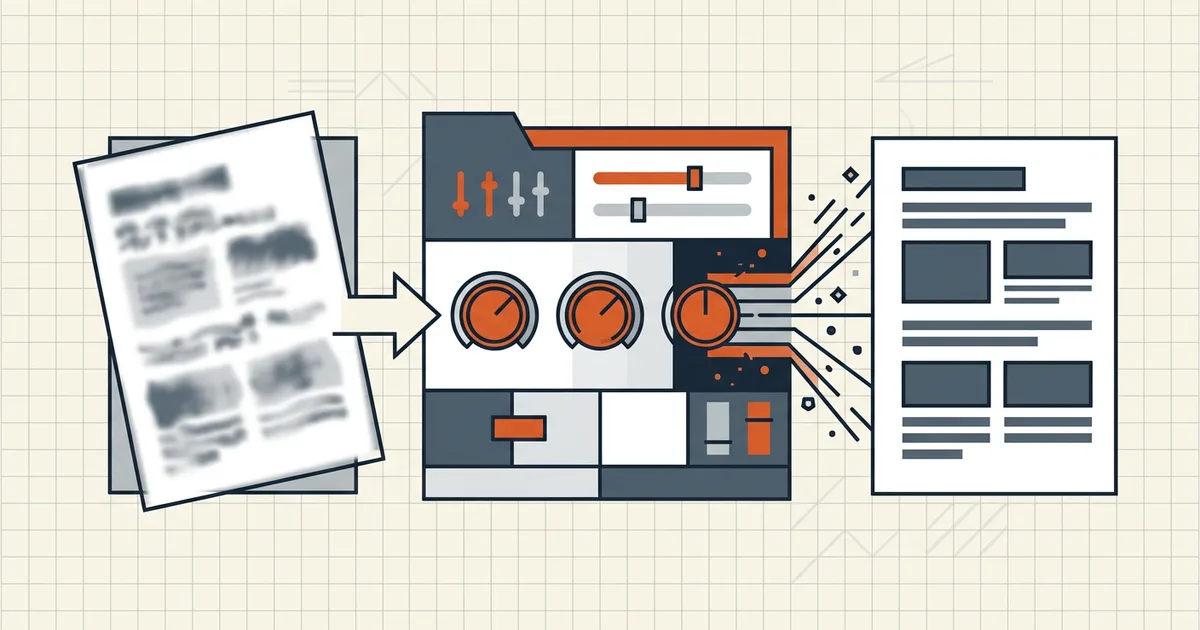
"The OCR is bad" usually means "the input is bad." Recognition engines are genuinely good at clean printed text — when output comes back garbled, the cause is traceable to the image, in a predictable order. Fix upstream and the same engine suddenly looks brilliant.
Read the error pattern first
Different failure patterns point at different causes — spend thirty seconds diagnosing before touching a dial:
| What you see in the output | Likely root cause |
|---|---|
| Random character soup across whole pages | Too-low DPI, or heavy compression artifacts |
| Line-level drift, words walking uphill | Skew — pages not straight |
| Dropped words on faded/gray text | Weak contrast; binarization threshold too aggressive |
| Consistent misreads of specific pairs (l/1, O/0, rn/m) | Low resolution at small type sizes |
| Recognized fine in English, garbage on other scripts | Wrong language profile selected |
| Clean text layer but ugly alignment in search | OCR ran on an already-compressed copy |
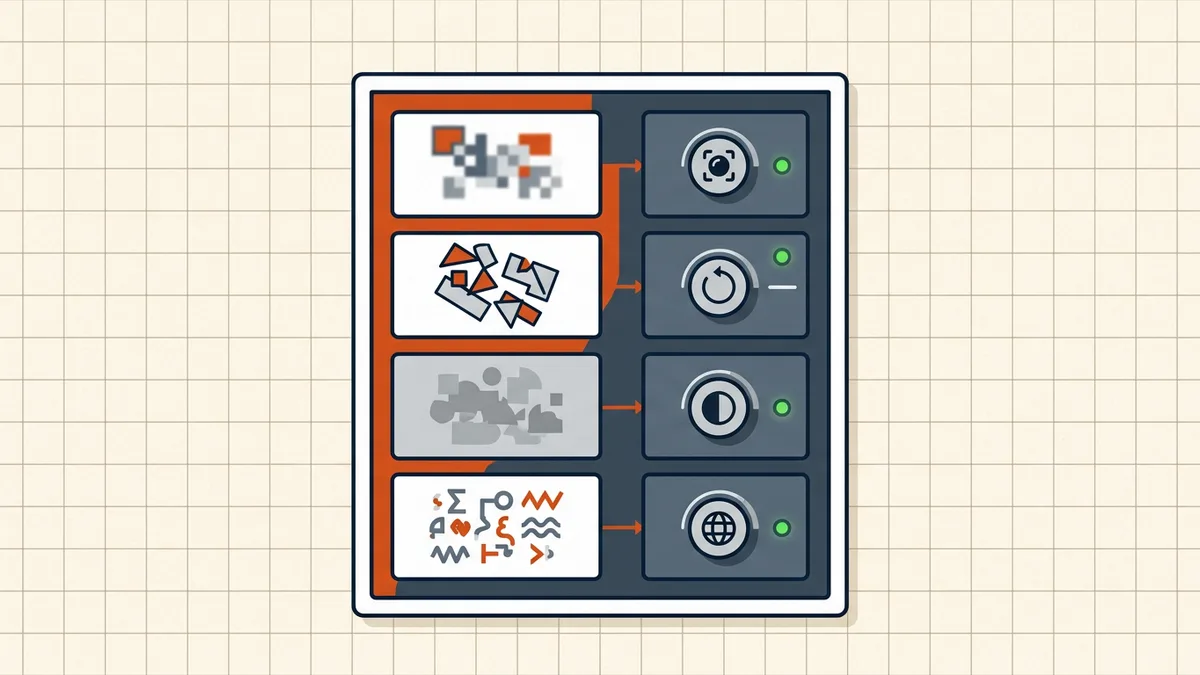
The fix ladder, in dependency order
Order matters — later fixes are wasted if earlier ones are wrong:
- Resolution: rescan or re-export at 300 DPI minimum (400–600 for fine print). You cannot upscale your way out of a 150 DPI original — the information isn't there (capture settings guide).
- Deskew: straighten to horizontal text lines. Even 1–2° matters.
- Noise: remove speckles, fax artifacts, JPEG halos. Avoid low-quality JPEG at save time — TIFF or quality-PDF captures avoid the problem entirely.
- Contrast: lift faint text off the background; crop dark borders and shadows (scanner lid gaps are a classic).
- Language profile: tell the engine what script it's reading — wrong language settings produce confident nonsense.
Then re-run recognition on the preprocessed original — not on the mangled first output (searchable-PDF mechanics).
Compression interacts with all of it
Each save-as-JPEG adds edge halos the engine treats as texture. If your pipeline is scan → compress → OCR, reverse it: scan → OCR → verify → compress the searchable result. The searchable text layer compresses nearly free (it's tiny text), while the page images get the size reduction you wanted — the full sequencing logic lives in convert scan to text and the size-vs-quality questions.
Where recognition runs still matters
Accuracy settings are half the story; the other half is whether your pages are being uploaded to someone's server for "free OCR" — medical records and contracts shouldn't take that route casually (evaluation checklist). BytesPDF OCR PDF runs recognition in the browser tab on-device — you get the same fix ladder without adding an upload to the workflow (architecture compared).
Frequently asked questions
Why does OCR produce garbage text from my scan?
Almost always one of five input problems: too-low resolution (under ~300 DPI), skewed pages, noise/compression artifacts, weak contrast on faded originals, or the wrong recognition language. The engine transcribes what it sees — fix the image and the text usually snaps into place.
What DPI gives the best OCR results?
300 DPI is the standard floor for clean print; 400–600 DPI for small type, fine print, or faint originals. Below 200 DPI, character edges break up and similar glyphs (rn/m, l/1, O/0) collapse into each other. More DPI beyond ~600 mostly inflates file size, not accuracy.
Should I scan in color or black and white for OCR?
Grayscale or color usually beats pure black-and-white: binarization at capture throws away shading information the engine could have used on faint or noisy text. Use color/grayscale at capture, and let the OCR tool threshold internally if it supports that.
Do I need to straighten the page before OCR?
Yes — even one or two degrees of skew measurably hurts recognition, because the engine expects horizontal text lines. Deskew first; it's the highest-leverage thirty seconds in the whole pipeline.
Will compressing a scan before OCR hurt accuracy?
Heavy JPEG compression adds halos around letter edges that the engine reads as noise — OCR on an already-over-compressed copy is a common failure. Run OCR on the original scan (or a lightly compressed one), not on a heavily compressed derivative; compress the searchable output afterwards if you need size.
Related comparisons
Source-led comparisons written by BytesPDF, with the conflict of interest disclosed on each page. They link official provider documentation rather than fabricated tests.