
Whiten a Scanned PDF: Remove Gray, Yellow, and Shadow Backgrounds
A dull scan background isn't 'character' — it's noise that burns toner and muddies OCR. Whitening techniques, where aggressive cleanup destroys stamps, and the rescan that beats post-processing.
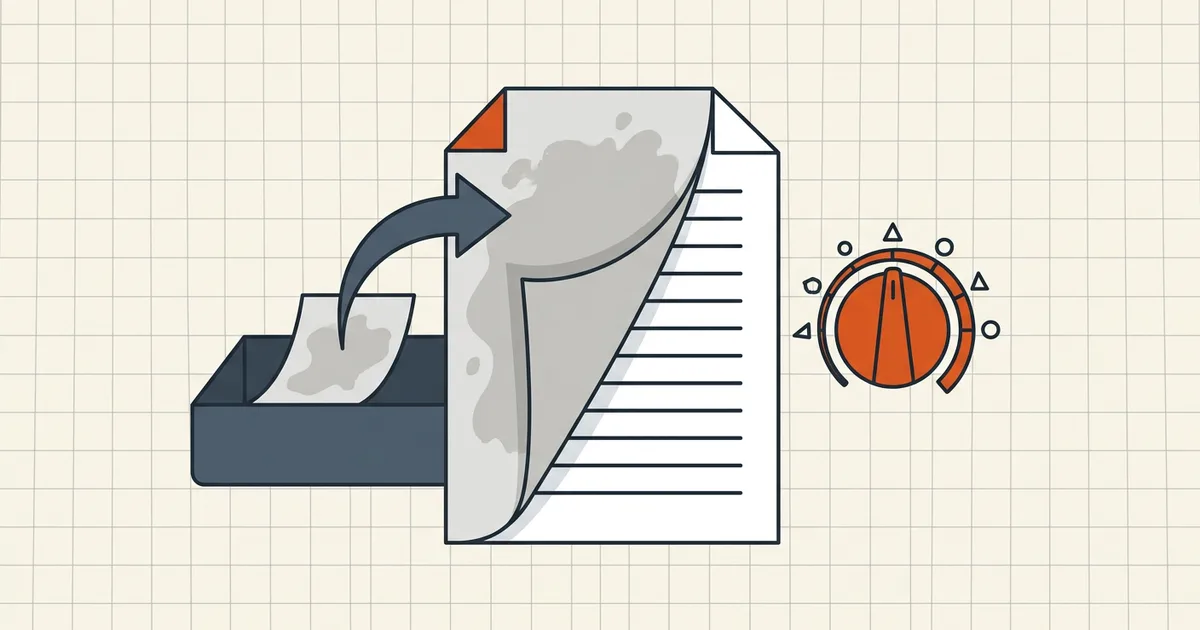
Scanner shadows, coffee-tinted paper, copier gray: three reasons a "white" document arrives looking like a grocery list from 1987. The fix exists — thresholds matter more than the marketing.
Capture beats filtering
Same as blurry scans: lighting, white balance, and document edge detection at capture outperform any after-the-fact whitelist. Phone scanner apps with auto-enhance often do 70% of whitening before a PDF exists. When the paper itself is aged (archives, ledgers), accept warm tones unless a portal demands pure white — midtone surgery on fragile ink is how handwriting disappears.
Whitening approaches
| Approach | What it does | Watch out |
|---|---|---|
| Scanner/app white balance | Normalizes paper to white at capture | Still fix bad shadows at edges |
| Editor optimize-scanned / background removal filters | Remaps paper tones using a threshold | Over-threshold eats light pencil, stamps |
| Browser whitening utilities | Threshold sliders, preserve-color toggles | Upload of sensitive scans — prefer local |
| Manual levels/curves per page | Precise | Doesn't scale past a few pages |
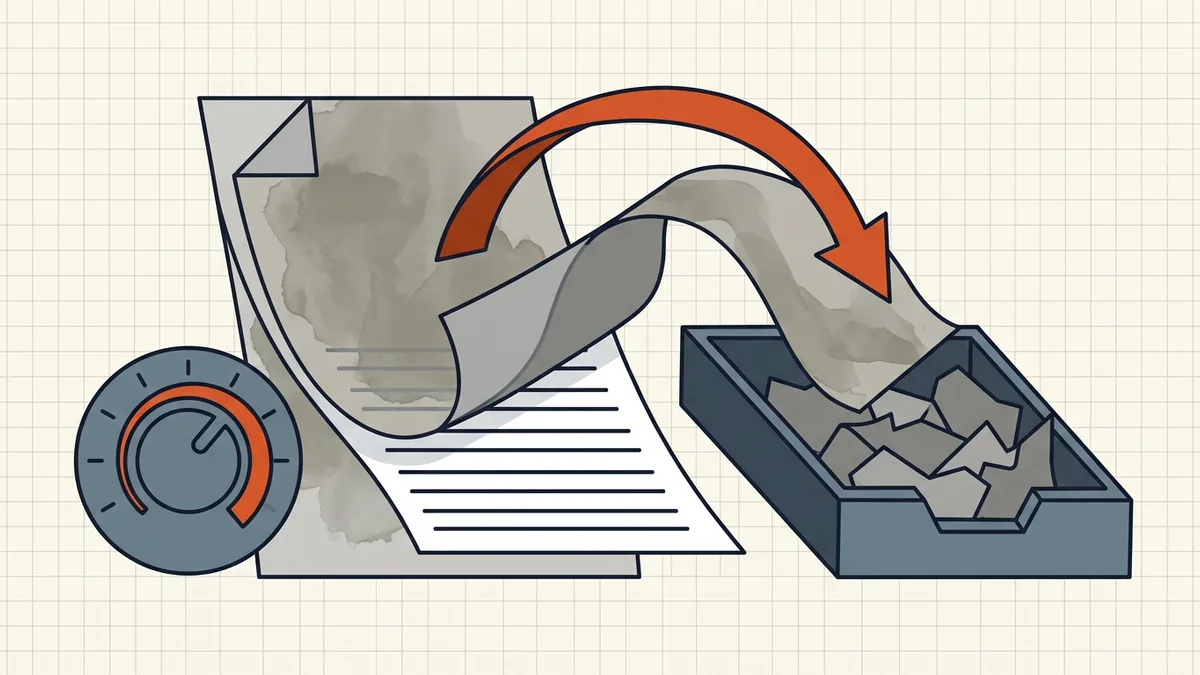
Threshold discipline: pick a page with the faintest legitimate mark; if that mark survives, run the batch. Then re-open a stamp/signature page with color preserved.
Whitening ≠ other cleanups
- Grayscale: removes hue, keeps dirt.
- Compression: fewer bytes, no tone remap — dirty scans stay dirty and smaller (size guide).
- Cleanup (hidden data): strips metadata/attachments/scripts — invisible layer, not page tone (cleanup scope).
- OCR: reads after you freeze tone; text layer work is separate (searchable scans).
Order that works: capture → whiten (if needed) → OCR → compress to target → check → send. Whitening after heavy compression just amplifies artifacts.
When portals care
Government/visa-style validators mostly care about legibility and size — pure-white backgrounds help humans and some OCR pipelines, not usually hard validators (reject patterns). Whiten for readability; don't sacrifice stamp visibility chasing aesthetics.
Honest BytesPDF scope
No background-removal tool at BytesPDF. Whitening lives in capture profiles and dedicated filters; our lane is OCR, target compress, check-before-send, metadata scrub, protect, redact, sign. Documenting the gap is deliberate — same policy as no split and no PDF/A claims.
Frequently asked questions
How do I make a scanned PDF background white?
Options: scanner/app settings that force white balance at capture; editor 'optimize scanned document'/background-removal filters with a threshold; dedicated browser whitening tools that push paper-tone midtones to pure white. Preview before/after on pages with light pencil or faded ink — thresholds that beautify invoices can erase weak strokes.
What's the difference between whitening and grayscale?
Grayscale removes color cast only — a yellowed scan becomes gray, still dirty. Whitening remaps paper-texture tones toward white while trying to keep real ink. Neither replaces a clean capture; both can be layered after, carefully.
Will whitening break OCR?
Usually helps: engines prefer dark text on white. Risk appears when you over-whiten faint text or speckle-erase margins that carried handwriting. Run OCR *after* you settle whiteness, then proofread critical fields ([accuracy tips](/blog/improve-ocr-accuracy-tips)).
Will it destroy colored stamps and signatures?
Aggressive thresholds can. Preserve-color modes exist for a reason — hospital stamps, wet-ink signatures, highlighter notes. When color *is* evidence, sample every colored element after cleanup, or rescan with better light instead of filtering harder ([capture guide](/blog/scanning-passport-id-card-to-pdf)).
Does BytesPDF whiten scan backgrounds?
No dedicated background-removal feature — documented boundary. BytesPDF's OCR, compression, and check tools sit downstream of whoever does the whitening (scanner profile, editor filter, specialized utility). We're honest about that split the same way we're honest about no split tool and no PDF/A certification.
Related comparisons
Source-led comparisons written by BytesPDF, with the conflict of interest disclosed on each page. They link official provider documentation rather than fabricated tests.