
Scanned PDF Too Dark or Too Light to Read (Fix Contrast Safely)
A nearly black scan and a ghostly faint scan fail the same way downstream — OCR, reviewers, and portals give up. Fix legibility without destroying stamps, signatures, or ink density.
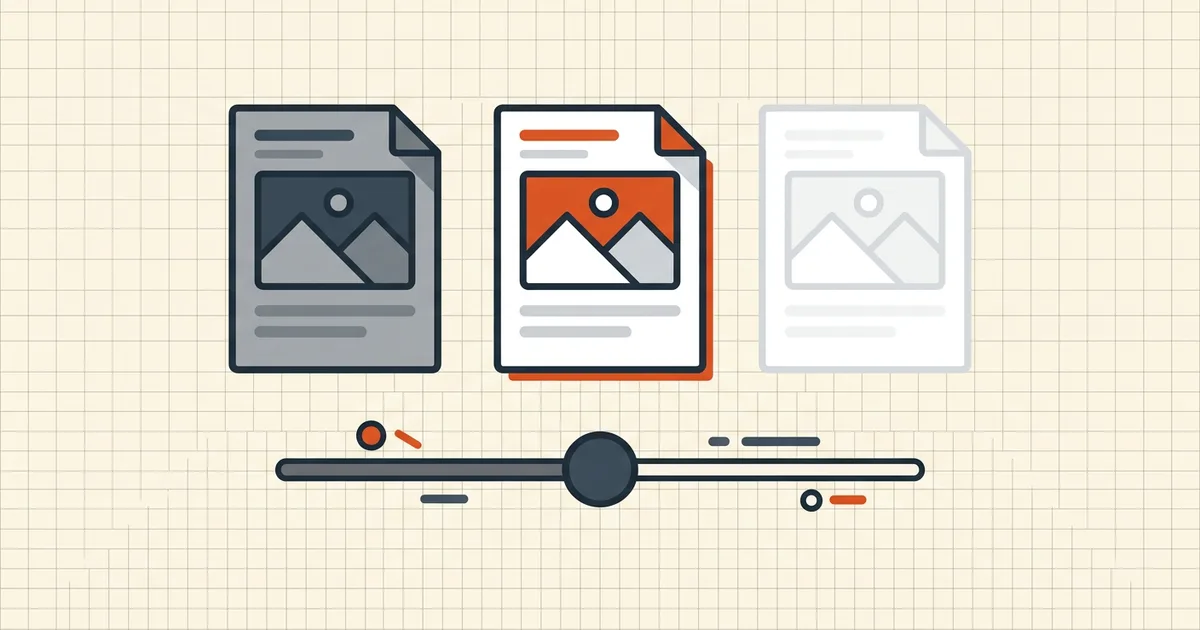
Too dark and too light look opposite and fail the same checkpoints: OCR chokes, reviewers zoom until pixels blur, and portals bounce "illegible" submissions. The fix path is layered — capture, then tone, then expectations.
Capture problems masquerade as PDF problems
| Smell on the PDF | Usual capture cause |
|---|---|
| Solid black bands / crushed shadows | Night mode, lid closed, dust on glass |
| Ghost-gray text on white | Underexposure, faded original, low toner |
| Uneven darkness across the page | Skewed feed, partial lid, staples shadow |
| Speckle everywhere | Dirty glass + aggressive sharpening filters |
Deskew and glass cleaning are siblings (deskew guide); tone is what this page owns.

Safe software routes (when you cannot rescan)
- Brightness / contrast or levels in an image-aware PDF editor — target
readable midtones, not Instagram drama.
- Grayscale re-print path: open → print to PDF/image pipeline with
grayscale normalization when the issue is color-cast density.
- Targeted background whitening when the problem is dirty paper tone
rather than black-crush (whiten scanned backgrounds).
- Keep the original. Global tone passes can soften thin pencil or wash
pale stamps. Archive the raw scan first.
Avoid stacking three "enhance" filters; each resamples. One deliberate pass beats a chain of guesses.
After tone fix: expectations that stay true
- Output is still image-based. Filters do not invent a text layer. Run OCR
for search and copy (make searchable), then spot-check accuracy.
- **OCR still wants contrast and DPI.** Use the accuracy tips stack
(deskew → tone → DPI floor) rather than tone alone (OCR accuracy, DPI guide).
- Select-text test: try selecting a word. If nothing highlights, you are
looking at pixels (scanned vs born-digital).
When to stop filtering and rescan
Redo capture when: critical fine print disappears into grain, stamps turned muddy, every page needs a different strength, or the source document still exists on paper. A 30-second rescan with light and glass fixed beats twenty minutes of tone archaeology — capture hygiene is the real upgrade path.
Honest BytesPDF scope
No contrast/brightness control in the BytesPDF toolkit (documented boundary). OCR, compress, and clean assume a file whose legibility you already trust. We publish this diagnostic because "PDF looks broken" is often "scan exposure was wrong," and users waste hours blaming viewers.
Flow that works: fix capture when possible → one tone pass if not → deskew → OCR if you need text → compress only after legibility is proven (over-compression on a dark scan stacks artifacts — see the compression blur question in related guides).
Frequently asked questions
Why is my scanned PDF too dark or too light?
Capture conditions: poor lighting, aggressive auto-contrast on the phone camera, dirty scanner glass, translucent paper, or a printer toner problem feeding the scanner. Software filters applied during 'enhance' can also crush blacks or blow highlights. Diagnose capture first — software is the second step.
Can I brighten a dark scanned PDF without resending it?
Yes, in image-aware editors: adjust brightness/contrast or levels on the page images, or re-print through a grayscale pipeline that normalizes density. The file remains an image-based PDF — you gain legibility, not selectable text. Keep the original before any global tone pass.
Will contrast fixes help OCR?
Often yes — OCR engines segment glyphs from background; extreme dark or extreme low contrast increases error rates. Pair tone fixes with deskew and adequate DPI ([accuracy tips](/blog/improve-ocr-accuracy-tips)). Do not expect miracles on strokes the camera never captured.
Does BytesPDF fix scan contrast?
No dedicated contrast/brightness tool ships in the toolkit (documented boundary). OCR, clean, and compress operate on files you already have; background whitening and capture-first honesty are documented on the whiten-scanned guide. When capture can be redone, rescan beats filter chains.
After fixing tone, is the PDF editable text?
No. Contrast adjustments on a scan still produce page images. Run OCR if you need searchable/selectable text ([make searchable](/blog/make-scanned-pdf-searchable)) — and tell-test that OCR before trusting it ([scanned vs born-digital](/blog/scanned-pdf-vs-birth-digital)).
Related comparisons
Source-led comparisons written by BytesPDF, with the conflict of interest disclosed on each page. They link official provider documentation rather than fabricated tests.