
How to Make a PDF Searchable on Mac (and iPhone)
Mac has built-in ways to search scans, but they work differently than people expect — viewing Live Text vs. writing a permanent text layer. Here's what each actually does.

"Make this PDF searchable on Mac" usually lands in one of three places — and only one of them produces a file that's searchable everywhere. The confusion between Apple's view-time recognition and a permanent text layer is the whole story.
What you actually have
Open the scan and try Cmd+F, or try to drag-select a word:
- Words highlight individually → a text layer exists; search should already work (if it doesn't, the index or reader is the issue, not the file).
- A rubber-band rectangle selects the whole page → image-only. Nothing to search until OCR runs.
Route 1: Live Text / Preview (instant, but viewing-side)
On supported macOS versions and hardware, Live Text recognizes text in images and PDFs while you view them — you can search and copy in Preview without altering the file. Useful in the moment; incomplete as an archival answer:
- recognition depends on the viewing system supporting it;
- the recipient's viewer may show nothing;
- exporting doesn't guarantee the text layer is baked into a portable PDF.
Use Live Text for quick lookups. Don't rely on it as the deliverable you email.
Route 2: scan-to-searchable pipelines (iPhone / iPad)
Apple's document-scanning flows (Notes, Files) generally attach recognized text as you scan — new scans made on-device are usually searchable by default. Existing scans still need an OCR pass. Handy for phone-captured pages; the same Live Text caveats apply about how portable the layer is in some outputs.
Route 3: a real OCR pass (the portable answer)
Run genuine OCR that writes a text layer into the PDF and save the result. Two honest flavors:
- Desktop suites (Acrobat and friends): capable, subscription-priced, cloud-tainted if you care about that.
- On-device browser OCR: BytesPDF OCR PDF recognizes pages inside your tab — nothing uploaded, output downloaded as a normal searchable PDF. Same privacy posture the whole toolkit is built on (architecture compared).
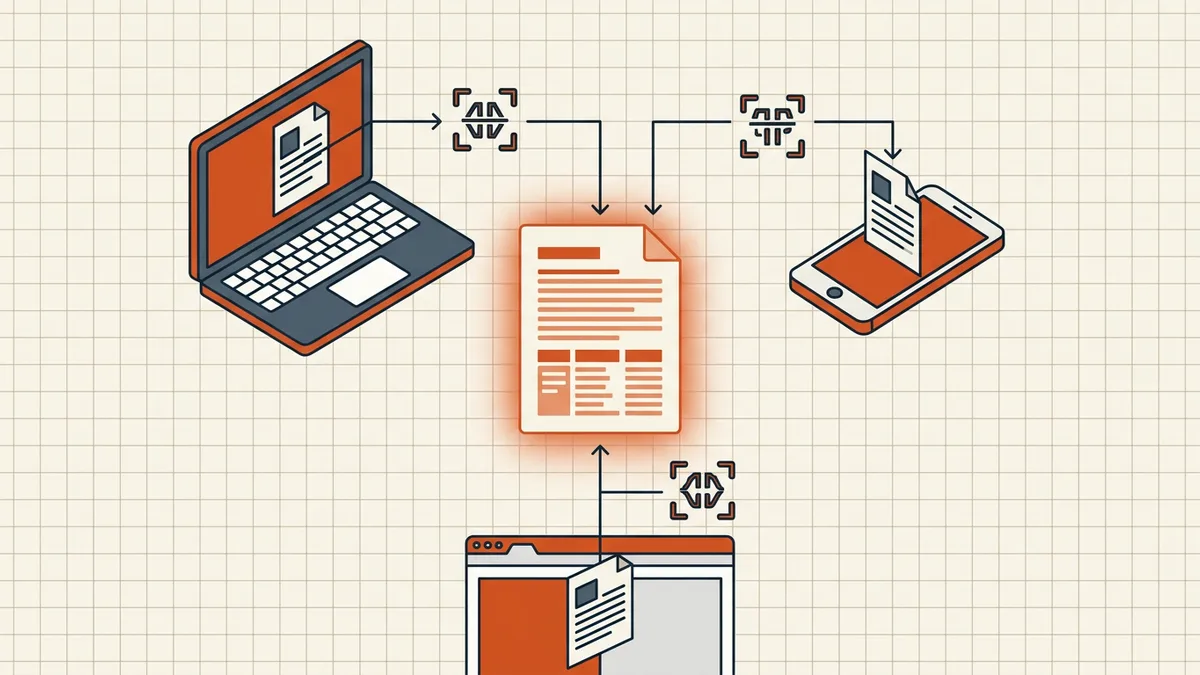
Either way, verify like always: Cmd+F for a phrase you know is on page 1, then drag-select a word in the middle of a paragraph. Both must work before the file ships (full searchable guide).
Choosing in one line
| Situation | Route |
|---|---|
| Quick personal lookup on this Mac | Live Text in Preview is fine |
| New scans from your phone | Scan with Notes/Files; check the result searches |
| A file you're sending to others | Real OCR pass → verify → send |
| Sensitive content | On-device OCR only (is online OCR safe?) |
The portable text layer is the product. Everything else is a preview of it.
Frequently asked questions
Can Preview on Mac make a scanned PDF searchable?
Modern macOS Preview can *display and search* recognized text via Live Text on supported systems and scans, but that recognition is a viewing feature — it doesn't necessarily write a permanent OCR text layer into the PDF you export. For a file that stays searchable in other apps and on other machines, run a real OCR pass and save the output.
How do I OCR a PDF on Mac for free?
On-device options: Notes/Files scanning pipelines (iPhone/iPad) create searchable text when scanning new pages; for existing PDFs, run an on-device OCR tool — including BytesPDF OCR PDF, which processes entirely in the browser tab — and download the searchable copy.
Is Live Text the same as a searchable PDF?
No. Live Text recognizes text at view time on supported Apple systems; a searchable PDF has the words stored as a text layer inside the file. Share the file and the distinction reappears: recipients without Live Text support (or with other viewers) see an image-only scan.
Does OCR on my Mac keep the file private?
On-device processing does — nothing leaves your machine. Whether a given feature does depends on where recognition runs: Live Text is on-device; many online OCR services upload pages. The audit questions are in [is online OCR safe?](/blog/is-online-ocr-safe).
Why does Cmd+F find nothing in my scanned PDF?
Because there's no text layer to search — the pages are images. The fix is OCR, not a different search shortcut. After a proper OCR pass, Cmd+F, Select All, and highlight/search annotations all behave like a born-digital document.