
How to Remove Sensitive Information from a PDF Before Sharing
De-identifying a PDF means cleaning three layers: visible content, invisible data, and the file properties. Miss one and the leak survives. Here's the full pass.
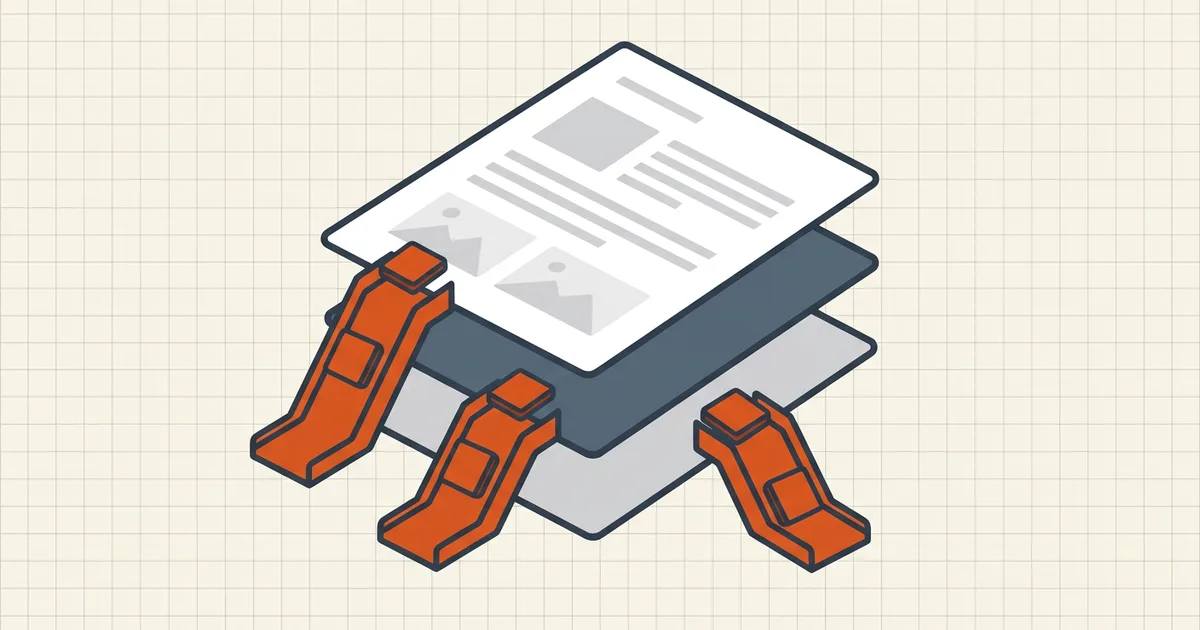
De-identifying a PDF is not one operation — it's a stack of three, targeting three different hiding places. Teams that "removed everything" and still leaked something almost always cleaned one layer and left the others.
The three layers of sensitive data
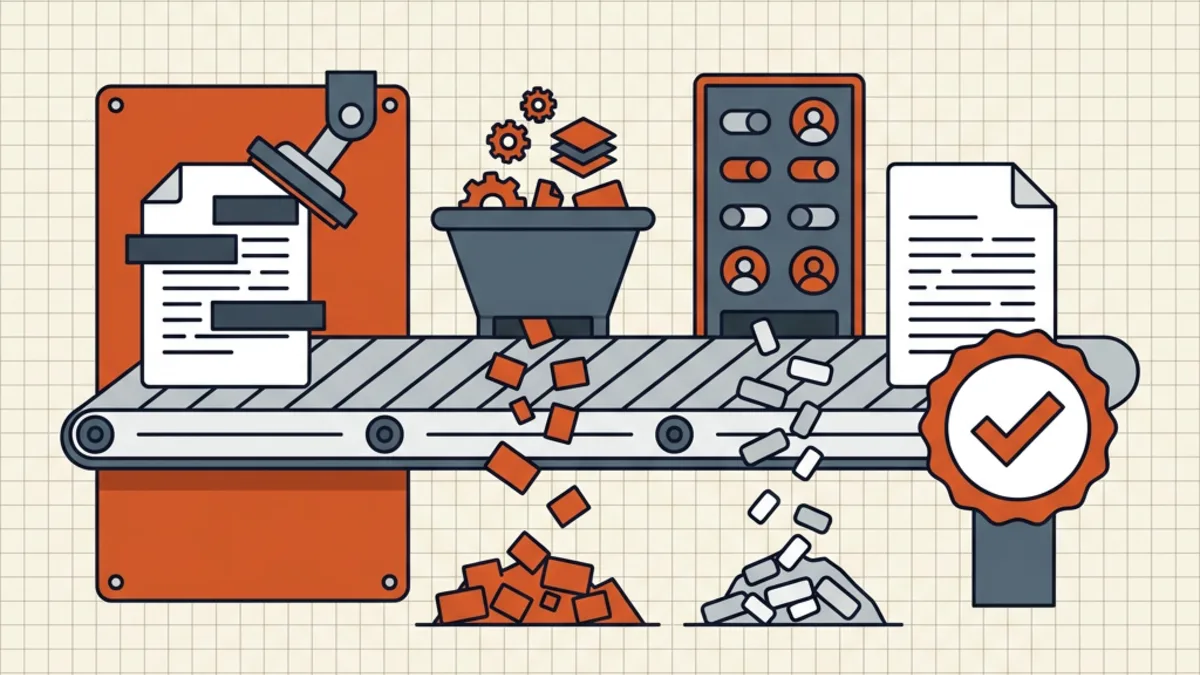
Layer 1 — visible content. Names, addresses, account and ID numbers, signatures, handwriting. Everything a reader can see. Removal means destruction: true redaction deletes the content streams, black bars only decorate them (how to redact properly).
Layer 2 — invisible content. The category people forget:
- review comments and annotations ("per J.'s call, offer 12%");
- attachments riding inside the PDF;
- OCR text layers under scanned pages (the layer that betrays redacted scans);
- prior revisions kept by incremental saves;
- form-field values.
Layer 3 — file properties. Author names (often the OS account), company fields, Producer strings, timestamp trails. The full inventory and self-audit instructions are in what PDF metadata reveals.
The removal pass, in order
1. Find what's actually there
Before removing, look. Select-test the pages (is this a scan with a text layer?), open the attachments panel and comment list, read the properties dialog. Search the document for each sensitive string you know — every hit is a location to handle. BytesPDF Check Before Sending runs this reconnaissance as a checklist; exiftool covers the properties panel exhaustively.
2. Destroy visible content
True redaction of every marked region — BytesPDF Redact Text destroys the text and verifies it's gone. For scans, make sure the marks destroy the OCR layer too. Work on a copy; destruction is forever.
3. Sweep the invisible layers
Comments accepted/deleted, attachments dropped, old revisions discarded — a pages-only rebuild is the belt-and-braces move (Secure Cleanup rebuilds from pages and drops metadata, attachments, scripts and history; the hidden-data guide covers the manual routes).
4. Scrub the properties
Clear the metadata fields (scrub guide) as the last rewriting step. Every re-save adds fresh fields — so this runs after the content work, immediately before export.
5. Verify, then verify as an opponent
Search for the sensitive strings: zero hits. Select-test each redacted region. Re-open properties: blank where expected. Attachments panel: empty. For high-stakes releases, a second reviewer does the same pass on the exact outgoing file.
Choosing tools that see the data
Every step above hands the full document to whatever performs it. For records with real sensitivity — medical, financial, legal, identity documents — keep the pipeline on-device: destructive redaction, cleanup and metadata tools that run in the browser keep the unredacted originals off third-party servers entirely (evaluation checklist, architecture comparison).
When the document is going out to a destination with a size gate, compress after cleaning and before signing — target-size compression slots in at exactly that point.
Frequently asked questions
How do I remove personal information from a PDF?
Work through three layers: (1) destroy visible names and numbers with true redaction; (2) strip hidden data — comments, attachments, OCR text under marks, old revisions; (3) scrub metadata (author, timestamps, app names). Verify each layer before moving on, then send the cleaned copy.
What counts as sensitive information inside a PDF?
Visible content (names, addresses, account and ID numbers, signatures), invisible content (comments, attachments, revision history, OCR text layers), and file properties (author names, company fields, timestamps). Recipients and indexing engines can reach all three.
Does removing metadata remove personal data from the pages?
No. Metadata cleanup clears file properties only. Data printed on the pages needs redaction; buried in comments or attachments needs hidden-data removal. The three operations are complementary — that's why this guide stacks all three.
How can I verify a PDF has no sensitive data left?
Search for known strings (names, numbers) and expect zero hits; select-test redacted regions; check the attachments panel and document properties; and have a second person spot-check. Tools like BytesPDF Check Before Sending walk this list.
Should I redact or black out text manually?
Never manually. Drawn boxes and white text are overlays — the data remains copyable underneath. Use destructive redaction that removes the content and verifies it ([the full method](/blog/how-to-redact-a-pdf-properly)).
Related comparisons
Source-led comparisons written by BytesPDF, with the conflict of interest disclosed on each page. They link official provider documentation rather than fabricated tests.