
Print to PDF vs Save as PDF (Why the Same Document Produces Two Different Files)
Two doors, one document — and they don't build the same PDF. Printer-driver output vs native export: hyperlinks, font embedding, paper size, and when each path wins.
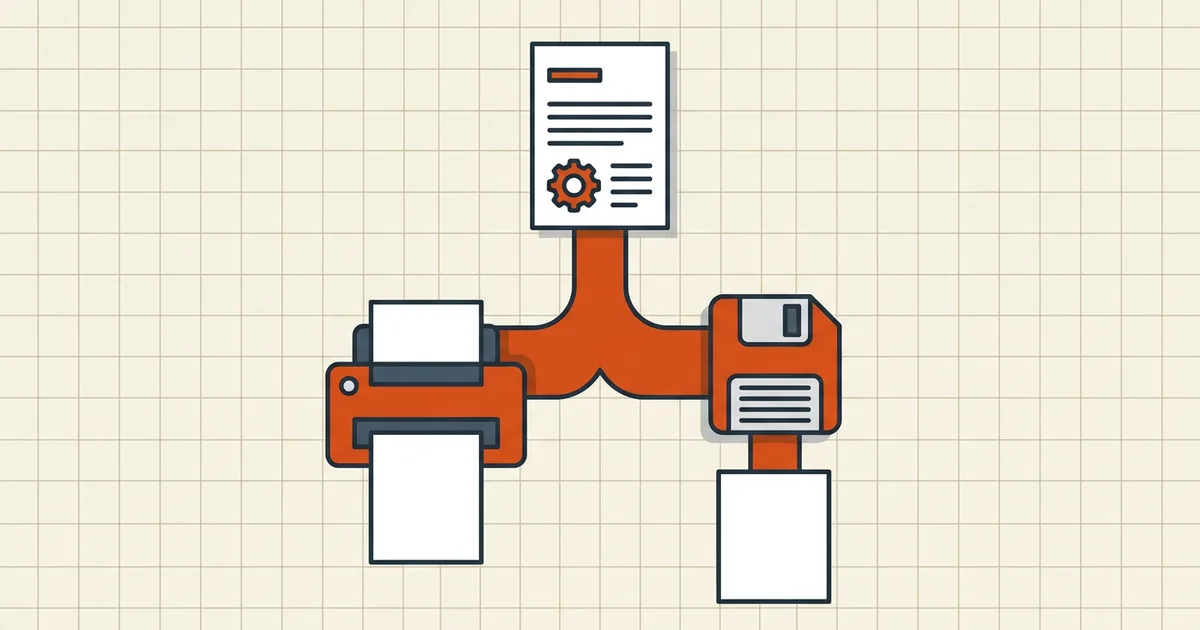
Word a document, choose Microsoft Print to PDF on the left, Save as PDF on the right — and open two files that aren't quite twins. Different size, dead links, paper margins that moved. Same content, different construction crews.
Two pipelines, two philosophies
Save as PDF (native export) — the application writes the PDF itself. It still knows the document: heading structure, hyperlinks, fonts in use, image resolutions chosen for screen. It can subset fonts (embed only the glyphs you used) and honor export presets ("minimum size" vs "print quality").
Print to PDF (driver path) — content is rendered as if headed to paper, then intercepted by a virtual printer. The driver brings its defaults: paper size from printer config, print-resolution imagery, flattened interactivity. What arrives is closer to a printout than a document package.
Side-by-side
| Property | Save as PDF | Print to PDF |
|---|---|---|
| Hyperlinks | Typically preserved | Typically lost |
| Font embedding | Document-aware subsetting | Driver defaults; often heavier |
| Paper size | From document/page setup | From printer driver |
| Quality presets | Often yes (standard/min size) | Rarely exposed |
| Bookmarks/structure | Better odds of surviving | Usually flattened away |
| Best for | Sharing, archiving, clicking | Flat print-faithful copies, export-path rescue |
Exact behavior varies by app and OS version — treat the table as the common shape, then verify on your file: click a link, check Properties → fonts, look at the size.
Scene-by-scene recommendations
- Word → PDF for a client → Save as PDF. Keep the TOC links, keep the subset fonts, pick the quality preset deliberately (Word formatting guide).
- Excel → PDF of a sheet → Save as PDF first (links, selection scope). Only drop to Print when the exporter ignores a paper-size fight — and fix page setup and hidden-row traps either way; both doors inherit the same broken pagination.
- Browser → PDF of a webpage → Save as PDF (reader mode helps); Print often fragments layouts differently.
- Native export glitches (blank pages, missing content) → Print to PDF as the recovery path — a second renderer sometimes sees what the first missed.
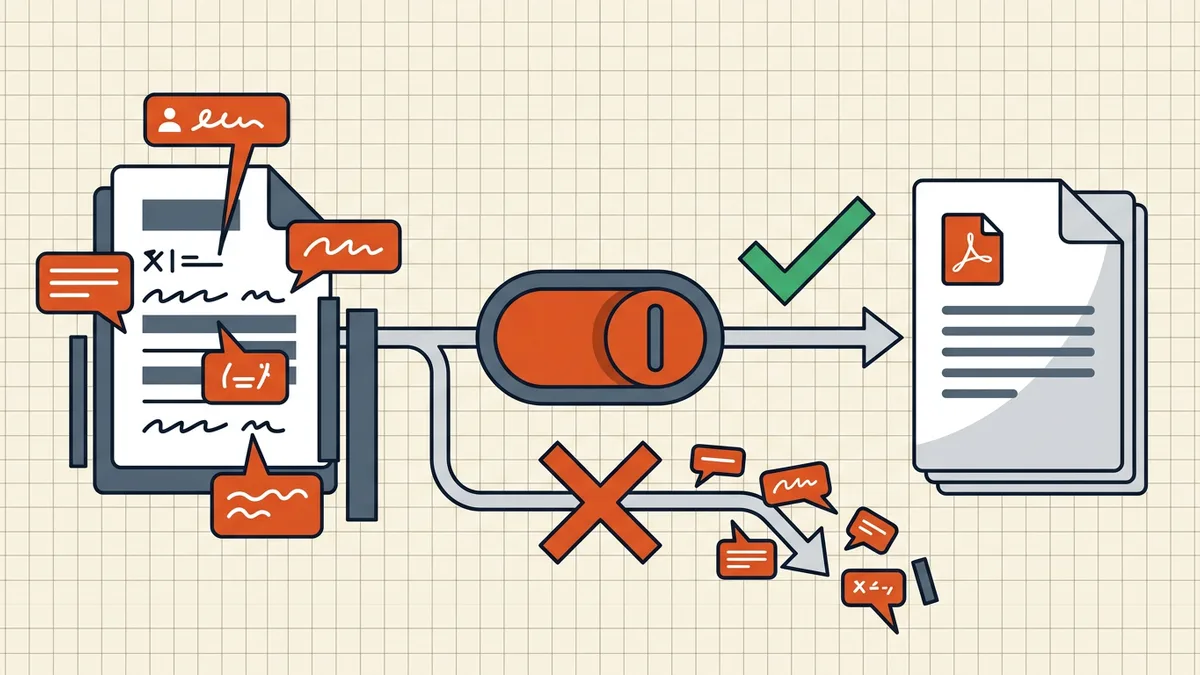
- You want what would actually come out of a printer → Print to PDF, deliberately. That flatness is the feature — same instinct as printing without markup balloons.
After you choose: one size pass
Whichever door you used, size is a property of the result, not a moral choice. Check the file; if the destination has a cap, run one compression pass on the final export (target-size when you know the number). Re-printing and re-saving repeatedly just renegotiates font embedding for no gain.
Orientation and other print-driver cousins
Paper size isn't the only printer-flavored surprise: duplex binding, scaling ("fit to page"), and margin gutters all arrive via the driver path — the same family of issues as PDFs printing sideways. When output looks "wrong," ask which pipeline built the file before you blame the document.
Frequently asked questions
What is the difference between Print to PDF and Save as PDF?
Save as PDF is the application's native exporter: it knows the document's structure and can keep hyperlinks, subset fonts efficiently, and offer quality presets. Print to PDF routes content through the printer-driver pipeline: paper size comes from the printer config, links and structure often flatten, and font/image handling follows print defaults — sometimes larger, sometimes 'flatter' output.
Which produces a smaller file?
Usually Save as PDF — native exporters subset fonts and apply document-aware image compression. Print to PDF paths sometimes embed fuller fonts or keep print-resolution images, inflating size. Neither is universal: check both if size is the constraint, then compress the winner once ([what compression does](/blog/what-is-pdf-compression-complete-guide)).
Which keeps hyperlinks?
Save as PDF, in Word/Excel/browsers that offer it — native export preserves link annotations. Print to PDF generally does not carry clickable links through the driver. For documents people will click (reports, resumes, docs with TOCs), prefer the native path.
When should I use Print to PDF instead?
When the native export path is broken or fighting you: add-in conflicts, wrong paper size that only the printer driver respects, or you deliberately want a flattened 'what you see is what would print' artifact. Also useful as a second-chance re-render when Save as PDF produces a broken layout.
Do both paths show the same page breaks?
Usually yes for layout-sensitive apps — both consult the same pagination, so hidden-row splits and cut-off columns come out equally wrong unless you fix Page Setup first ([Excel traps](/blog/excel-to-pdf-hidden-rows-and-formulas)). Paper size can differ if the printer driver uses a different default than the document, which shifts breaks between the two routes.
Related comparisons
Source-led comparisons written by BytesPDF, with the conflict of interest disclosed on each page. They link official provider documentation rather than fabricated tests.