
How to Redact a Scanned PDF (The OCR Trap and How to Beat It)
Scans fail redaction in a unique way — a copyable text layer hiding under the picture. The scan-specific workflow that actually closes the leak.
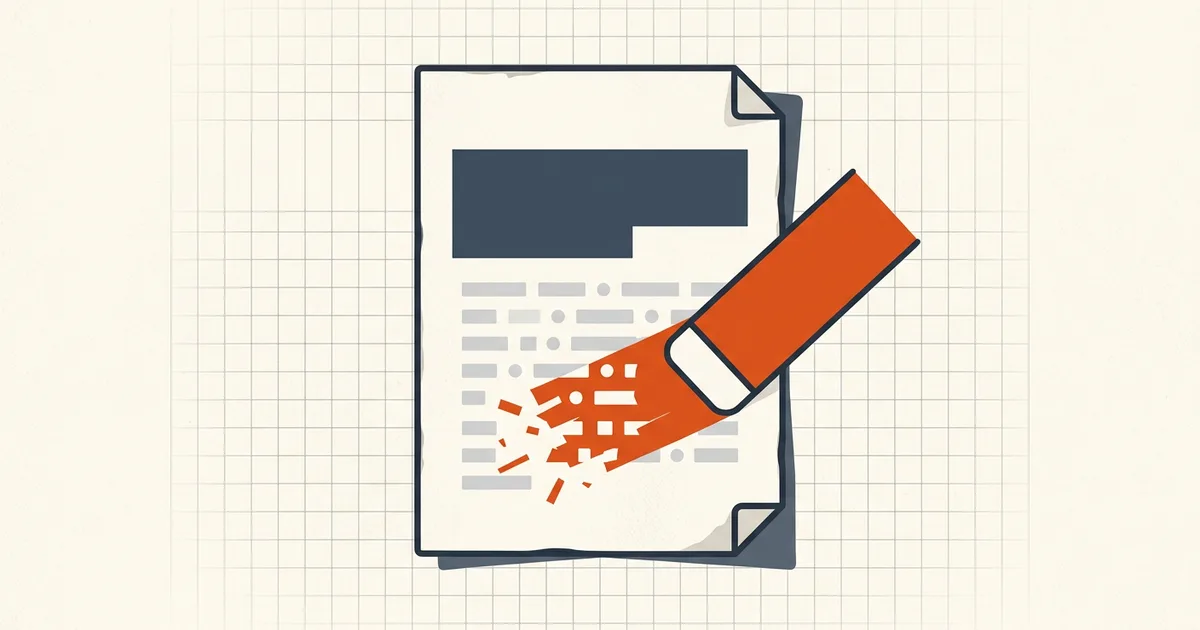
Redacting a born-digital PDF has one core rule: destroy the text, don't cover it. Redacting a scan adds a twist that catches people out constantly — the words live in two places, and the black box only addresses one.
The scan's double life
A "searchable scan" is a page image with an invisible text layer underneath — what OCR produces, and what most scan apps, mailrooms and portal downloads create by default. The visible words are pixels. The same words — machine-readable — sit in the text layer.
Draw a box over the pixels and the text layer still contains everything. Copy-paste across the "empty" black region returns the original sentence. Search finds the name you blacked out. This is the black-box leak in its purest form: not sloppy marking, just the wrong layer being marked.
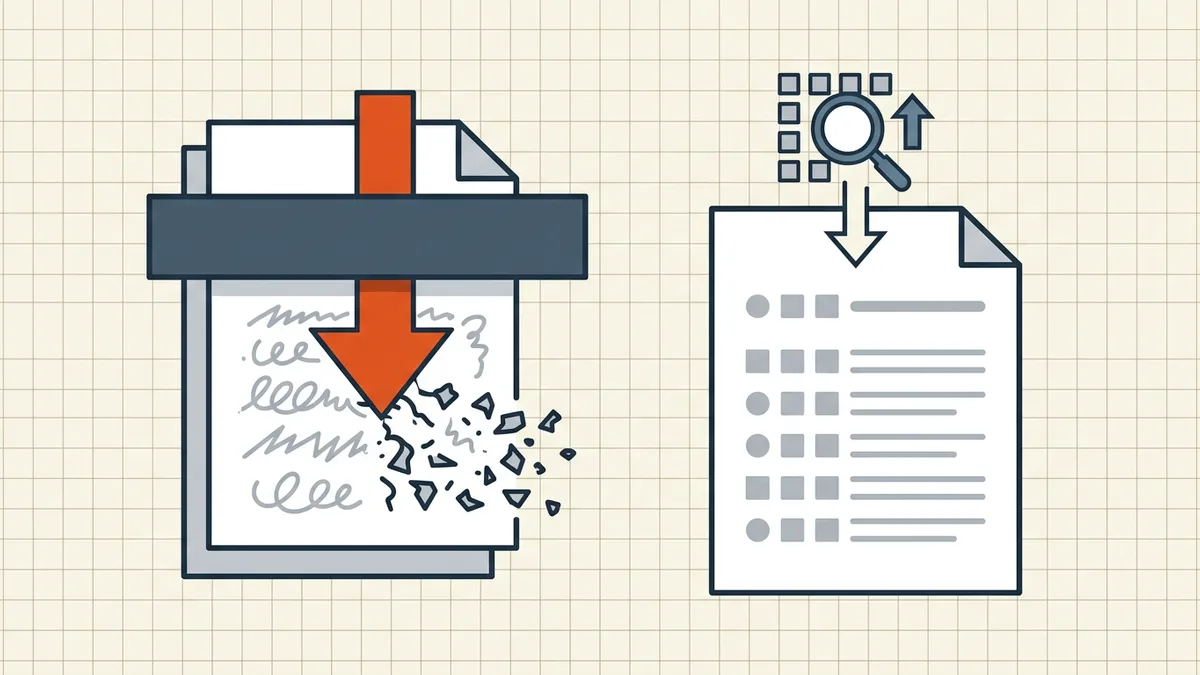
The scan-specific workflow
- Detect what you have. Try to select text over the scan. Word-highlighting means an OCR layer exists. A rubber-band rectangle over the whole image means image-only.
- Mark for redaction with a tool built for destruction — BytesPDF Redact Text destroys targeted text and verifies it's gone. For scans, the covered region's image content is blacked while any underlying recognized text in the marked range is destroyed with it.
- Apply, then verify like an opponent:
- search (Ctrl+F) for words that sat under each mark — zero hits required;
- drag-select across each blacked region and paste into a notepad — nothing recognizable;
- if the file has comments or metadata, run the hidden-data sweep.
- Decide on searchability. If the released copy must remain searchable, run OCR now — on the already-redacted output, so recognition only ever sees the post-redaction pixels. If searchability doesn't matter, ship the flattened result as-is.
When to use the blunt instruments
Sometimes the pragmatic route wins:
- Print → marker → re-scan. Physically destroying the original text is why this old method survives in security playbooks: there is no hidden layer left to leak. Costs: slow, quality loss, a non-searchable result.
- Rasterize-and-box. Flattening each page to a pure image, applying image-level blackouts, and rebuilding the PDF without OCR is the digital cousin — bulletproof against text-layer leaks, same quality/search trade-offs.
Use these for one-off high-stakes releases; use verified digital redaction for routine work. In every case the verification suite is non-negotiable — the failure stories all skipped it.
Where to run the redaction
The unredacted scan is the most sensitive artifact in the workflow — passports, medical records, discovery files. Whatever performs the redaction sees all of it first. The evaluation framework in is online OCR safe? applies equally to redaction tools: on-device processing removes the upload from the threat model entirely (architecture comparison).
Frequently asked questions
How do you redact a scanned PDF securely?
Treat the scan as two layers: pixels and, often, a hidden OCR text layer. Redact with a tool that destroys both — the covered pixels and any underlying text — then verify by searching for and copying the removed words. If the scan has no text layer, flatten-and-verify or true image-region redaction works; re-OCR only after redaction.
Why does my redacted scan still leak the text?
Because a searchable scan carries the words twice: visible in the image and again in an invisible OCR text layer. A box drawn over the picture leaves the text layer intact — anyone can select or search the 'hidden' words.
Should I OCR before or after redacting?
After, never before — or use a redaction tool that destroys existing text layers under marks. If you OCR first and redact carelessly, the layer you added becomes the leak ([how OCR layers work](/blog/make-scanned-pdf-searchable)).
Does printing and re-scanning a redacted page work?
The paper-and-marker method (print, black out with a marker, re-scan) genuinely destroys the original text — that's why security teams still mention it. It's slow and degrades quality; digital true-redaction with verification is the scalable equivalent.
Related comparisons
Source-led comparisons written by BytesPDF, with the conflict of interest disclosed on each page. They link official provider documentation rather than fabricated tests.