
Google Docs to PDF Without Losing Formatting (The Pageless Trap)
The doc looks right on screen; the PDF comes out sliced into pages nobody asked for. Google Docs export has a few specific traps — all fixable.
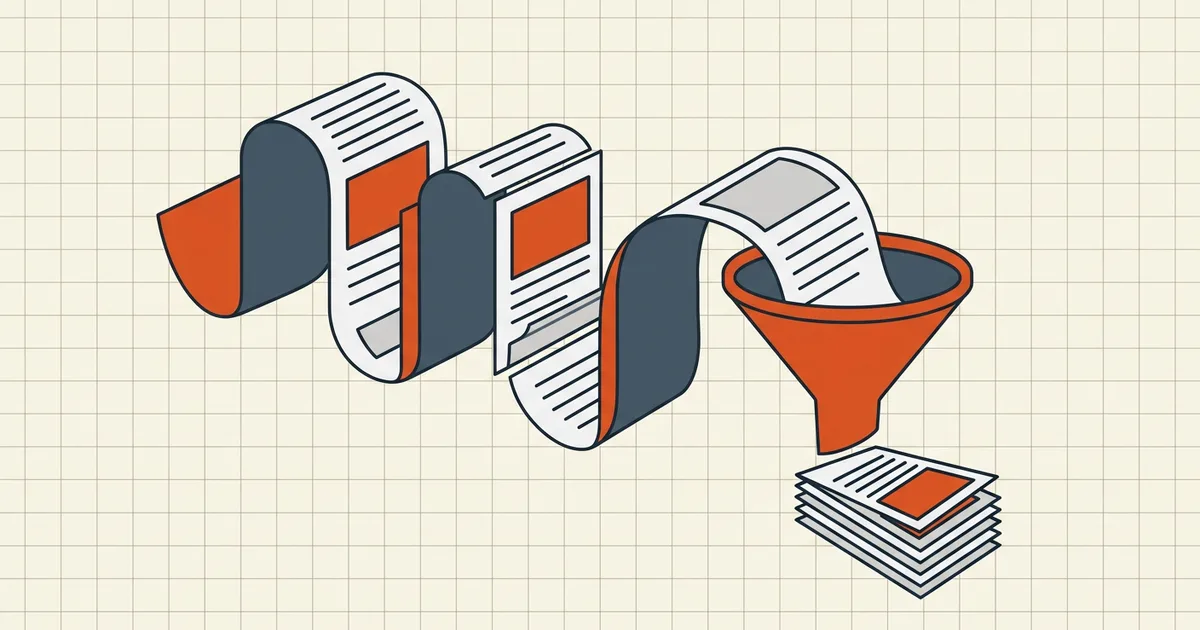
The document on screen is right. The PDF that comes out has a chart split across two pages, a header orphaned onto its own sheet, and three extra pages you never created. Google Docs export is usually faithful — faithful to a pagination you didn't configure. Three traps explain almost every case.
Trap 1: pageless mode (the big one)
Docs now has a pageless mode — a continuous canvas that feels like a modern doc editor. PDF export doesn't inherit it. The moment the file exports, standard paper sizes apply and content is sliced wherever the sheet boundaries fall — mid-table, between a heading and its paragraph. That's not corruption; it's pagination reasserting itself.
Fix, before export:
- File → Page setup in the paged view: choose the paper size that matches your real target (Letter, A4 — or a larger custom size if you're building a poster/reference one-pager).
- Put intentional breaks where you want them (Insert → Break → Page) so slicing never lands mid-block.
- Confirm margins — Docs' "narrow margins" setting moves content at print time and surprises exports.
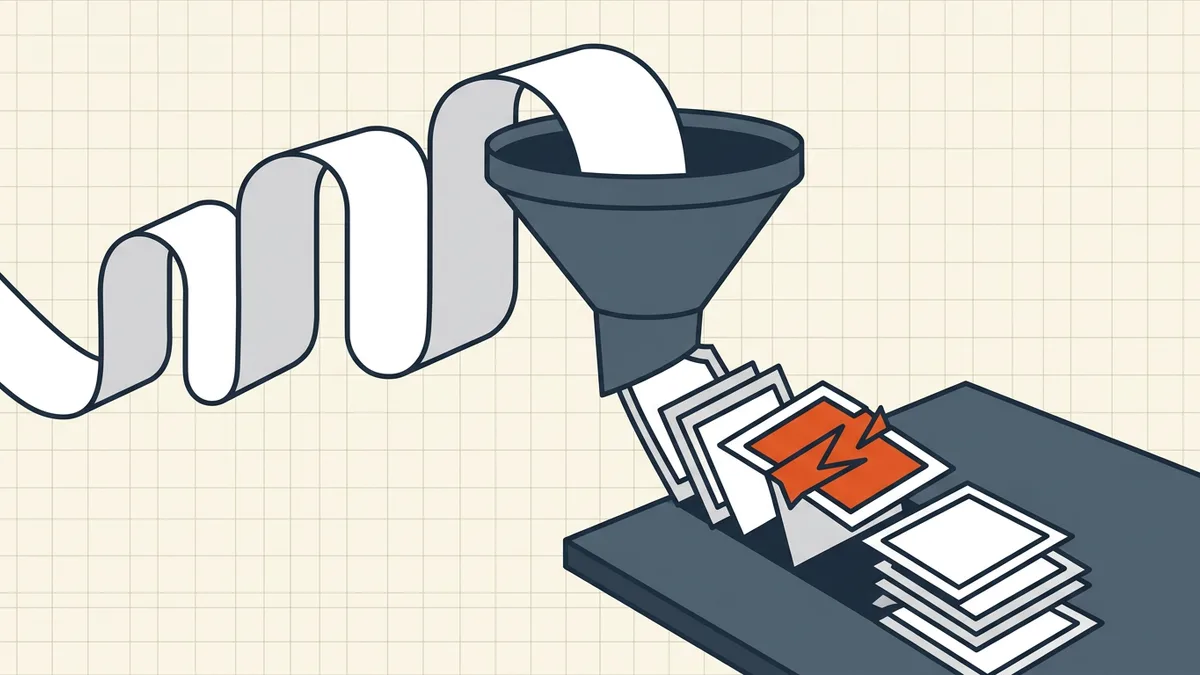
If you truly need a continuous single-page PDF from a pageless doc: export as HTML (File → Download → Web Page) and print to PDF from a browser that honors custom page heights — the classic workaround, imperfect with images.
Trap 2: fonts
Docs renders with fonts available to your session; the exporter maps to what's embeddable. Exotic or personal fonts fall back to substitutes, and substitute metrics shift line wraps — a paragraph that fit now runs long. Cheap insurance: stick to common fonts (Arial, Georgia, Roboto, Times) for anything destined for PDF, or accept the substitution and re-read the export.
Trap 3: the export path itself
- File → Download → PDF — the standard route; right answer once page setup and fonts are settled.
- File → Print → Save as PDF — sometimes tracks the on-screen layout better on stubborn documents, and you get a page preview first. Print margins still apply.
- Differences between the two are usually Trap 1 or 2 in disguise.
Related quirk while you're here: embedding a Google Doc via <iframe> doesn't reliably honor Docs' responsive width — independent bug, same family of layout surprises; wrap the frame in a max-width container of your own until Docs honors responsive sizing.
Verify like you mean it
Export → skim → then check content the systematic way: export twice (before/after any fix) and compare the versions; or run the outbound list in what to check before sending. For the final hop — email, portal, WhatsApp — the attachment limits guide and target-size compression cover size; formatting-wise, you're done once the PDF matches the doc on purpose.
Frequently asked questions
Why does my Google Doc look different when I download it as PDF?
Three usual suspects: (1) pageless mode collapses to paginated pages on export — content gets sliced wherever the paper size dictates; (2) font substitutions when a document uses fonts your export environment renders differently; (3) margin/width settings that only apply at print time. Check page setup first, fonts second.
How do I export a pageless Google Doc as a single-page PDF?
Google Docs' PDF export is inherently paginated — pageless mode does not carry over. Practical routes: switch the doc to paged mode with a larger paper size before export (File → Page setup), or export HTML and print-to-PDF from a browser that supports custom page heights. There is no native 'one long page PDF' button.
Is File → Download → PDF or Print → Save as PDF better?
Download → PDF is the direct export and usually fine once page setup is right. Print → Save as PDF routes through the print renderer, which sometimes matches on-screen layout better for problematic docs (and lets you preview pages before committing). Compare both on a tricky document and keep the winner.
How do I check my PDF matches the doc?
Export, then diff the source doc's text against the PDF — or use a two-file comparison: re-export after edits and [compare versions](/blog/compare-two-pdf-versions) to see exactly what changed. Page-by-page skim for layout; text diff for content.