
Excel to PDF: Hidden Rows, Blank Pages and Formula Shows
The spreadsheet looked right; the PDF has a blank page, a row you filtered away, and formulas that printed differently. Three distinct traps — three distinct fixes.
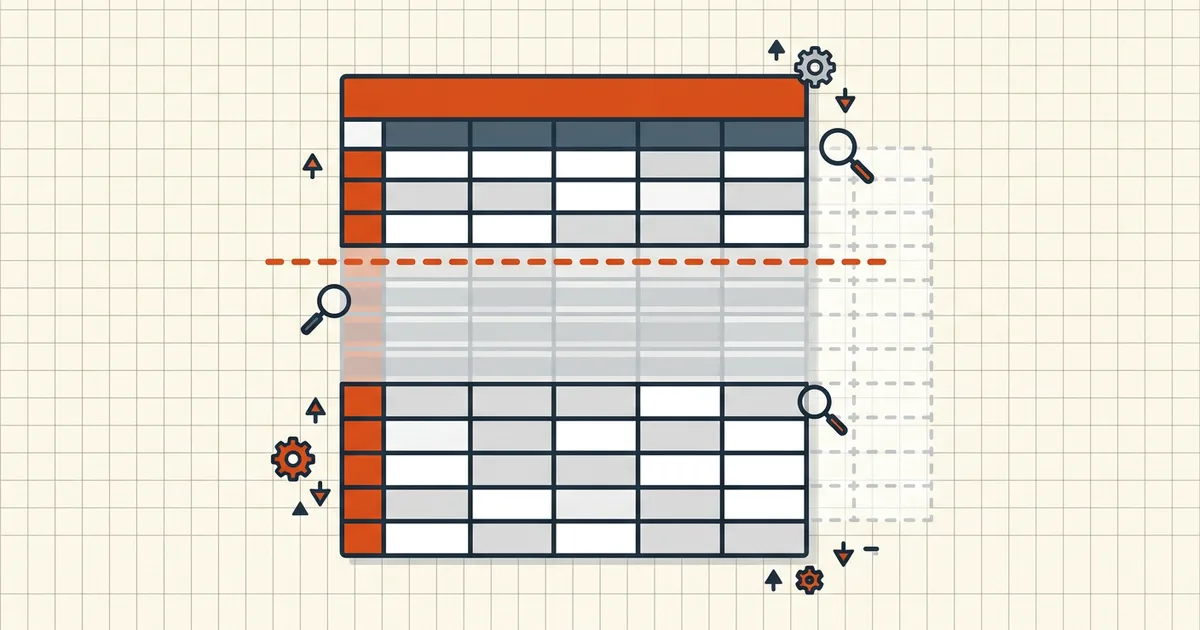
Excel-to-PDF has three signature betrayals — a blank page nobody created, rows you swore you hid, and formulas that printed as something else. They have different causes, and each fix takes under a minute if you know which one you're looking at.
Trap 1: the ghost blank page
Symptom: a perfectly empty page, usually mid-document or at the end.
Cause: an orphan page break anchored inside or beside a hidden/filtered region — the rows are invisible, the break still exists, and paper doesn't care about filters.
Fix: View → Page Break Preview. Find the stray blue line (often sitting in the hidden zone), right-click → Remove Page Break (or drag it somewhere sane). Re-export.
Trap 2: rows you filtered away reappearing
Symptom: the filter hid 300 rows in Excel; the PDF contains them — or contains their page break consequences.
Causes & fixes:
- Export path didn't honor the filter — check Print Preview first; it is the PDF's honest mirror.
- Breaks placed while rows were visible survive their hiding — clean breaks as in Trap 1.
- "Hidden by filter" vs "manually hidden" behave differently across export routes — for deterministic output, don't rely on filter state: set a Print Area over exactly what you want (select range → Page Layout → Print Area → Set Print Area).
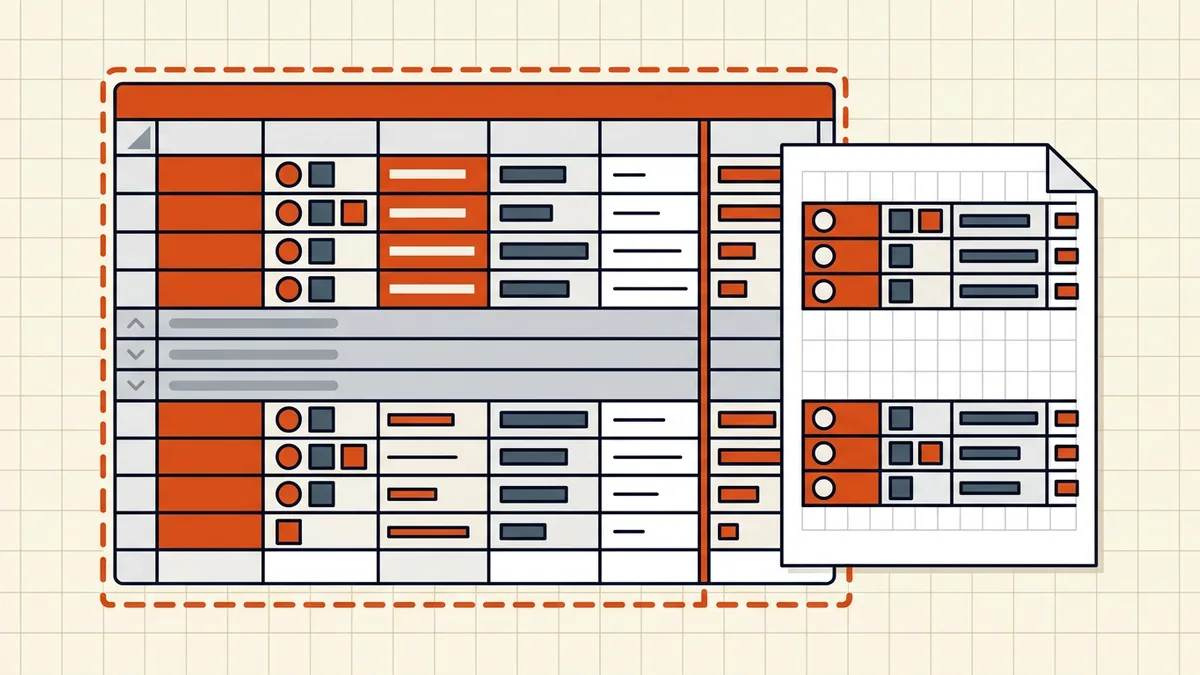
Trap 3: formulas "wrong" in the PDF
The PDF renders cached values — the last numbers Excel stored. Not the live formula bar, not your mental math:
- Recalculate before export: Ctrl/Cmd + Alt + F9 (full rebuild) — stale caches from scripted or imported workbooks are common.
- Fix visible errors first: a #REF!, #DIV/0!, or #NAME? prints exactly as shown. Hide-with-formatting doesn't help — the text is still there.
- Understand values-only rendering: third-party/browser converters read those cached cells without recalculating (the BytesPDF converter is explicit about this — what it does and doesn't do). The belt-and-braces sequence: recalc → fix errors → Print Preview → export from Excel, or convert the verified file and re-check page one.
The export ritual (30 seconds, catches all three)
- Full recalc (Ctrl+Alt+F9).
- Clear visible errors.
- Confirm/refresh the Print Area (or accept filtered view deliberately).
- Page Break Preview — no stray breaks.
- Print Preview — what you see is what exports.
- Export, then open the PDF and check: first page, a formerly-hidden region, one formula-heavy cell.
That's the whole checklist — and it slots into the bigger one: what to check before sending.
Frequently asked questions
Why does a blank page appear in my Excel PDF?
Almost always an orphan page break sitting inside or next to a hidden/filtered region: the break still forces a new sheet of paper even though the rows there are invisible. Open Page Break Preview and remove or drag the stray break; the ghost page disappears.
I filtered rows out — why do they show in the PDF?
Depends on the path: 'Print Active Sheets' honors filter-hidden rows in most builds, but exports via fixed-format with certain settings (or printing 'entire sheet' equivalents) can resurrect them — especially when manual page breaks were placed while the rows were visible. Verify with Print Preview before export, and re-check the filtered region after hiding.
Why do my formulas show as values (or errors) in the PDF?
PDFs render cached results — the last values Excel calculated and stored in the file. Stale cache (file from a macro/script that didn't recalc), errors like #REF! baked in, or a converter reading cached values without recalculating all produce what you see. Press F9 (recalc) in Excel and fix visible errors *before* exporting.
How do I export only the rows I want?
Set a print area over exactly the visible selection: select the cells → Page Layout → Print Area → Set Print Area. For one-offs, Print Selection does the same. This bypasses both hidden-row surprises and stray breaks outside your range.
Does the BytesPDF Excel-to-PDF tool show hidden rows?
It reads the sheet's stored cells and prints them as a grid — treat hidden-row behavior as 'verify, don't assume': confirm the output matches Print Preview in Excel for any sheet where hiding/filtering matters. Formulas render as their cached values (that's what Excel stores in the file), and wide sheets scale or split ([fit-to-width guide](/blog/convert-excel-to-pdf-without-cut-off-columns)).