
Why Your PDF Prints Sideways (and How to Fix It in Two Minutes)
On screen it's upright; on paper it's sideways. The mismatch is almost always view rotation vs. stored rotation — here's how to settle it for good.
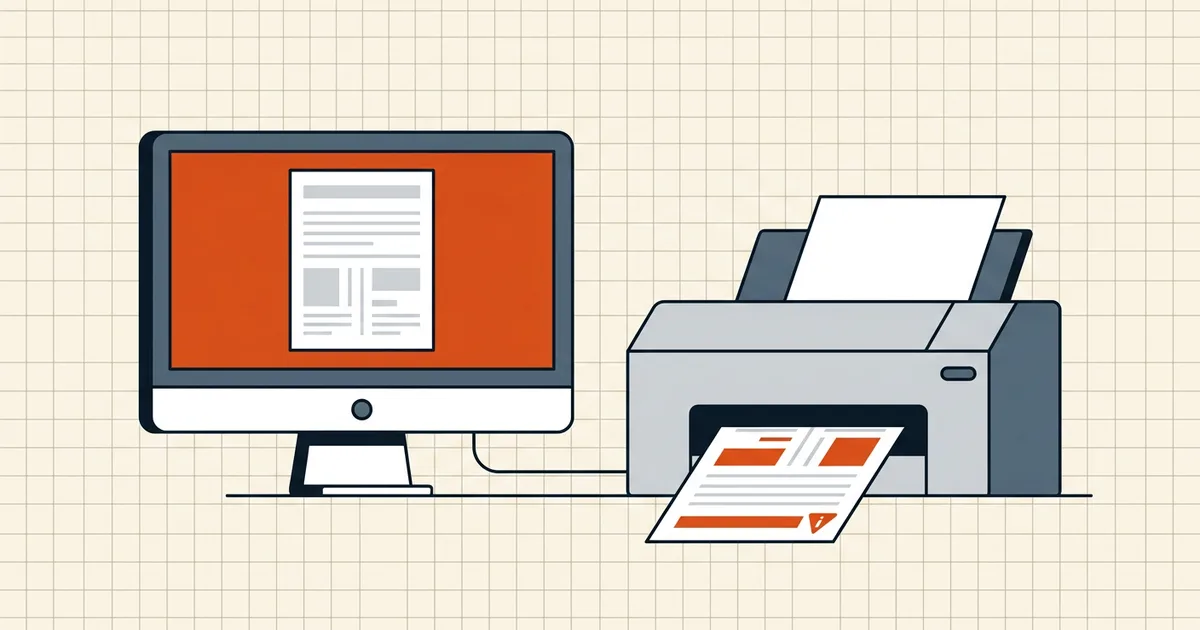
The document is upright on your screen. The printout comes out sideways — or upside down, or half the pages are wrong while the rest are fine. Before you blame the printer: the screen was probably lying to you.
View rotation is not page rotation
PDF pages store an orientation value (\/Rotate, in 90° steps) that every renderer — screen viewers and print engines — is supposed to honor. But most viewers also offer a temporary rotate-view command. Adobe Reader's View → Rotate View, many browser preview panes, and phone viewers all let you spin the display without writing anything to the file.
Printing reads the file. So a page you "rotated" on screen prints in its stored orientation.
Work through the causes in this order
1. Reopen the file and look again
Close and reopen the PDF in the same viewer. If the orientation is back to wrong on screen, you were in a view rotation — fix the file permanently (below). If it is upright on screen and still wrong on paper, keep going.
2. Check the print dialog first
The cheapest fix lives in the print window:
- Orientation / paper handling. Look for "auto-rotate pages to fit paper" or a Landscape/Portrait toggle. A landscape-designed slide printing onto Letter portrait gets turned by the driver, not by the PDF.
- Page sizing. "Fit", "Shrink oversized pages", and "Booklet" each rearrange orientation in their own way. Try "Actual size" once to see the file's true geometry.
- Paper size. A4 vs Letter is an 8.3 × 11.7 in vs 8.5 × 11 in mismatch — small, but enough to trigger fit-logic rotation on wide content.
3. Fix just the pages that are wrong
Mixed files — a scanned signature page photographed sideways inside an otherwise fine document — need per-page rotation. Byte-level page rotation is exactly what BytesPDF's Rotate PDF tool does in your browser: turn individual pages or the whole batch, download a permanently corrected copy, keep the original untouched. If a page carries a digital signature, the tool refuses it rather than silently invalidating the signature — sign the final document after orientation is fixed (why signatures break).
4. If the content is sideways inside the page
Sometimes nothing is wrong with the page flags: a screenshot inserted rotated, a chart built landscape, or a scan of a printout. Page rotation will turn the whole page around that content. The fix is upstream — recreate the page from the source document — and worth knowing before you blame the PDF.
Batch-printing a stack of scans
Back-office reality: forty receipts, some phone-scanned portrait, some landscape. The reliable sequence is:
- Rotate the batch so each file is consistently upright.
- Merge into one document in the order the reviewer wants.
- Print or upload — after a pre-send check.
Because rotation and merging rewrite the file's bytes, this sequence also keeps any eventual signature on clean ground: compress and orient first, sign last.
When the printer is actually innocent
Two cases where the PDF itself is built rotated and no dialog setting will save you:
- Scan apps that bake orientation in. The page image itself is landscape; its
\/Rotateflag may even be "correct" — the pixels are sideways. Re-scan or rotate in an editor. - XFA/dynamic forms. Rare, but these re-layout at print time and can flip orientation on certain drivers. Print to a fresh PDF once, then use that flattened copy.
In every other case the fix is one of: flip a dialog setting, or write the rotation into the file and stop depending on how each viewer happens to display it. For the full method with tool options and batch notes, read how to permanently rotate a PDF and save it.
Frequently asked questions
Why does my PDF look fine on screen but print sideways?
The screen view was rotated temporarily, or the printer driver is auto-rotating to fit paper. Print engines read the page's stored rotation, so a view-only rotation disappears on paper.
How do I fix a PDF that prints rotated?
Store the rotation in the file: rotate each page with a tool that re-saves the PDF (for example BytesPDF Rotate PDF), reopen the result to verify, then print. Do not rely on the viewer's rotate arrows.
Why do only some pages print sideways?
Mixed-orientation scans are normal — a landscape exhibit bound into a portrait document keeps its own page rotation. Fix just those pages instead of the whole file.
Can printer settings cause sideways printing?
Yes. 'Fit to page' or 'auto-rotate to paper' options in the print dialog can turn pages to match Letter or A4 orientation. Check the dialog's orientation setting before editing the file.