
Convert Word to PDF Without Losing Formatting (With or Without Word)
Conversion breaks in predictable places: fonts, tables, page breaks, hidden revision data. Here's what survives, what doesn't, and how to check the output.
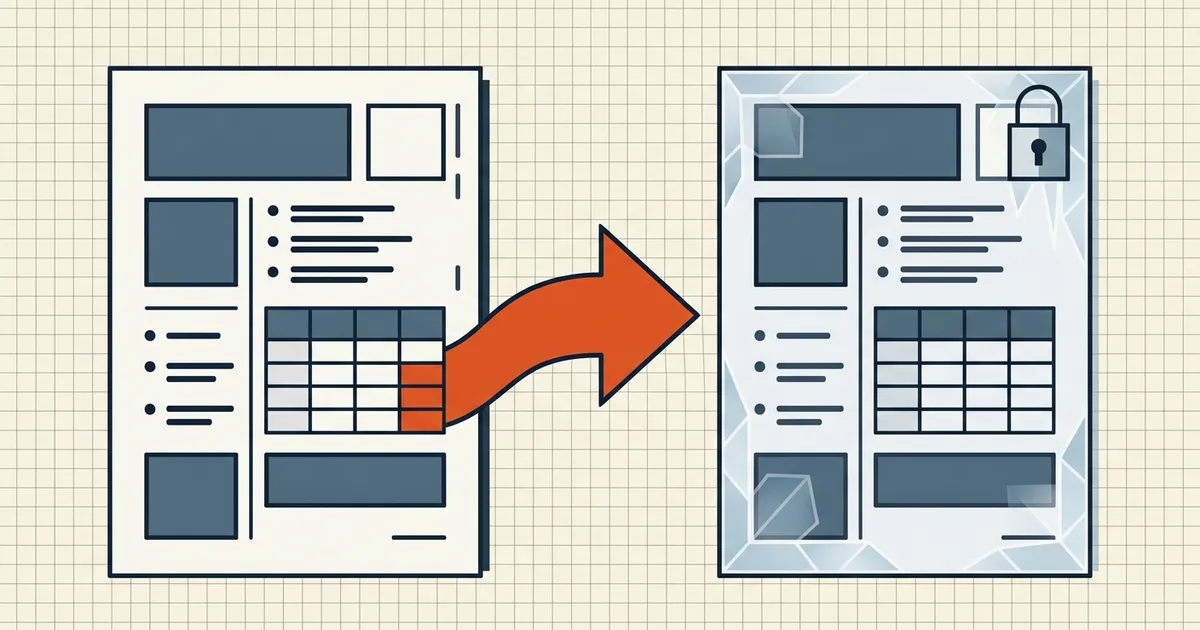
The promise "keeps your formatting" is doing a lot of work in every converter's marketing. In practice, conversion quality is decided by a short list of mechanics — and knowing them turns "please send the PDF again" into a non-event.
What a DOCX actually contains (and what must survive)
A Word file is a layout description: paragraphs with style names, explicit runs of formatting, tables with merge and width rules, section breaks with page geometry, headers and footers, embedded fonts optionally. A PDF is a fixed-page description: positioned drawing and text operations per page. Conversion is a rendering — the converter builds pages from the layout description. Everything that breaks in conversion breaks at that translation.
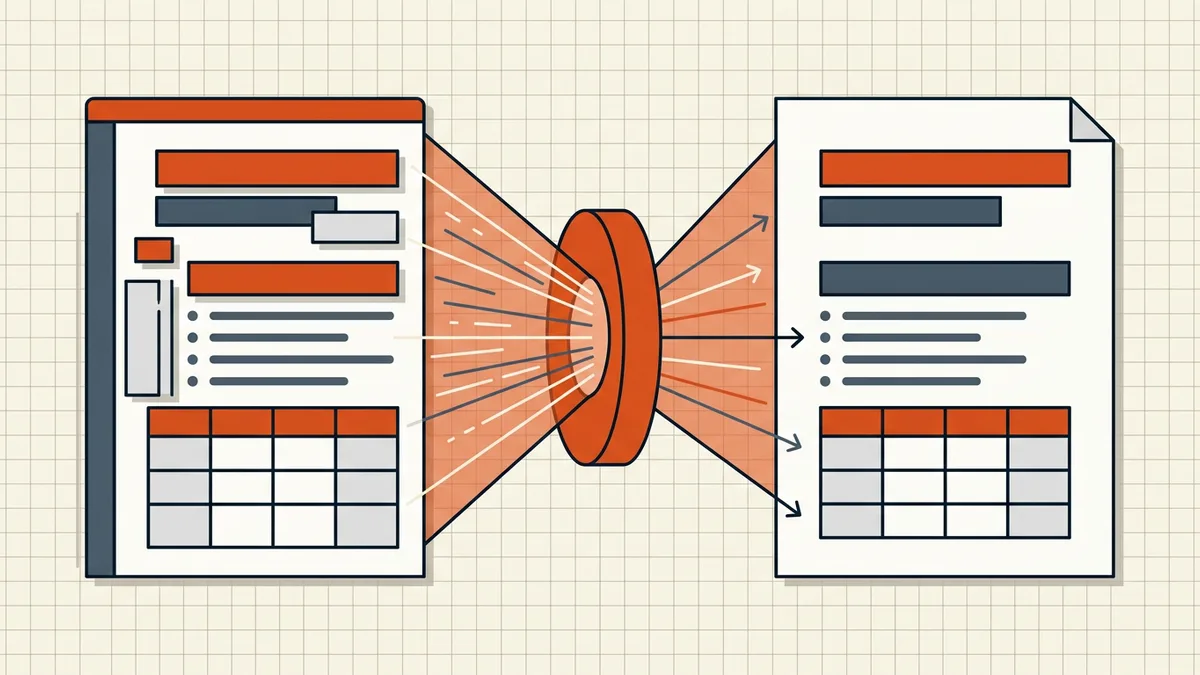
The five failure points, in order of frequency
1. Fonts
The classic. The converter substitutes a font that isn't available to it (or not embeddable), and headings re-flow in the substitute face. Two robust defenses: choose common fonts in the source document, and verify the output on a second device — font substitution is invisible on the machine that has the font installed.
2. Tables
Wide tables, merged cells, and nested tables are where converters disagree most. Columns can clip at the page edge (the spreadsheet version of this problem has its own fix-it guide), rows can split awkwardly across pages, and repeated header rows can stop repeating. Check every table against the source.
3. Page breaks and sections
Explicit Word section breaks (different margins mid-document, landscape inserts) must become real page geometry. Mixed-orientation documents are the stress test — the landscape exhibit must stay landscape.
4. Lists and numbering
Multilevel lists with custom schemes occasionally renumber on conversion. Numbering restarts are worth a scan, especially in legal-style documents where clause numbers are references.
5. Hidden editorial data
Tracked changes, comments, and document properties are not formatting — but they survive some conversion paths and leak in outward copies. Accept changes, delete comments, and run metadata cleanup on the final PDF.
Converting without Microsoft Word
No Word install? Three solid routes:
- A local, in-browser converter — BytesPDF Word to PDF reproduces headings, lists and tables to searchable PDF entirely on your device (nothing uploads — the same architecture as the rest of the toolkit). Especially worth it for sensitive drafts: resumes, contracts, internal memos.
- LibreOffice Writer — free desktop export via File → Export as PDF. Good general fidelity; typography-heavy documents deserve a second look.
- macOS Pages — exports to PDF directly from File → Export.
Word's own File → Export → Create PDF/XPS remains the reference implementation for gnarly layouts — if you have occasional access to Word for the hard files, convert the tricky ones there and the rest locally.
The proofing pass (do this every time)
- Compare page count and page breaks against the source.
- Zoom 100% and walk headings, tables, and headers/footers.
- Spot-check fonts on a second device or a second viewer.
- Search-test the PDF — conversion should yield real, selectable text.
- If the PDF goes outward: run the pre-send checklist — size limits and hidden-data cleanup included.
Frequently asked questions
How do I convert Word to PDF without losing formatting?
Use a converter that maps Word's layout primitives faithfully — headings, lists, tables, fonts — and check the output page by page. Word's own File → Export and BytesPDF's Word to PDF (local, in-browser) both preserve document structure; results vary with exotic fonts and complex layouts, so verify.
Can I convert DOCX to PDF without Microsoft Office?
Yes. Browser-based converters (including BytesPDF's local Word to PDF tool), LibreOffice Writer's export, and macOS Pages all convert without a Word install. None of them interpret Word layout perfectly in every edge case — proof the output.
Why did my font change after converting to PDF?
If a font isn't embedded in the PDF, viewers substitute the nearest available face. Conversions that embed the fonts used (or where you choose widely available fonts in the source) keep typography stable on every device.
Does converting to PDF remove comments and tracked changes?
Not automatically everywhere. Rendered markup may appear or disappear by converter; hidden revision data can ride along in metadata. For outward copies, accept changes, remove comments, and scrub hidden data before converting.
Related comparisons
Source-led comparisons written by BytesPDF, with the conflict of interest disclosed on each page. They link official provider documentation rather than fabricated tests.