
How to Digitally Sign a PDF with a Certificate (Not Just a Picture)
A picture of a signature is clip art. A PDF digital signature is cryptography over the file's bytes — here's how the real thing works and how to apply one.
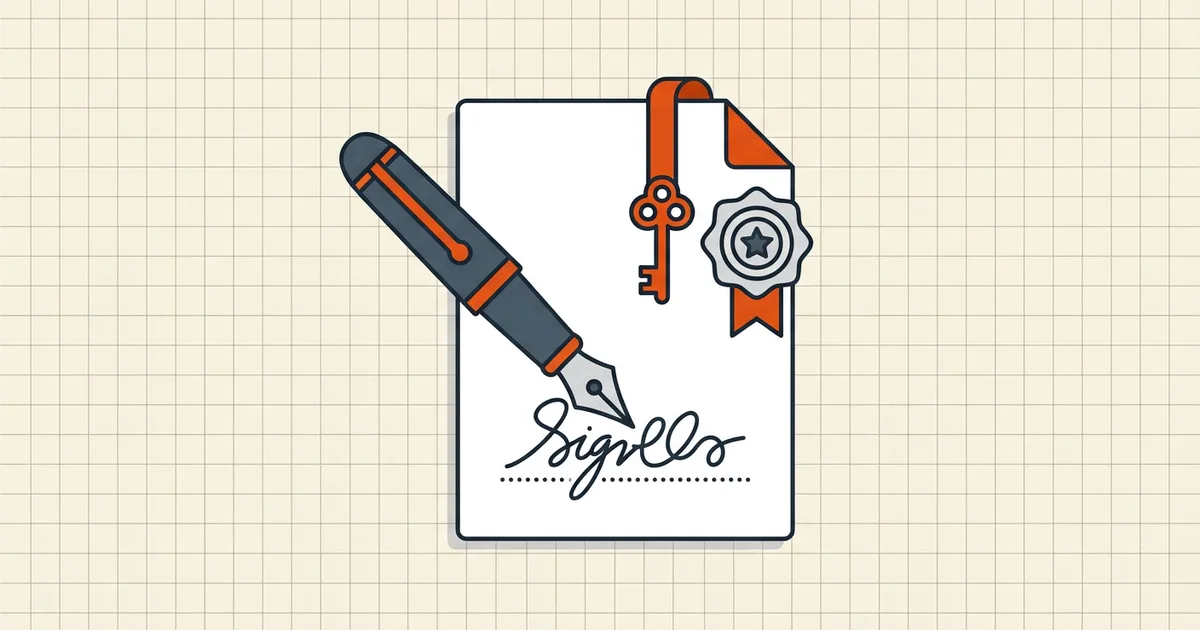
Paste a JPEG of your signature onto a PDF and you have… a picture. Anybody can copy it onto any document. A digital signature is a different animal entirely: mathematics over the file's exact bytes, tied to a certificate. Here's how it works, what you need, and how to apply one without sending the document anywhere.
What the cryptography actually claims
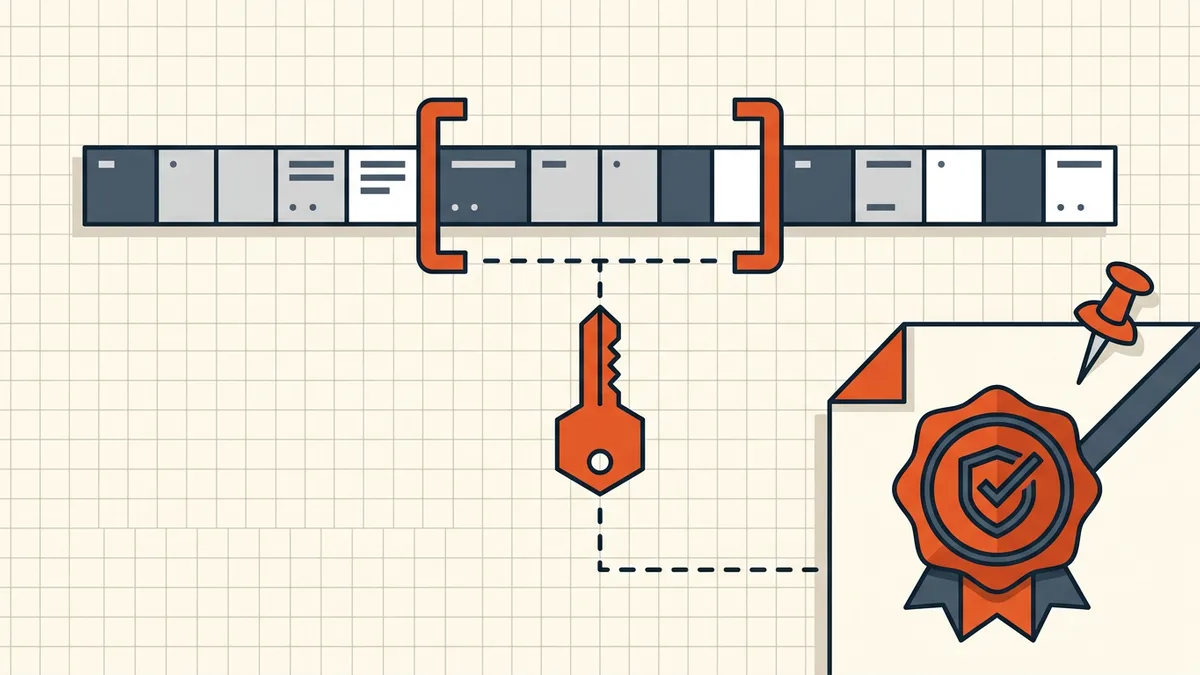
A PDF digital signature (the common form is PKCS#7/CMS, embedded in the file with a designated byte range) makes exactly two verifiable claims:
- Possession. The signature was produced by the private key matching certificate X.
- Integrity. The signed bytes have not changed one bit since signing.
That's it. Notice what is not automatically claimed: that certificate X is "you" in a legal sense (that comes from how the certificate was issued), or that the signature will display as "trusted" in every viewer (that's a trust-list question). Keeping these straight resolves most of the confusion in why signatures show as invalid or untrusted.
What you need to sign
- The final document. Absolutely final — see below.
- A signing certificate in PKCS#12 form (
.pfx/.p12, holding your private key + certificate), or one you create:- CA-issued certificates chain to roots in Adobe's trust list and major operating systems; recipients see a cleaner validated state. Qualified certificates (eIDAS QSCD, etc.) carry legal weight in their jurisdictions.
- Self-signed certificates are free and instant: ideal for internal approvals, drafts, and workflows where the recipient already trusts the channel. Readers will mark the identity unknown — expected, and fine when both sides know what it means.
- A place to sign locally. BytesPDF Sign PDF computes real PKCS#7 signatures on your device: import your certificate or generate one, sign the file, download. The private key and document never leave the browser — the architecture note in local vs server tools explains why that matters more for signing than almost anything else.
Signing step by step
- Finalize the document. Edits, comments accepted, hidden data cleaned, metadata scrubbed if needed, pages oriented and ordered.
- Size it for its destination if there's an upload limit — compression comes now, not after (exact-size guide).
- Open the signing tool, load the finalized PDF, and select or create your certificate.
- Apply the signature and download the signed file.
- Verify independently: reopen in a second viewer (Acrobat Reader's signature panel is the reference), confirm the signature state, and — this is the step everyone skips — confirm the signed file is the file you send. No re-saving through editors afterwards.
Signature validity vs. signature trust
A perfectly good signature can show a yellow warning: valid signature, unknown signer. That display separates two judgments:
- Integrity + math — did certificate X sign these bytes? Verifiable by anyone, always.
- Trust — should this viewer believe certificate X is who it says? Viewers consult trust lists (Adobe's AATL, OS roots). Self-signed and regional-CA certificates commonly sit outside them.
For internal workflows, distribute the certificate's fingerprint or the cert itself through a trusted channel so recipients can validate identity out of band. For external and legal workflows, a CA-issued (and where relevant, qualified) certificate is the standard.
Where signing sits in the secure-document workflow
Contracts and filings have one correct order of operations — edit → clean → protect → size → sign — laid out end to end in send a contract as a secure PDF. Get the order right once and "my signature shows invalid" stops being your problem.
Frequently asked questions
What is a PDF digital signature?
A cryptographic signature (typically PKCS#7/CMS over a byte range of the file) created with a private key and a certificate. It lets anyone with the public certificate verify two claims: which certificate signed the file, and that the signed bytes have not changed since.
How do I digitally sign a PDF for free?
Use a signing tool with a certificate — either one issued by a certificate authority or a self-signed certificate you create for internal use. BytesPDF Sign PDF computes real PKCS#7 signatures locally in your browser: import a certificate or create one, sign, download.
Is a signature image the same as a digital signature?
No. An image or typed name is visual; it proves nothing cryptographically and copies freely. A digital signature binds a certificate to the file's exact bytes and breaks if the file changes.
What's the difference between self-signed and CA-issued certificates?
A CA-issued certificate chains to a root that mainstream readers already trust (identity is vouched for). A self-signed certificate is one you vouch for yourself — fine for internal workflows where the recipient trusts you; readers will show it as untrusted/unknown by default, which is a trust-display state, not an integrity failure.
When should I sign — before or after compressing?
Sign last. Compression, merging, rotating and cleaning all rewrite the file's bytes and will invalidate an existing signature. Finalize the document completely, then sign the exact bytes you'll send.
Related comparisons
Source-led comparisons written by BytesPDF, with the conflict of interest disclosed on each page. They link official provider documentation rather than fabricated tests.