
Word to PDF with Tracked Changes: Clean or Markup, Your Choice
Word remembers every revision — and happily prints them into your PDF. Two settings decide what the recipient sees, plus the honest third option most guides skip.

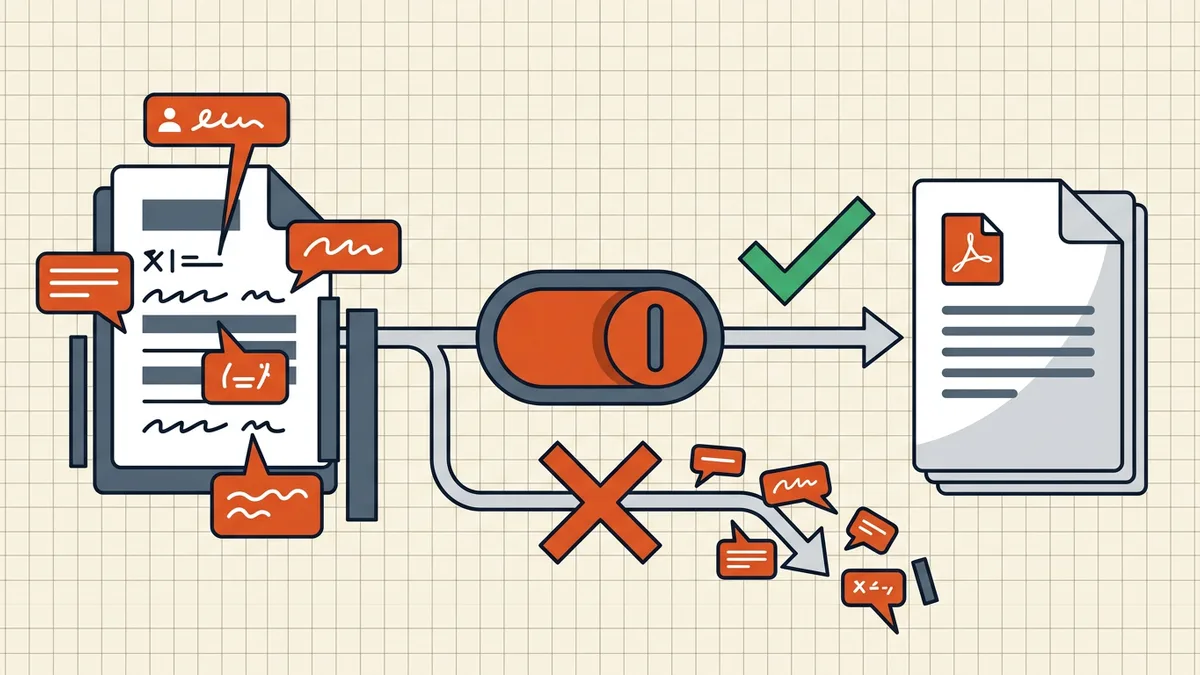
The PDF came out looking like your editor's argument with itself: red strikeouts, colored insertions, comment balloons in the margin. Word didn't betray you — it exported exactly what the review view was showing. Two settings control the outcome.
Setting 1: the review view (Save/Export path)
In Word: Review → Display for Review → pick No Markup.
- All Markup → PDF contains the full redline.
- No Markup → PDF shows the clean final text; tracked changes stay hidden and still live in the .docx.
Then File → Save As / Export → PDF as usual. No Markup is view-only — it doesn't accept anything, which is exactly why it's the right tool when you must preserve the redline master but ship a clean copy.
Setting 2: the print path (the escape that trips people)
Printing to PDF (Ctrl/Cmd-P → Save as PDF, or an Adobe PDF printer) ignores the review view and obeys Print Markup instead:
- Find Print Markup (Word's print settings / Options) — uncheck it.
- PDF prints clean; markup stays in the document.
Both paths fail independently: view set correctly but printing with markup on — still red. Check whichever path you actually use.
Setting 0: the honest alternative — accept first
If no one needs the redline anymore: Review → Accept All, save, export. The PDF is clean by construction, no view settings to remember. The trade is irreversible in that .docx — keep a tracked backup if the history has any future value.
Which PDF does this recipient need?
| Recipient | Ship |
|---|---|
| Reviewer / lawyer iterating on text | Marked-up PDF (the redline is the message) |
| Signer / filer / printer of the final | Clean PDF (No Markup or accepted) |
| Someone asking "what changed between drafts?" | Clean PDF + a line-level comparison |
And if markup already escaped into a sent PDF: comments can be stripped afterwards (remove comments), but tracked-change text baked into pages is content — that needs the source document and a re-export, not a PDF patch.
Frequently asked questions
Why does my Word-to-PDF export show all the tracked changes?
Because Word exports what the current review view displays. If 'Display for Review' is set to 'All Markup', strikeouts, insertions, and comments go into the PDF. Switch the review view to 'No Markup' (or accept changes before export) and the output shows the clean final text.
Does 'No Markup' accept the changes?
No — No Markup only *hides* them in the view; the underlying tracked changes remain in the Word document, editable later. Accepting changes is a separate, deliberate act. Use No Markup when you must keep the redline history in the .docx but ship a clean PDF.
I set No Markup and the PDF still shows comments — why?
Two usual escapes: exporting through a print path with 'Print Markup' still checked (uncheck it in the print settings), or a PDF-creation add-in with its own 'convert comments' option left on. The view setting and the print/export setting are independent — both must be clean.
Should I send the marked-up PDF or the clean one?
Depends on the recipient's job: reviewers and counsel often need the markup (that's the redline); countersigners and filers need the clean final. When both sides need 'what changed' without the noise, send the clean PDF plus a [comparison report](/blog/compare-two-pdf-versions) of the versions.
Does accepting changes before export lose anything?
The .docx keeps (or drops) history per your accept/reject choices — the PDF can't contain revisions the document no longer has. If the redline must survive, don't accept: use the No Markup *view* route instead and keep the tracked .docx as the master.