
How to Rotate a PDF on iPhone and Android (That Actually Saves)
Phone rotation has one trap: you tilt the view, the file doesn't change. Here's how to rotate PDF pages on iPhone and Android so the fix survives sharing and printing.
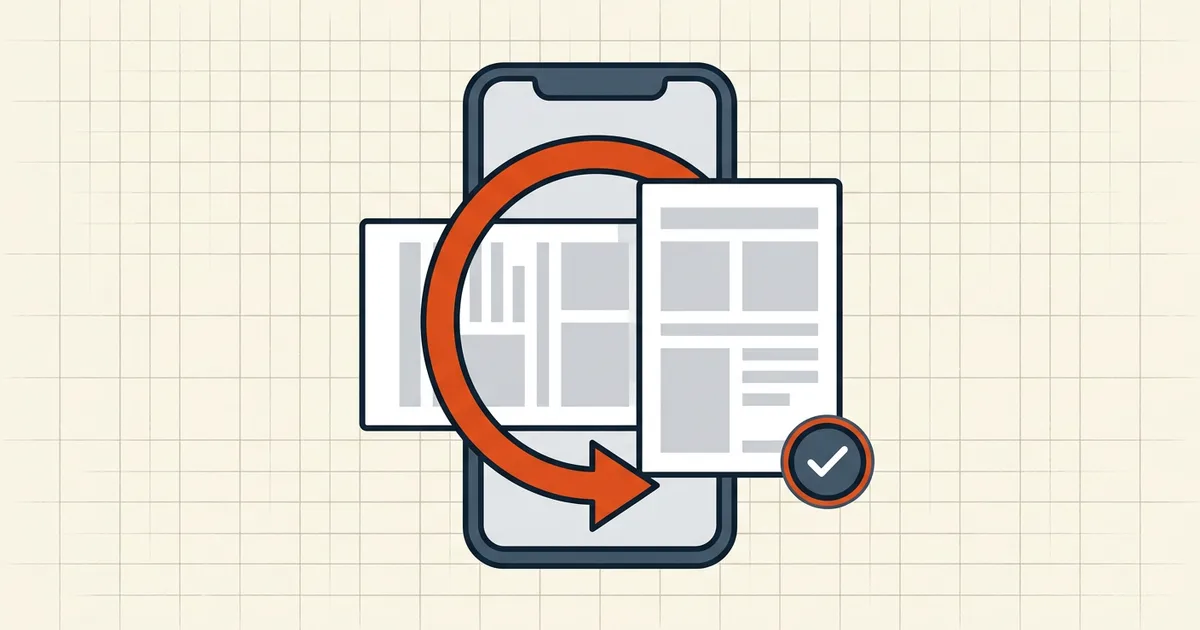
Your phone rotated. The PDF didn't. This is the single most common complaint about rotating PDFs on mobile, and it comes down to one distinction the interface never explains: rotating the view vs. rotating the page.
View rotation vs. page rotation (the whole trick)
- View rotation changes how the file is displayed — screen auto-rotate, a viewer's rotate button, a two-finger twist. Close the file and it's back to normal. The recipient never sees your "fix."
- Page rotation rewrites the page's rotation flag inside the PDF. It travels with the file — sharing, printing, uploading all keep it.
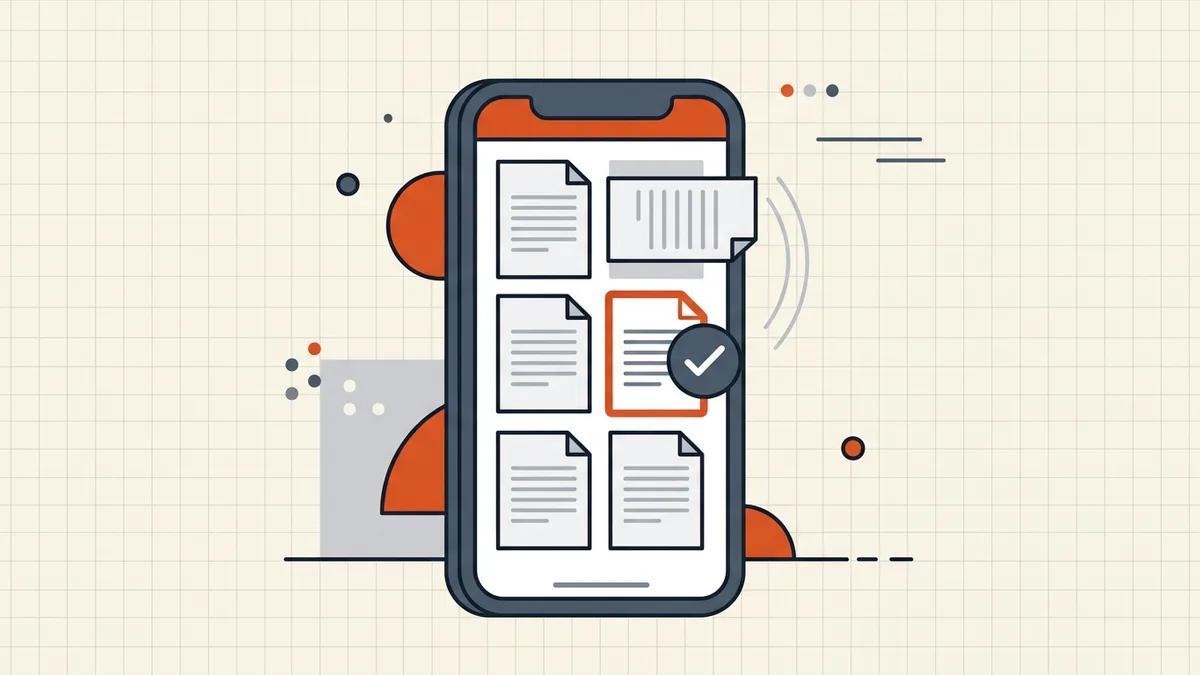
Everything below is about forcing the second kind on a device with no Acrobat.
iPhone / iPad (iOS 15+): the Files-app route — no app install
- Open Files, locate the PDF, tap to open it.
- Tap the page-thumbnail icon (top-left) to enter thumbnail view.
- Select the sideways page(s) — tap one, or drag to multi-select.
- Tap Rotate Left or Rotate Right (bottom toolbar).
- Tap Done — Files writes the change back into the PDF.
Then run the verification: close, reopen, and check one rotated page in a second viewer (Mail's preview counts). If it held, the rotation is stored, not simulated.
What doesn't count: physically rotating your phone; Markup's crop/rotate handles in some iOS versions (view-side in older builds); screenshots. When in doubt, the reopen test settles it in two seconds.
Android: honest routes
Android's PDF tooling is more fragmented — no single system-app guarantee across devices:
- Browser route (works everywhere): open BytesPDF Rotate PDF in Chrome, select the file, set the rotation, download. Processing happens in your browser tab — the phone's camera-roll copy never leaves the device (architecture compared). Same tool as desktop, touch-friendly.
- Google Drive viewer: recent versions offer page rotation from the thumbnail view — check your build; if the option isn't there, use the browser route.
- Scanning apps that produced the sideways pages usually let you fix orientation at capture — cheaper than repairing later.
Mixed-orientation files (the real-world case)
Scans of receipts, book pages, and ID cards come out sideways between upright pages. Fix per-page: enter thumbnail view, rotate only the offenders, save. Then, if the file is going to a portal or email, the usual tail applies — size limits, pre-send checks.
If it's printing sideways, rotation is half the story
Sometimes the phone fix holds and the printout still comes out wrong — that's the print-dialog layer, not your file (why PDFs print sideways). And for the permanent-save mechanics in depth — including the /Rotate flag internals — the permanent rotation guide covers the desktop side of the same problem.
Frequently asked questions
How do I rotate a PDF on iPhone and save it?
On iOS 15+, open the PDF in the Files app, tap the page-thumbnail icon, select the page, and use Rotate Left/Right — Files saves the rotation into the file. On older routes (Markup) rotation may only affect the view. The reliable test: close the file, reopen it, and check the orientation before you send it anywhere.
Why does my PDF rotation reset when I share it?
Because you rotated the view, not the page. Screen rotation, browser viewer rotation, and many app 'rotate' buttons only change how the file is displayed on your device. The PDF's internal page rotation flag never changed, so the recipient sees the original orientation.
How do I rotate a PDF on Android?
Use a viewer with page-rotation that writes the change (Google Drive's PDF viewer offers page rotation in newer versions; Files by Google has limited support), or open bytespdf.com/rotate-pdf in Chrome on the phone — the rotation is applied in your browser and the downloaded copy carries it permanently.
Can I rotate only one page in a PDF on my phone?
Yes — in thumbnail view, select just the misbehaving page and rotate it, leaving the rest untouched. Mixed-orientation scans (one sideways receipt among portrait pages) are the classic case; rotate per-page rather than flipping the whole document.
How do I know the rotation was saved permanently?
Three checks: close and reopen the file; view it on a second device or in a different viewer; and — the real one — send yourself the file and open the copy. If the copy opens upright, the rotation is in the file's page data, not just your view.
Related comparisons
Source-led comparisons written by BytesPDF, with the conflict of interest disclosed on each page. They link official provider documentation rather than fabricated tests.