
IRCC (Canada) Document Uploads: The 4 MB Target and the One-File Rule
IRCC's secure account caps each file at 4 MB, the limit varies by application, and only one file is saved per field. Here is how to work inside both rules.
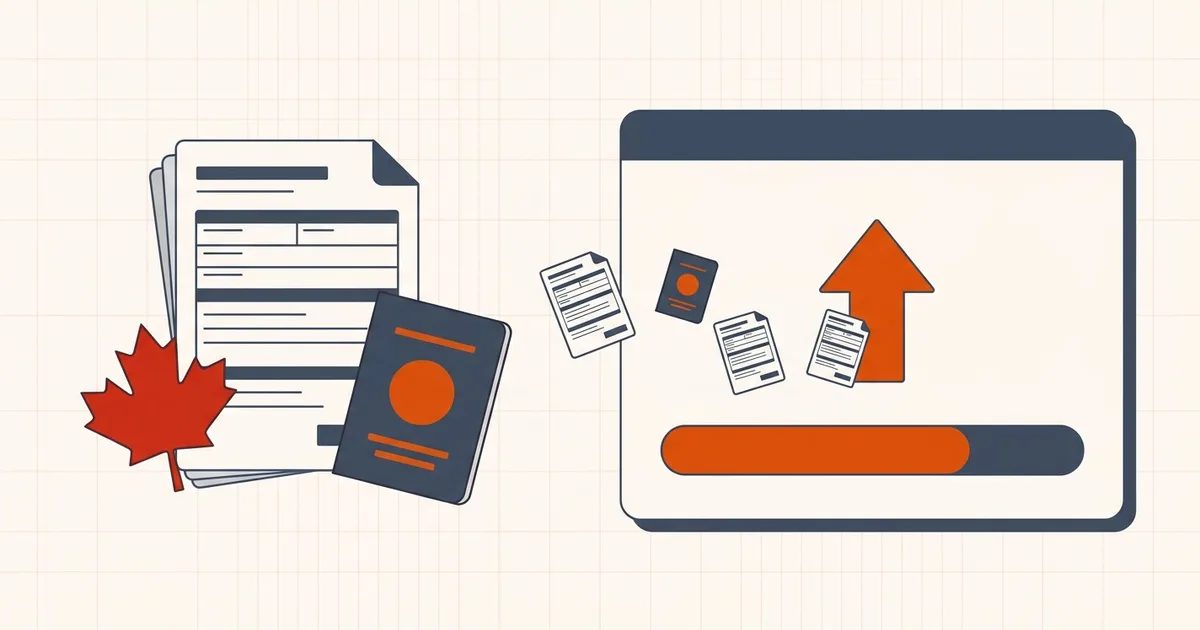
Canadian immigration applications have one rule that trips up almost everyone: one file per field. Not one document — one file. If you upload three PDFs into the same field, IRCC saves only the last one, so the other two are lost.
Combine that with a 4 MB per-file ceiling and you have a workflow that rewards preparing your documents properly before you ever open the upload page.
The limits by account type
IRCC's help pages list different per-file limits depending on which online account you are using:
| Upload location | Limit per file |
|---|---|
| IRCC secure account (confirmed on canada.ca) | Less than 4 MB |
| IRCC Portal and other account types | Not stated on the pages we checked. The limit varies by application, so read the upload page. |
Some applicants report a lower ceiling on certain flows. We could not confirm those reports on an IRCC page. Rather than trying to work out which number applies to your exact combination of application and account, use this rule:
Build every file to fit inside 4 MB. If it fits in 4 MB, it fits everywhere.
Accepted formats
IRCC accepts six formats: PDF, TIFF, JPG, PNG, DOC, and DOCX.
In practice PDF is the right answer for almost everything. It preserves formatting across the devices officers use to review files, it compresses well, and — critically — it is the only sensible container when you need to bundle several pages into a single file.
The one-file-per-field rule
This is where most applications go wrong. IRCC states that only one file is saved in each document field, and that uploading more than one means only the last is kept.
So when a field asks for proof of employment for one job, everything relevant — reference letter, pay stubs, contract, tax slips — has to become one ordered PDF before you upload it. Not four files. One.
Two principles keep this manageable:
- Combine only what belongs together. Do not merge unrelated documents just to save space. Follow the field instructions.
- Order matters. Put the documents in a logical sequence — usually the main document first, supporting evidence after — so a reviewer can follow them without hunting.
If you need to combine files, use the merge tool, which also runs locally in your browser.
How much actually fits in 4 MB
| Content | Rough size |
|---|---|
| Text-only PDF, many pages | Very small — hundreds of pages possible |
| Scanned page at 150 DPI, grayscale | 200–500 KB |
| Scanned page at 300 DPI, color | 400 KB – 1 MB |
| High-resolution phone photo | 2–3 MB each |
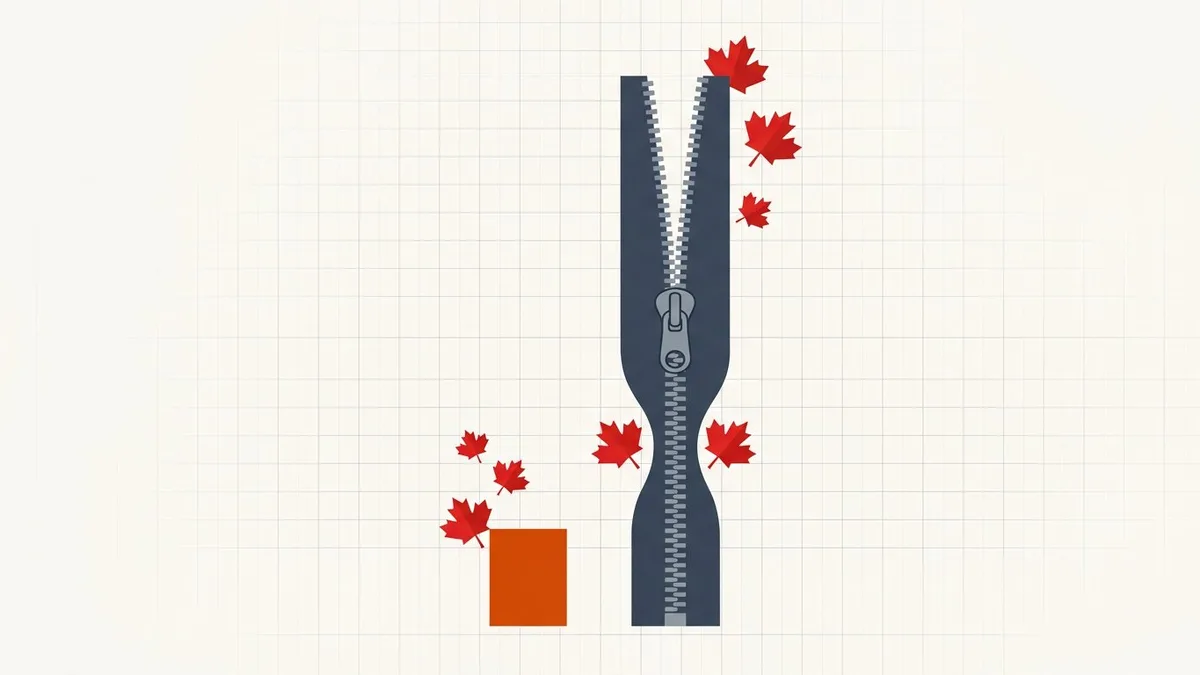
| 4 MB budget | Roughly 8–10 scanned pages with images |
The pattern is obvious: photographs are what blow the budget. A relationship-evidence bundle made of twenty full-resolution phone photos will never fit. Resize the images first, then build the PDF.
IRCC's own guidance on combining documents suggests saving at 150 DPI or less to reduce size — with the explicit caveat that small text and stamps must remain readable.
The two bundles that never fit: proof of funds and relationship photos
Applicants on Canadian immigration forums describe the 4 MB limit as "a trap", and the reports cluster around two specific uploads. These are individual experiences rather than IRCC statements, but they recur often enough to plan for.
Proof of funds. Six to twelve months of transaction history for several accounts can run to a hundred pages. Applicants report having to cut pages and explain the gap in a letter of explanation because nothing legible fitted in 4 MB. Better options, in order:
- Download statements from online banking as PDF, not as scans of printouts. Born-digital statements are text and a hundred pages is typically under 2 MB before any compression. Many banks encrypt that download, and an encrypted file cannot be merged or compressed until it is opened: how to open a password-protected bank statement.
- If you only have paper, scan at 150 DPI grayscale — IRCC's own combining guidance suggests 150 DPI or less — and check the transaction lines are still readable.
- If the field is a single upload and the bundle is still over, compress moderately and check the smallest figures, then consider whether the portal offers additional fields (some do) before removing pages.
One reported experience worth passing on: macOS Preview's "Reduce File Size" export made the files larger for one applicant, because it re-encodes every page as an image at a fixed setting regardless of what was there. It is not a reliable tool for born-digital statements.
Relationship or common-law evidence. Twenty full-resolution phone photos will not fit in 4 MB at any compression level a caseworker can still read. Applicants who succeeded describe the same approach: resize the photos before building the document, place three or four per page with a caption (date, place, who is pictured), then export to PDF. Compressing the finished PDF afterwards works far less well than shrinking the images that go into it — the reasoning is in PDF compression versus image compression. If the photos are coming off an iPhone they are probably HEIC rather than JPEG, which IRCC does not accept: converting HEIC to PDF covers that conversion without a round trip through a server.
A workflow that does not need repeating
Once the limit for your account is confirmed, use the visa-application compressor to prepare a local copy, then open it and check that every page remains readable.
- Read the field instructions. Confirm what the field wants and check the stated maximum in the account you are actually using.
- Gather the documents for that single field — and only that field.
- Resize images before combining. Shrink phone photos to a sensible long edge and re-save at moderate quality. Doing this after the PDF is built is far less effective.
- Combine into one ordered PDF using the merge tool.
- Check the size. If it is over 4 MB, compress.
- Compress only if you need to. Open the compress tool and reduce it. These are passports, financial records, and identity documents — the tool processes them in your browser and does not upload them. Processing and downloading are free: no account, no signup, no email and no watermark.
- Open the result and inspect every page. Zoom into the smallest text, the stamps, and the signature lines. If anything is illegible, back off and redo it.
- Upload, then confirm it saved. Do not assume.
Details that cause repeat rejections
- Only the last file is kept in a field, so a mis-ordered upload silently loses evidence.
- Filenames matter. Keep them simple and avoid extra punctuation beyond the extension.
- Password-protected and encrypted files will not upload. Remove protection first — and if the password you were given is being refused, work through the password checks before assuming the file is corrupt.
- Low-quality scans delay processing even when they are under the size limit. IRCC warns that illegible documents slow applications down. The three fixes that matter most are sharpening a blurry scan, correcting a scan that is too dark or too light, and straightening crooked pages.
- Certified translations usually need to be combined with the original into the same file, which roughly doubles your page count and your size budget.
Official sources
- IRCC secure account — sign in and check which account you need — IRCC runs different accounts for different application types, and the upload limits are shown within the account you use
- Gmail's 25 MB limit, if you need to email documents to a representative
IRCC does not publish one consolidated file-size specification, so the upload page inside your account remains the authoritative source.
Before you upload
- One file per field, with everything combined in a logical order
- Format is PDF, TIFF, JPG, PNG, DOC, or DOCX
- File is under 4 MB
- Images were resized before combining, not after
- Every page opened and checked — small text, stamps, signatures
- No password protection, no ZIP, no spreadsheet
- The original uncompressed files are still on your disk
Frequently asked questions
What is the IRCC file size limit per document?
IRCC's secure-account instructions say a file must be less than 4 MB. IRCC's help page also says the limit varies by application, so read the upload page for your field. Build every file under 4 MB.
What file formats does IRCC accept?
PDF, TIFF, JPG, PNG, DOC, and DOCX. PDF is the safest choice, particularly when you need to combine several documents into one file.
Can I upload multiple files into one IRCC document field?
No. IRCC states that only one file is saved per field — if you upload several, only the last one you upload is kept. Combine related documents into a single ordered PDF before uploading.
How many pages fit into 4 MB?
Roughly 8 to 10 scanned pages at around 150 DPI, and far more for text-only documents. High-resolution photographs consume 2 to 3 MB each, so image-heavy evidence fills the budget quickly.
How do I get IRCC proof of funds under 4 MB?
Download statements from online banking as PDF rather than scanning printouts — born-digital statements are text and a hundred pages is usually under 2 MB. If you only have paper, scan at 150 DPI grayscale as IRCC's combining guidance suggests, then compress moderately and check the smallest figures are still legible before removing any pages.
Related comparisons
Source-led comparisons written by BytesPDF, with the conflict of interest disclosed on each page. They link official provider documentation rather than fabricated tests.