
NVC and CEAC Uploads: Working Inside the 2 MB per Document Limit
The US immigrant visa portal enforces roughly 2 MB per file. Here is how to get scans under it, what CEAC accepts, and the mistakes that cause repeat rejections.
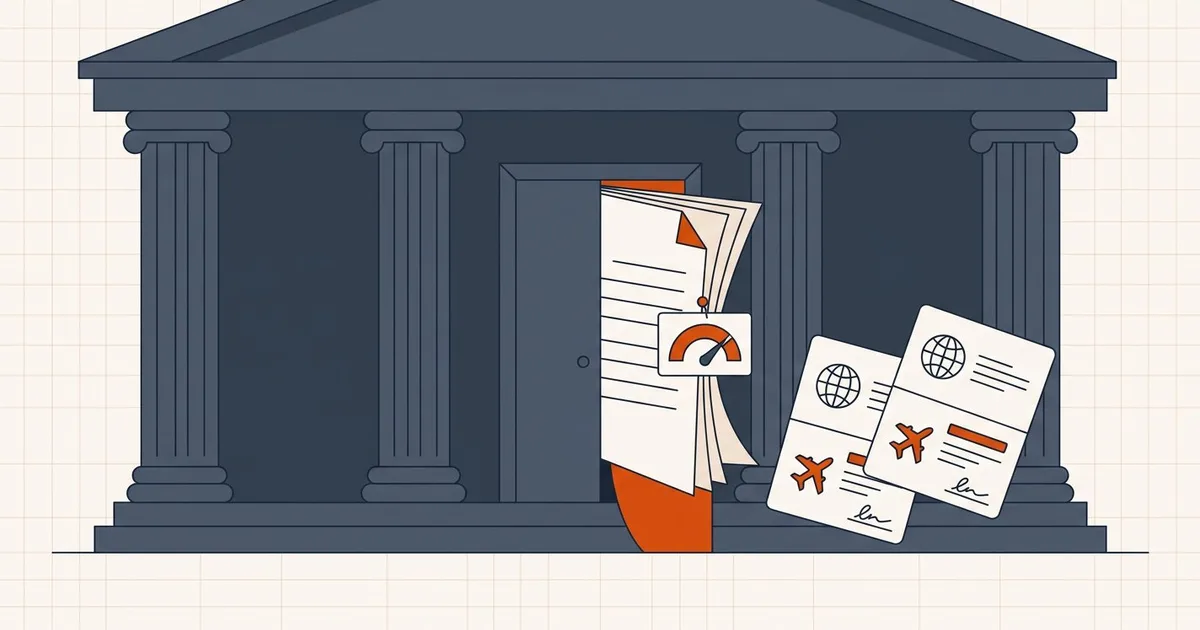
Few upload limits cause as much repeated frustration as the one on the Consular Electronic Application Center. You scan a passport, a birth certificate, or a tax transcript, upload it, and get an error. The scan was 6 MB. The portal wanted roughly 2 MB.
This guide covers what CEAC actually enforces, how to get a scan under the limit without making it illegible, and the specific mistakes that cause a document to be rejected a second time.
What CEAC enforces
For immigrant visa cases processed by the National Visa Center, the constraints are unusually tight and consistently reported:
- Roughly 2 MB per individual document. Files above this are rejected at upload with an error. Some NVC guidance pages refer to a 4 MB figure, and the agency has discussed raising the limit for years — so treat 2 MB as your working target. If your file passes at 2 MB, it passes regardless of which number the page is showing today.
- JPG, JPEG, or PDF only. Other formats are refused.
- No zipped files and no password-protected files. Do not archive your documents before uploading.
- One document per field. Each civil or financial document goes into its own category, so a single merged packet usually will not work.
The practical consequence: 2 MB is small. A default flatbed scan at 300 DPI in color produces 3–8 MB per page. Almost every first attempt is too big, which means your workflow should assume compression from the start rather than treating it as a fix-up step.
Start at the scanner, not the compressor
The single biggest lever is not the compression setting — it is what you feed into it.
| Setting | Typical size per page | Use for |
|---|---|---|
| 300 DPI, color | 3–8 MB | Photographs only |
| 200 DPI, color | 1.5–3 MB | Documents with color seals or stamps |
| 200 DPI, grayscale | 400 KB – 1 MB | Most text documents |
| 150 DPI, grayscale | 200–500 KB | Text pages with no fine print |
Most civil documents — birth certificates, marriage certificates, passports, diplomas — are text with maybe one seal. Scanning them at 200 DPI in grayscale usually lands under 1 MB with no meaningful loss. IRCC's own guidance for Canadian applications suggests 150 DPI or less for exactly this reason.
Reserve 300 DPI color for pages that genuinely carry photographic information you need preserved.
Getting an existing scan under 2 MB
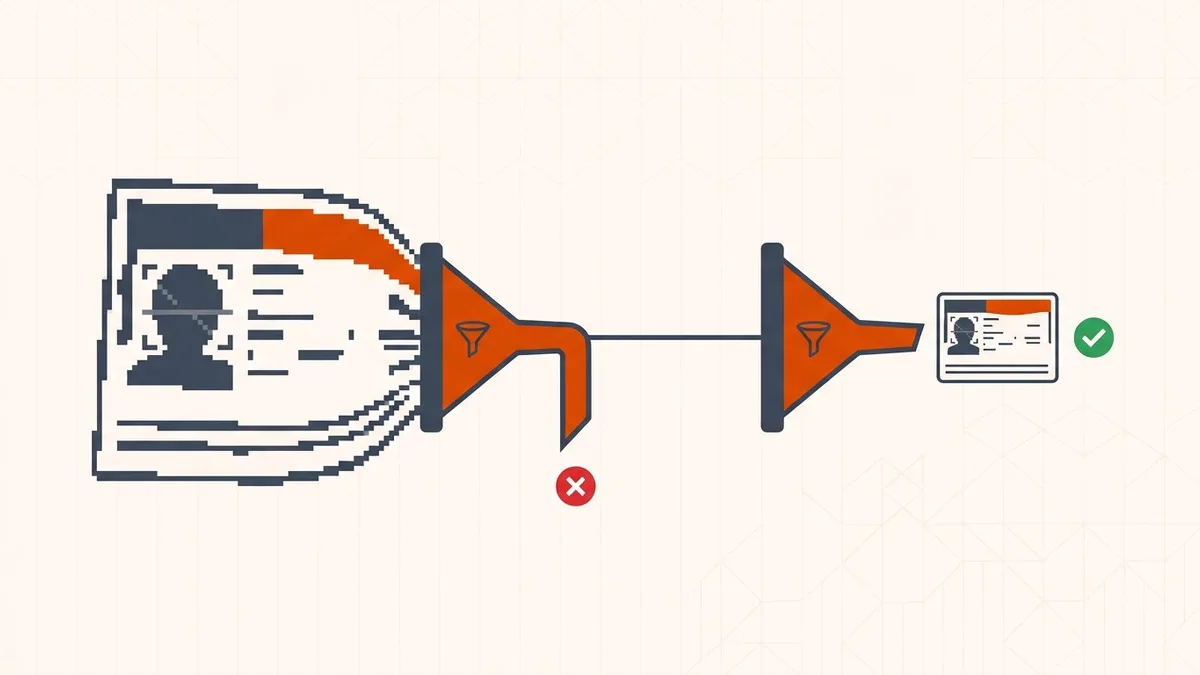
When you already have an oversized PDF, work in this order:
- Check the file size first. Do not guess. Open the file properties and note the exact size so you can tell whether you need a light touch or a large reduction.
- Compress locally in the browser. Open the compress tool and drop the document in. These are civil and financial records — passport pages, tax transcripts, bank statements — and the tool processes them on your device rather than uploading them to a server.
- Start moderate, not maximum. Going straight to the most aggressive setting is how people end up uploading a blurred birth certificate that fails review. Reduce in steps and stop as soon as you are comfortably under 2 MB.
- Open the result and check the hardest page. Zoom into the smallest text, the seal, and the signature line. If any of them are mush, back off one level and redo it.
- Re-check the size. Confirm you are under 2 MB, then upload.
If a document is still oversized after compression, the scan itself is the problem. Rescan at a lower DPI in grayscale rather than compressing the same file repeatedly — repeated compression of an already-compressed scan is what produces visible artifacts. See can you compress a PDF twice for why that degrades quickly.
Why a "valid" PDF still gets refused
A file can be under 2 MB, open perfectly, and still be rejected. The recurring causes:
- The document is password-protected or encrypted. CEAC will not accept it. Remove the protection before uploading.
- The file is a scan of a scan. Photocopies re-scanned at high DPI accumulate noise, which both inflates the file and reduces legibility.
- The pages are rotated or upside down. Some ingestion checks fail on orientation even when a human could read it.
- Compression rasterised a fillable form. If the field expects an interactive form, flattening it can break validation.
- The wrong document is in the wrong field. Uploading a combined packet where the portal expects a single civil document is a common cause of repeat rejections.
Our companion guide covers the portal-side failure modes in more depth: why government and visa portals reject compressed PDFs.
If you are filing with IRCC (Canada)
Canadian applications run through different portals with different limits, and they are more generous than CEAC — but they have a stricter structural rule.
| Account type | Limit per file |
|---|---|
| IRCC secure account | 4 MB |
| IRCC Portal | 5 MB |
| IRCC Portal (new version) | 5 MB |
| Permanent Residence Portal | 4 MB |
| Online citizenship application | 4 MB |
| Asylum portal | 4 MB |
The rule that catches people out is one file per field. IRCC states that only a single file is saved in each document field — if you upload several, only the last one is kept. When several pages belong in one field, merge them into one ordered PDF first, then compress as a single file.
Official sources
- How to upload documents to the CEAC — Department of State visa service desk instructions
- Uploading to CEAC instructions — US embassy guidance
Formats and limits change, and consular posts sometimes publish local variations. Read the instructions on the screen for the field you are filling before you upload, and treat a current portal error as more authoritative than any guide — including this one.
A repeatable upload workflow
Once per document, every time:
- Name the file after the document and the applicant —
surname-birth-certificate.pdfbeatsscan001.pdfwhen you are reviewing a case months later. - Confirm the format is PDF, JPG, or JPEG.
- Confirm the file is under 2 MB (CEAC) or under the limit for your IRCC account.
- Open the file and check the smallest text, the seal, and any signature.
- Confirm there is no password and no zip wrapper.
- Upload to the correct field, then re-open the portal view to confirm it actually saved.
- Keep the original uncompressed scan until the case is decided. You may be asked for it again.
On privacy
Visa documents are the most sensitive files most people ever handle: passports, financial records, medicals, police certificates. Uploading them to an unfamiliar server-based converter to shave off a megabyte is a real risk that has nothing to do with the size limit.
Processing them locally in the browser avoids that entirely — the file never leaves your device. If you are comparing approaches, browser-local vs server-based PDF tools sets out the difference in concrete terms.
Frequently asked questions
What is the file size limit for CEAC uploads?
CEAC enforces roughly 2 MB per individual document, and rejects files above that with an error. Some NVC guidance pages refer to 4 MB, so treat 2 MB as your working target and you will stay safe either way.
What file formats does CEAC accept?
JPG, JPEG, and PDF. Zipped files and password-protected files are not accepted, so do not archive your documents before uploading them.
Will compressing my civil documents make them unreadable to a consular officer?
It can, if you over-compress. Small text, stamps, and seals degrade first. Compress moderately, then open the result and check the smallest text and any official stamp before uploading.
Can I combine several documents into one PDF for CEAC?
Each required document should normally be its own file matching its own category. Follow the portal's instructions for the specific field rather than merging unrelated documents together.
Related comparisons
Source-led comparisons written by BytesPDF, with the conflict of interest disclosed on each page. They link official provider documentation rather than fabricated tests.