
Gmail's 25 MB Attachment Limit: Why an 18 MB PDF Still Bounces
Gmail's 25 MB limit is measured after encoding, not on your disk. Here is the number to actually aim for, and how to get a PDF under it.
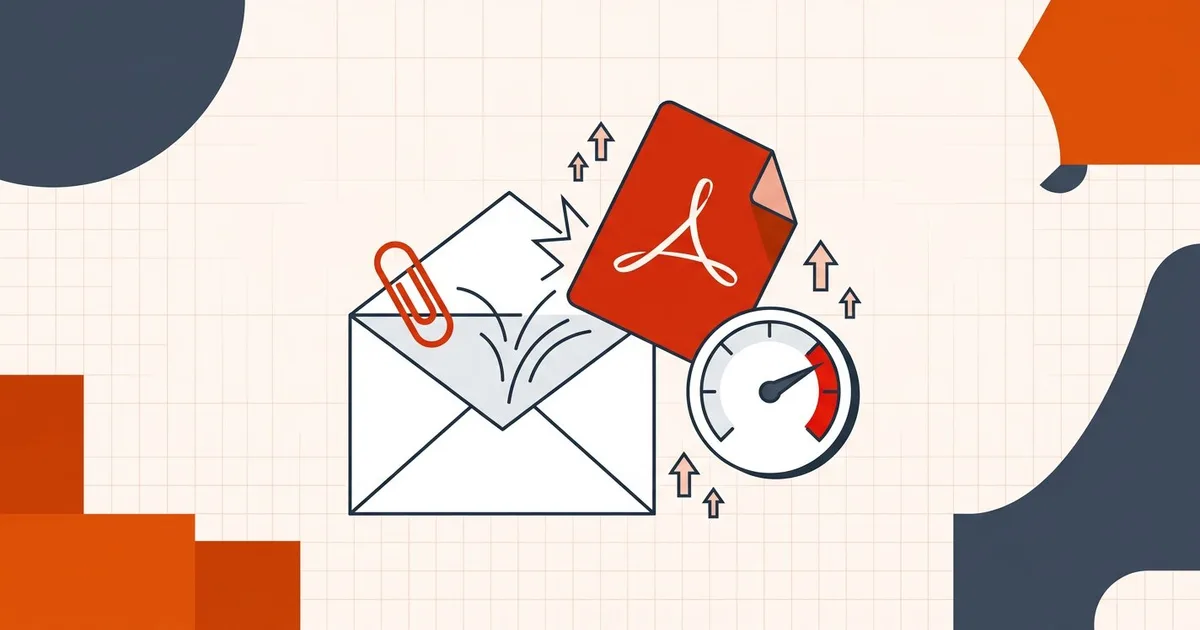
You attach a PDF, hit send, and Gmail refuses it. You check the file: 19 MB. The limit says 25 MB. Nothing about that adds up until you understand what the number is actually measuring.
Gmail's limit is applied to the encoded message, not to the file sitting in your Downloads folder. Email attachments are wrapped in base64 before they travel, and base64 turns every 3 bytes of your file into 4 bytes of message text. That is roughly a 33% increase before a single word of your message body is counted.
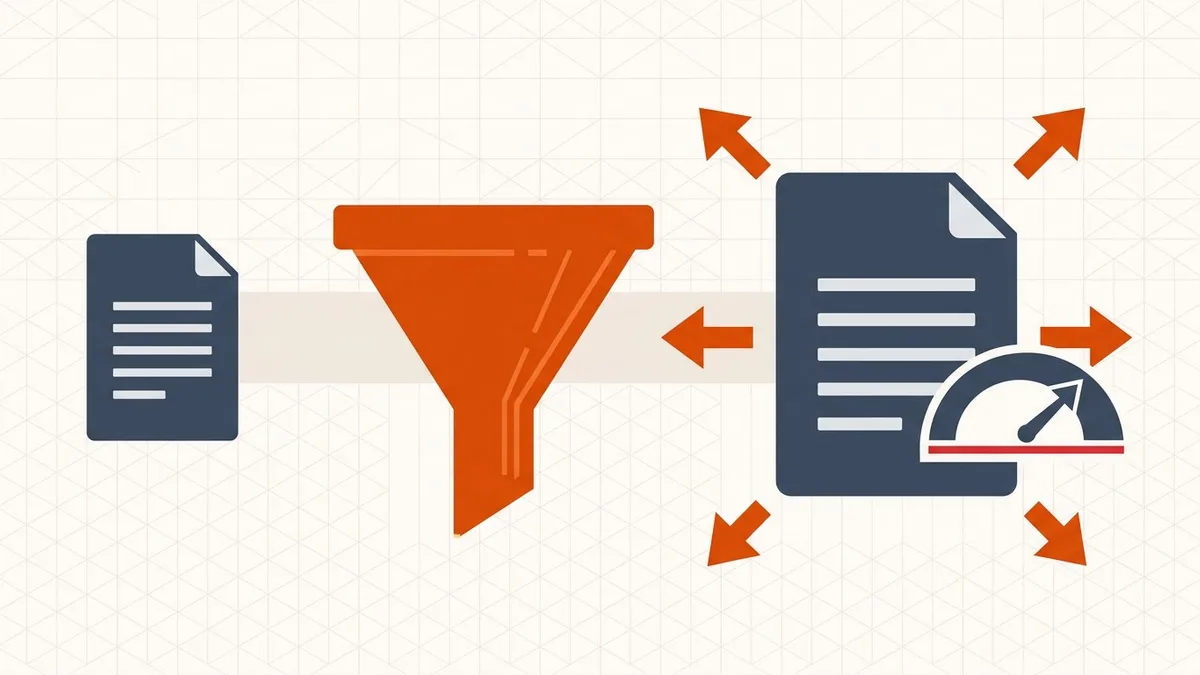
So the number to plan for is not 25 MB. It is about 18 MB, and less if you have a heavy signature.
Why your file is bigger than you think
Three separate things inflate the message beyond the file size you see:
- Base64 encoding adds roughly 33%. A 19 MB PDF travels as about 25 MB.
- The limit covers the whole message — attachments plus body text plus your signature plus any inline images, combined.
- Headers and MIME boundaries add a small overhead on top.
This is why the failure feels arbitrary. The file never changed; only the measurement did.
Attachment limits by provider
The published numbers, and the practical file size each one really allows after encoding:
| Provider | Published limit | Practical file size |
|---|---|---|
| Gmail (personal) | 25 MB per message | ~18 MB |
| Google Workspace | Set by your administrator | Varies — ask your admin |
| Outlook.com | 25 MB per message | ~18 MB |
| Microsoft 365 / Exchange Online | 35 MB send, 36 MB receive by default | ~26 MB |
| Exchange Server (on-premises) | 10 MB by default | ~7 MB |
| Yahoo Mail | 25 MB | ~18 MB |
| iCloud Mail | 20 MB (5 GB with Mail Drop) | ~14 MB |
| Proton Mail | 25 MB outgoing, 50 MB incoming | ~18 MB |
| Zoho Mail | 20 MB | ~14 MB |
Microsoft documents Microsoft 365 at 35 MB sending and 36 MB receiving by default, configurable anywhere from 1 MB to 150 MB. Exchange Server on-premises still ships with a 10 MB default, which is why corporate inboxes are usually the tightest link in the chain.
The limit that actually matters is the recipient's
Your provider's limit is the one you can look up. The recipient's is the one that rejects your mail, and you usually cannot see it.
Delivery depends on the strictest server in the chain. A 24 MB attachment leaves Gmail happily and bounces at a corporate gateway capped at 10 MB — sometimes hours later, which is worse than an immediate rejection because you assume it arrived.
A working rule of thumb:
- Under 10 MB — attach it. It will reach almost anyone, on any provider.
- 10–18 MB — attach it only if you know the recipient's setup. Otherwise send a link.
- Over 18 MB — don't attach. Use a link, or compress first.
Compress or send a link?
Both work. They solve different problems.
Send a link when the file must stay exactly as it is — signed contracts, certified documents, anything with a signature or a form that has to remain fillable. Gmail will even offer to upload to Google Drive automatically once you cross 25 MB, and Outlook does the same through OneDrive. The trade-off is that the recipient needs permission to open the file, and links expire or get revoked.
Compress when the document is a scan or an image-heavy export, where most of the bytes are wasted resolution. A 300 DPI color scan of a text page carries far more detail than anyone reads on screen. Halving the effective resolution usually makes the file 60–80% smaller with no readable difference — and you keep a single self-contained attachment that the recipient can save, forward, and archive.
Getting a PDF under 18 MB
The order matters — doing this backwards wastes a lot of time.
- Find out what is actually using the space. A PDF can be large because of high-resolution scans, embedded fonts, or uncompressed images. These need different fixes. Start with the 30-second diagnosis in why is my PDF so large.
- Compress in your browser. Open the compress tool and drop the file in. Processing happens locally in the browser — your document is not uploaded to a server — which matters when the file is a contract, a bank statement, or a medical record. The full workflow, including which level to choose, is in how to reduce PDF file size online for free.
- Pick a level, then check the result. Start moderate rather than maximum. Over-aggressive compression is what produces the blurry, unreadable scans that get rejected by whoever you sent them to.
- Open the downloaded copy and look at every page. Specifically the small print, the stamps, and any page with a photograph or a signature.
- Confirm the text is still selectable. If a recipient needs to search, copy, or screen-read the document, a rasterised page is a failure even though the file got smaller.
If the PDF is still oversized after compression, the problem is usually the source scan rather than the file. Rescanning at 200 DPI in grayscale, or photographing the document in better light, will beat any amount of post-processing.
When the file simply cannot get small enough
Some documents genuinely will not fit: long scanned books, image portfolios, high-resolution architectural drawings. At that point stop compressing and change the delivery method.
Upload to cloud storage and share a link, or split the document into logical parts — chapters, sections, or year ranges — and send them as separate attachments with a clear index in the message body. Splitting keeps each file under the limit and is often more useful to the recipient than one enormous file they have to fight with.
Sending from Outlook, Yahoo or iCloud instead?
The mechanics are the same but the numbers differ. Outlook's attachment size limit depends on whether you are on Outlook.com, Microsoft 365 or a POP/IMAP account in the desktop app; Yahoo, iCloud, Proton and Zoho each have their own cap and fallback. If the PDF is going to a messaging app or a government portal rather than an inbox, the limits are completely different — PDF attachment size limits for every destination has them in one table. For app-specific behavior, see how WhatsApp, Telegram, Slack, and iMessage handle PDF files.
Official sources
- Gmail attachment limits — Google's help page for personal and Workspace accounts
- Sending limits in Outlook.com — Microsoft's consumer limits
- Exchange Online limits — Microsoft 365 message size defaults
These numbers move. If a delivery genuinely matters, check the provider's own page rather than trusting a table on someone else's blog — including this one.
Before you hit send
- File on disk is under 18 MB, not just under 25 MB
- The recipient's provider is not a corporate Exchange inbox with a 10 MB cap
- The downloaded copy has been opened and checked page by page
- Text is still selectable if the recipient needs to search it
- The document is not digitally signed — or you compressed it before signing
- You kept the original file, uncompressed, in case the recipient asks for it
Frequently asked questions
What is the real Gmail attachment size limit?
Gmail allows 25 MB per message on personal accounts, but that is measured after base64 encoding, which inflates a file by roughly a third. In practice, keep the file on your disk under about 18 MB.
Why was my 20 MB PDF rejected by Gmail?
Because the 25 MB cap applies to the encoded message, not the file. A 20 MB PDF becomes roughly 27 MB once encoded, and the limit covers the whole message including body text, signature, and inline images.
Can I raise the Gmail attachment limit?
Not on a personal account. On Google Workspace an administrator sets the limit, and Exchange Online can be configured up to 150 MB. Raising your own limit does not help if the recipient's server is stricter.
Is compressing a PDF safe for a signed contract?
No. Any change to the byte stream invalidates a cryptographic digital signature. Compress before signing, or ask the sender for an unsigned source copy.
Related comparisons
Source-led comparisons written by BytesPDF, with the conflict of interest disclosed on each page. They link official provider documentation rather than fabricated tests.