
How to Reduce PDF File Size Online for Free (With Quality Controls)
Reduce a PDF in the browser, understand what may change, and check the downloaded copy before you send it.
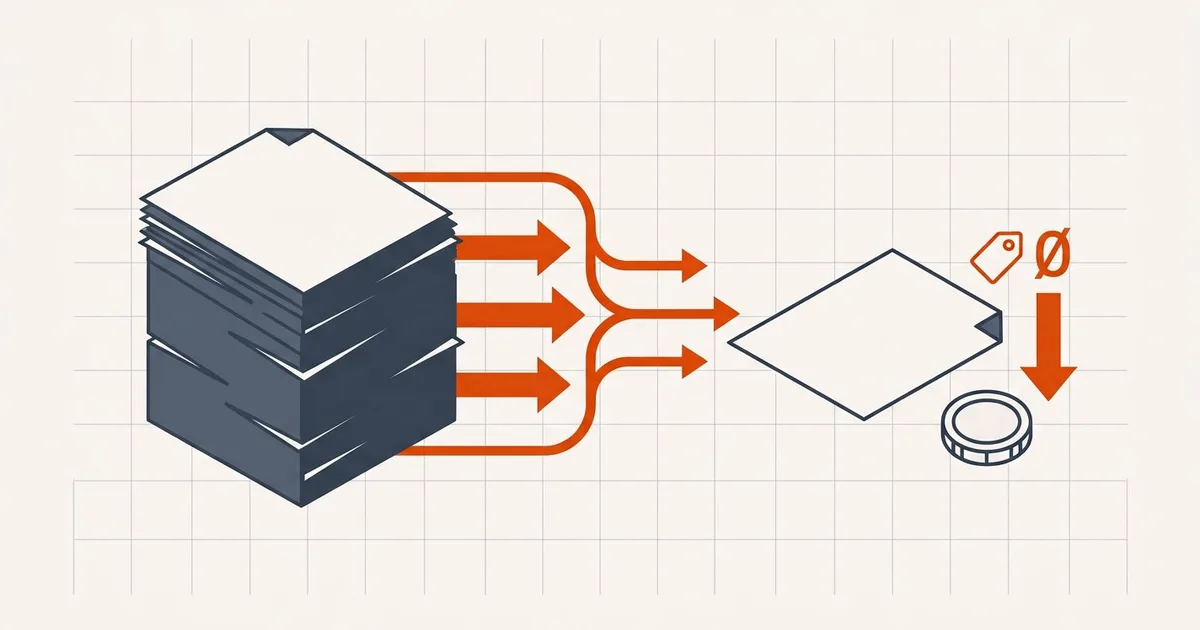
To compress a PDF online free, select your file in Compress PDF, choose a quality level, run compression and download the result. BytesPDF processes document content in your browser rather than uploading it to a compression server. Keep the original and inspect the copy: image quality and the achievable size reduction depend on the PDF.
This is the step-by-step browser workflow. For native Preview steps, use the Mac compression guide. If a recipient demands a specific size, use BytesPDF Pro target-size compression ($9.99/month; see pricing for checkout status) instead of guessing which quality preset will reach it.
How to compress a PDF in five steps
- Choose one local PDF. Desktop inputs allow up to 150 MB; mobile inputs allow up to 50 MB, subject to available memory. Keep the source unchanged.
- Choose a level. Start with Recommended, or Less when faded handwriting, stamps or fine diagrams matter. Extreme can change image detail more visibly.
- Run compression. Keep the tab open while processing. The tool uses this device's CPU and memory, so duration varies.
- Read the result and download the copy. Compare original and output sizes. If the generated file is not smaller, the tool returns the original rather than claiming a saving. Download it immediately, with no account, signup or email; the result stays in this tab until you save it.
- Open the actual download. Check page count, small print, search, copying, links and forms before sending it.
Load the free compressor when you are ready. PDF processing stays in this tab; inspect the downloaded copy before sharing.
Open Compress PDF →Before you compress
Read the recipient's current instructions. A portal can reject a file because of its size, format, encryption, filename, page dimensions, signature state, or validation rules. Making the file smaller solves only the size part. If you do not yet know the limit you are aiming for, PDF attachment size limits by destination lists the email, messaging, and visa-portal figures with their sources.
- Keep the source PDF unchanged.
- Confirm the actual limit instead of relying on an old table or screenshot.
- Decide which details must remain readable: fine print, stamps, handwriting, photographs, charts, or QR codes.
- Do not rewrite a digitally signed file. BytesPDF rejects PDFs with a detected signature ByteRange.
How much room is actually in your file
Nobody can promise a percentage without inspecting the file, and anyone who does is guessing. What is predictable is which kinds of PDF have headroom.
| What the PDF contains | Likely headroom | Why |
|---|---|---|
| Scans or photographed pages | Large | Images usually carry far more resolution than anyone reads |
| Exports with logos, watermarks, background graphics | Large | Branding images are often full-resolution and repeated per page |
| Documents dominated by fonts or editing data | Depends on the source application | Image recompression does not subset fonts or comprehensively clean object history |
| Mixed text and screenshots | Moderate | Only the image portion is reclaimable |
| Born-digital text with no images | Little | Vector text is already compact |
| Already optimized by a good compressor | Little to none | The redundancy has already been removed |
If your file is in the bottom two rows, compression will disappoint you — and that is a property of the file, not a failure of the tool. Start with why is my PDF so big to find out which row you are in.
Picking a level without ruining the file
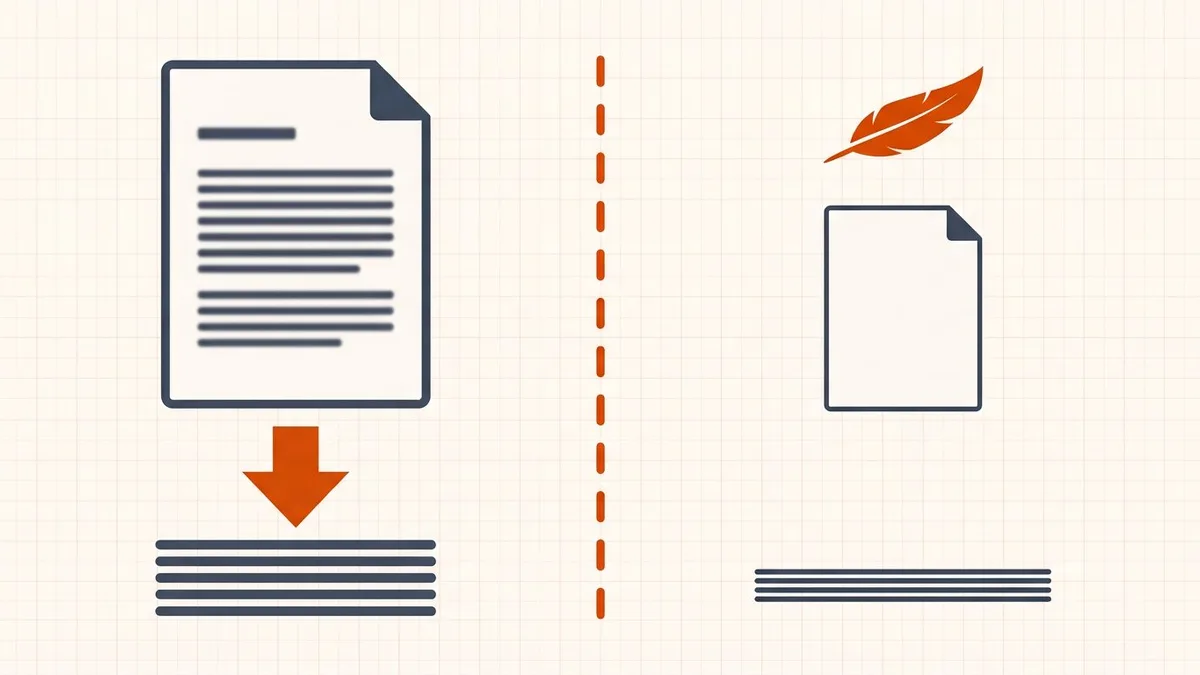
Most tools offer a choice between light, balanced, and aggressive. The right one depends on what the document is for, not on how much you want to save.
| Situation | Level to choose | Reason |
|---|---|---|
| The file is only slightly over a limit | Lightest | You need a small win, not maximum reduction |
| Email or messaging to a known recipient | Balanced | Readable on screen is the bar |
| A portal with a hard cap | Balanced, then step down | Stop as soon as you are under |
| Archival master or print output | Do not compress | The original is the deliverable |
| Scans that must stay legible | Lightest that fits | Small text degrades first |
The general rule: use the least aggressive setting that meets your actual requirement. Over-compressing to save space nobody asked you to save is the most common mistake, and it is the one you cannot undo if you overwrote the original.
What BytesPDF changes
BytesPDF looks for supported embedded images and can re-encode them with a selected quality preset. It also rewrites the document and clears common descriptive and XMP metadata. The compression tool does not run OCR, subset fonts, certify PDF/A, or promise forensic sanitization. The separate OCR and cleanup tools have their own purposes and limits.
That distinction matters. A born-digital paragraph remains vector text, while a scanned paragraph is pixels. The scan can become less crisp even when the words still look like text on the page.
If the copy is still too large
Do not blindly compress the compressed copy. Return to the original and choose the next action by cause:
- A confirmed 500 KB, 2 MB or 5 MB limit: use Compress to a Target Size. The target-size guide explains byte units, margins and Closest possible results.
- Full-page scans: follow the scanned-PDF workflow. Faint text may need a better source scan rather than stronger compression.
- An email attachment that bounces: use the email checklist. Sender settings, recipient rules and encoding overhead all matter.
- A text-only or already-efficient document: investigate why a PDF remains large. A source re-export may be more useful than another image pass.
No upload does not mean no website requests
Browser-local describes the document-processing path. The page still needs to load scripts and processing assets, and site services are separate from PDF content. It does not mean a guaranteed offline experience, anonymous browsing, or a risk-free device. Read the privacy policy and use the workflow your organization approves for sensitive records.
Check the output
| Check | What to inspect |
|---|---|
| Pages | Count, order, orientation, crop, and blank pages. |
| Legibility | Small text, scans, stamps, signatures drawn on paper, and fine lines at useful zoom. |
| Interaction | Search, copy, links, bookmarks, forms, and attachments if the workflow depends on them. |
| Recipient rules | File size, extension, filename, and any portal validation message. |
When not to compress
Do not rewrite an archival master merely to save storage, and do not use a compressed copy where a print provider, court, records office, or other recipient asks for the original or a validated standard. For signed, encrypted, accessibility-critical, form-heavy, or PDF/A-controlled files, use the approved specialist workflow.
Frequently asked questions
How do I compress a PDF online for free?
Open Compress PDF, select one local file, choose Recommended or Less, and run compression. Processing is free and browser-local, and you download the result instantly: no account, no signup, no watermark. Check the reported sizes and inspect the copy. A smaller result is not guaranteed for every PDF.
How can I compress a PDF to a specific size?
Use BytesPDF Pro's separate Compress to a Target Size tool ($9.99/month) for a 500 KB, 2 MB, 5 MB or custom ceiling; check pricing for current checkout status. Check exact bytes as well as the result label. The free core compressor chooses an image-quality preset, not a required output byte count.
Can I reduce PDF size without changing quality?
Sometimes a PDF can be rewritten more efficiently, but meaningful savings often require changing embedded images. Born-digital vector text is not rasterized by BytesPDF; scans are images and can soften. Compare the result with the original.
How much smaller will my PDF become?
There is no reliable percentage for every PDF. Image-heavy files often have more room to shrink, while text-only, previously optimized, or unsupported image formats may change little. BytesPDF returns the original when its generated version is not smaller.
Can I compress a PDF on a phone?
Yes, in a current mobile browser, subject to a 50 MB input limit and available memory. A large scan can still exceed what a particular phone or browser tab can process reliably.
Can I compress a PDF without uploading it?
Yes. The selected PDF is processed in this browser tab and its content is not sent to BytesPDF servers. Processing and downloading are free without an account, signup or email address. Working copies stay in tab memory; account, consent, newsletter, contact, analytics, and error data are separate services described in the privacy policy.
Should I delete the original after compression?
Not for important records. Keep the original as the master, save the compressed file as a separate distribution copy, and inspect it in the viewer your recipient is likely to use.
Related comparisons
Source-led comparisons written by BytesPDF, with the conflict of interest disclosed on each page. They link official provider documentation rather than fabricated tests.