
How to Password-Protect a PDF on Your Phone (No App Install)
You can encrypt a PDF from a phone in under a minute — either with the built-in Files lock on iPhone or a browser that never uploads the file. Here's both routes, verified.
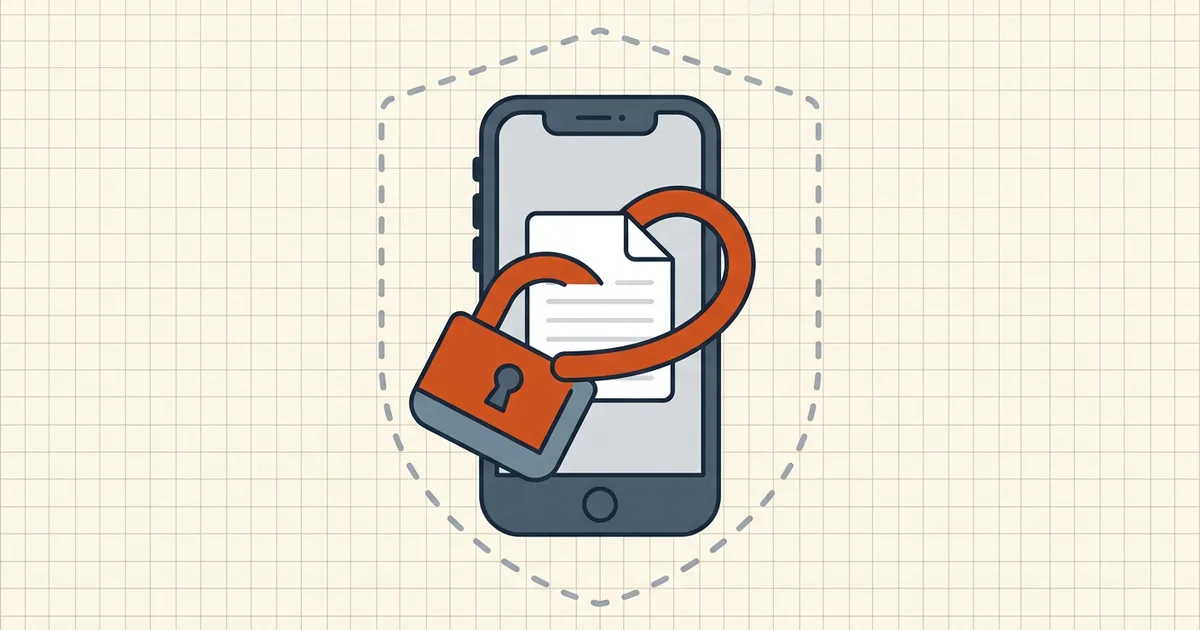
Phone in hand, sensitive PDF in Files, and a minute before you have to send it. Good news: encrypting a PDF from a phone needs no app store, no desktop, and — if you pick the on-device routes — no upload either.
Route 1: iPhone/iPad — Files app, built in (iOS 15+)
- Open Files, find the PDF, open it.
- Tap the filename in the top bar (or the share sheet's file row).
- Choose Lock PDF.
- Enter a password twice, confirm.
The file is now encrypted with Apple's PDF encryption — anyone (including you, later) needs the password to open it. Works offline; nothing is uploaded anywhere.
Limits worth knowing: Files gives you an open password, not a choice of algorithms or permission flags. For "password + allow printing but deny editing," you need a fuller tool.
Route 2: any phone, browser-based AES-256 — iPhone and Android
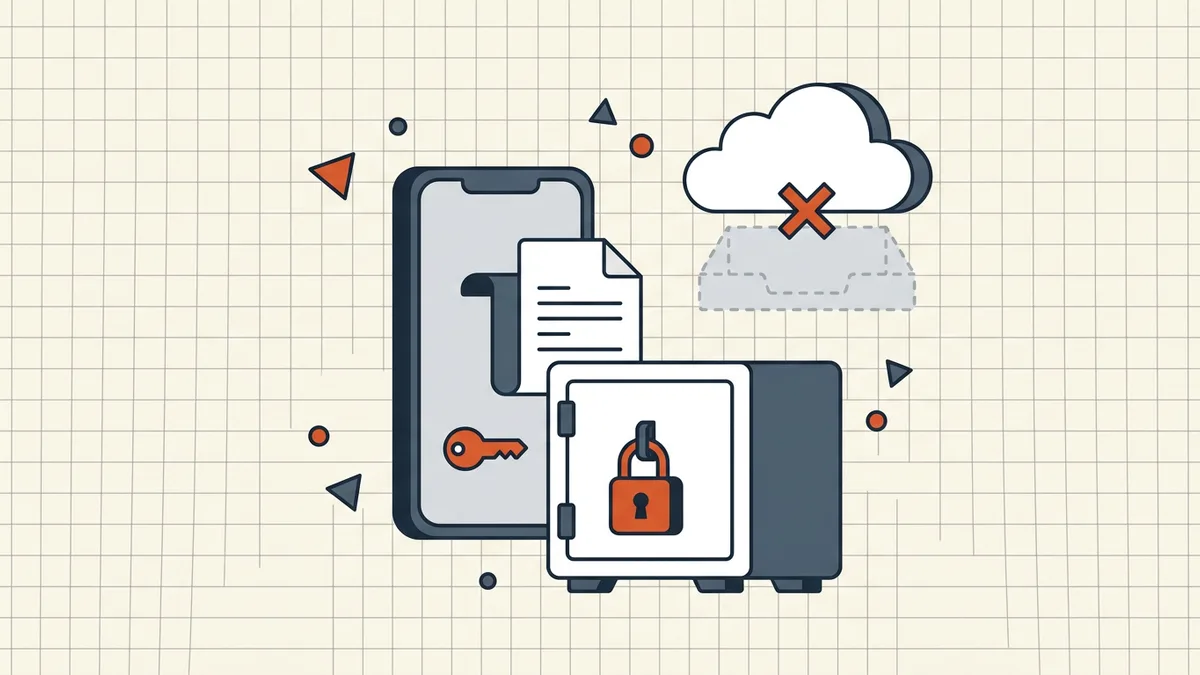
- Open BytesPDF Protect PDF in Safari or Chrome.
- Choose the file (from Files, Drive, or Downloads).
- Set the open password; optionally set a separate owner password and permission flags.
- Download the encrypted copy.
The processing runs in the browser tab — the same browser-local architecture as the rest of the toolkit, which matters more on phones, where "quick free app" PDF tools frequently upload your file first (what to ask PDF tools). It's also the only phone route that exposes the honest distinction between the open password and permission flags.
Android users: this is your most consistent option — there's no Files-app equivalent guaranteed across devices.
Verify like the file already left your hands
Encryption that "seemed to work" isn't verification. Do this:
- Send the protected file to yourself through a different channel (email it to your own address, or AirDrop/Bluetooth it).
- Open the received copy.
- Confirm the password prompt appears.
- Type a wrong password — it must reject.
That sequence proves the shipped bytes are encrypted, not just the local copy. (Full mechanics of what just happened: how password protection works.)
Password strength + delivery (the two mistakes)
- Password: a four-word passphrase — longer and more memorable than
S@m1!2026. Avoid phone numbers and birthdays you'd post yourself. - Delivery: the password never travels with the file. Send it out-of-band — different message, ideally different channel.
What phone protection is — and isn't
It's real encryption: AES-256 or Apple's equivalent is the same math desktop tools use. It isn't device security — if your phone is unlocked and the file is open, the PDF password already did its job. And it isn't revocation: once a recipient has both file and password, forwarding both is trivial — that's a workflow problem, covered in stop a PDF being forwarded when you need the longer answer.
Frequently asked questions
Can I password-protect a PDF on iPhone without an app?
Yes. Since iOS 15, the Files app can lock a PDF natively: open the file, tap the filename area, choose Lock PDF, set a password. The encryption runs on-device. For more control (separate owner password, permission flags), a browser-based AES-256 tool like BytesPDF Protect PDF does the same job without an install.
How do I password-protect a PDF on Android?
Android has no universal system lock for PDFs — the reliable route is a browser: open BytesPDF Protect PDF in Chrome, choose the file from Files/Drive, set the password, download the encrypted copy. Encryption happens in the browser tab; the original is not uploaded.
Is phone encryption as strong as desktop?
The math is the same — AES-256 encrypts identically on a phone. What differs is the tool: iOS Files uses Apple's built-in PDF encryption; browser tools should state their algorithm (look for AES-256). Device-level protection (passcode/biometrics) protects the phone; the PDF password protects the file after it leaves.
How do I verify my PDF is actually locked?
Send the protected file to yourself through a different channel — email it, AirDrop it, open it on another device — and confirm the password prompt appears and a wrong password is rejected. Testing only on the phone that made it can mask a failed encryption step.
What password should I use for a PDF on my phone?
A memorable passphrase beats a short jumble: four unrelated words is both longer and harder to guess than `Passw0rd!`. Then deliver it out-of-band — never in the same message as the file ([delivery rules](/blog/send-password-protected-pdf-safely)).
Related comparisons
Source-led comparisons written by BytesPDF, with the conflict of interest disclosed on each page. They link official provider documentation rather than fabricated tests.