
How to Compress Bank Statements for Online Portals Without Losing Legibility
Bank portals often enforce strict file size limits (e.g., 2MB or 5MB). Here is how to compress financial PDFs safely while keeping numbers and text razor-sharp.
When applying for a visa, filing taxes, or submitting mortgage documentation, online portals frequently enforce strict upload limits (often 2MB to 5MB). Yet, PDF statements downloaded from online banking can easily exceed 10MB due to embedded graphics and logos.
Why bank statements bloat in size
Banks design statements for universal printing, which means they frequently include high-resolution vector branding, intricate background graphics, and full-color seals. When converted or exported, these elements accumulate into multi-megabyte files that choke portal upload forms.
Start smaller: download less in the first place
Before you compress anything, check whether your bank can hand you a smaller file. This is the single most effective step and almost everyone skips it.
- Shorten the date range. Most portals ask for three or six months, not twelve. Exporting only the range you need can cut the file by half or more before any compression.
- Check for a format or quality option. Some banks offer a "compact," "web," or "print-friendly" export alongside the default. The visual content is identical for review purposes; the file is a fraction of the size.
- Download statements individually rather than as a combined annual export, if the portal allows separate uploads per period.
- Avoid re-exporting from a PDF printer. Printing the statement to PDF from a viewer often rasterizes it — turning selectable text into a flat image, which both inflates the file and destroys searchability.
If none of those apply, compressing the original download is the next step.
What the receiving portal actually enforces
If the upload is for a mortgage, use the mortgage application document guide to check how the wider evidence pack fits together.
Lenders, KYC processors, immigration systems, and government portals each set their own caps, and they are not consistent. The published limits across the major immigration systems run from roughly 2 MB to 12 MB per file, and commercial loan and verification portals typically sit in a similar range.
There is no universal number, so the rule is: find the limit on the upload page before you prepare the file. Guessing means either wasting effort compressing far past what was needed, or discovering at 11 PM that you are 3 MB over.
Two structural rules recur across almost all of them:
- One file per field. Uploading several statements to a single slot usually keeps only the last one. Combine the pages into one ordered PDF.
- Format allow-lists. PDF is almost always accepted; spreadsheets, ZIP archives, and password-protected files almost never are.
How to protect numbers and text legibility
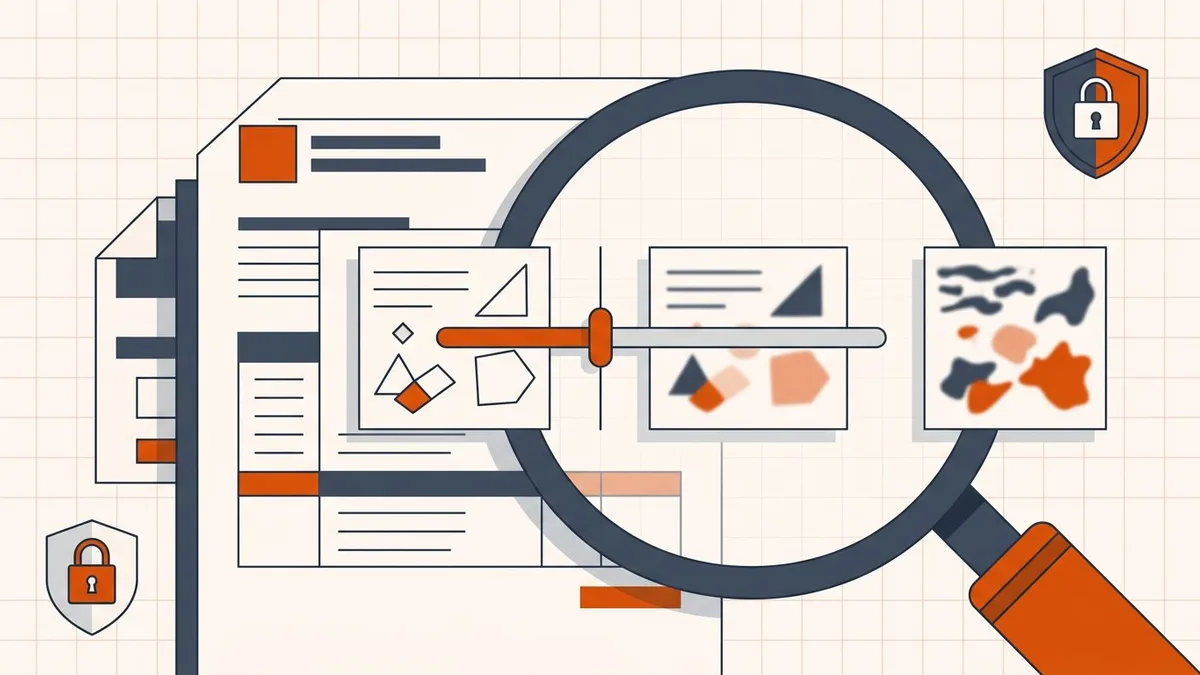
The golden rule of financial document compression is to never sacrifice text crispness. Account numbers, routing digits, transaction amounts, and dates must remain perfectly legible for reviewers and automated ingestion algorithms.
- Verify born-digital status: If you can highlight and copy text on your statement, it is born-digital text. BytesPDF keeps born-digital text vectorized and unrasterized.
- Choose the right compression trade-off: Use the Recommended setting for balanced size reduction, or Less if your file is only slightly over the portal limit.
- Avoid extreme re-encoding on scans: If your bank statement is a paper scan, extreme compression can soften fine characters. Test the preview before submitting.
Step-by-step secure browser compression
- Open the Bank Statements compression workspace.
- Drag and drop your PDF statement into the secure browser window. Selected PDF content stays in your tab's memory and is not uploaded to remote servers.
- Select your image quality trade-off and click process.
- Download your optimized statement instantly.
Downloaded statements versus scanned statements
These are two different problems and they need different handling.
A downloaded statement is born-digital. The numbers are font instructions, not pixels. You can select and copy the text, and it stays sharp at any zoom. Compression leaves born-digital text alone and re-encodes only the embedded images — the bank logo, background graphics, and any watermarks. This is the ideal case: the text is untouched and much of the bulk is branding you do not need.
A scanned or photographed statement is an image. Every digit is pixels. Compressing it softens those pixels, and the smallest text degrades first — which on a bank statement means transaction amounts, reference numbers, and dates.
To tell which you have, try to select a number with your cursor. If you can highlight it, it is born-digital.
For scans, the better fix is usually re-capture rather than re-compression: scan at 200 DPI in grayscale, in even light, with the page flat. Grayscale alone typically removes a large share of the file size with no loss of legibility on a financial document, where color carries no information.
Handle account numbers carefully
Two cautions specific to financial documents.
Do not compress a statement you have already redacted by drawing black boxes over the account number. Black rectangles over text do not remove the underlying data — the characters are still there and still selectable. If you need to redact properly, do it before the PDF is flattened, and verify by searching the document for the number afterward.
Bank statements usually cannot be signed PDFs, but they can be encrypted. Banks frequently password-protect exported statements. Those must be decrypted before upload — portals reject protected files outright, and a compressor cannot touch them until the protection is removed.
Final verification checklist before uploading
Before attaching the compressed PDF to your bank or visa portal, open the downloaded file locally to verify:
- Every transaction line item is clear and legible, especially small reference numbers.
- Digits are not blurred — zoom to 200% on the densest page.
- Total balances, dates, and account holder names match the original.
- Text is still selectable if the statement was born-digital.
- Page count, order, and orientation are unchanged.
- The file is not password-protected.
- The file size now sits below the portal maximum, with margin.
If the numbers are soft, the file is not ready — even if it is under the limit. A legible 4 MB file beats a blurry 1.8 MB file every time.
Frequently asked questions
Why are downloaded bank statements so large?
Bank statements downloaded as PDF often contain embedded vector graphs, high-resolution company logos, and background watermarks that multiply file size unnecessarily.
Will compression make numbers on my bank statement blurry?
If the statement is born-digital (searchable text), BytesPDF preserves vector text cleanly without rasterizing it. If it is a scanned statement, choosing 'Recommended' or 'Less' image quality keeps financial figures sharp.
Is it safe to compress financial statements online?
BytesPDF processes files locally in your browser tab and does not upload your sensitive financial documents to remote servers, protecting your privacy.
Related comparisons
Source-led comparisons written by BytesPDF, with the conflict of interest disclosed on each page. They link official provider documentation rather than fabricated tests.