
Outlook Attachment Size Limit: Maximum MB by Client, and How to Get a PDF Under It
Outlook's attachment limit is the smallest of three numbers — your mailbox policy, your client, and the recipient's server. Here is how to find each one, what the error actually means, and how to get a PDF under it.

Ask "what is the Outlook attachment size limit" and you will get four different answers, all of them correct. The number that stops you depends on how your account connects to Outlook, and on who is receiving the message.
Outlook attachment size limits at a glance
| Your setup | Limit that applies | Who sets it | Plan for a PDF of |
|---|---|---|---|
| Outlook desktop with a POP or IMAP account | 20 MB of attachments per message | Outlook's built-in client check | Under 18 MB — the provider's encoded limit usually binds first |
| Outlook.com personal account | 25 MB per message | Microsoft; not configurable | Under 18 MB |
| Microsoft 365 / Exchange Online | 35 MB send, 36 MB receive by default | Your administrator, 1–150 MB | Under 25 MB |
| Exchange Server on-premises | 10 MB by default | Your administrator | Under 7 MB |
| Any of the above to an external recipient | Whatever the receiving server allows | The recipient's administrator | Under 10 MB is safe almost everywhere |
The rest of this guide explains where each number comes from, how to tell which one just rejected your message, and what to do about it.
Three limits, and the smallest one wins
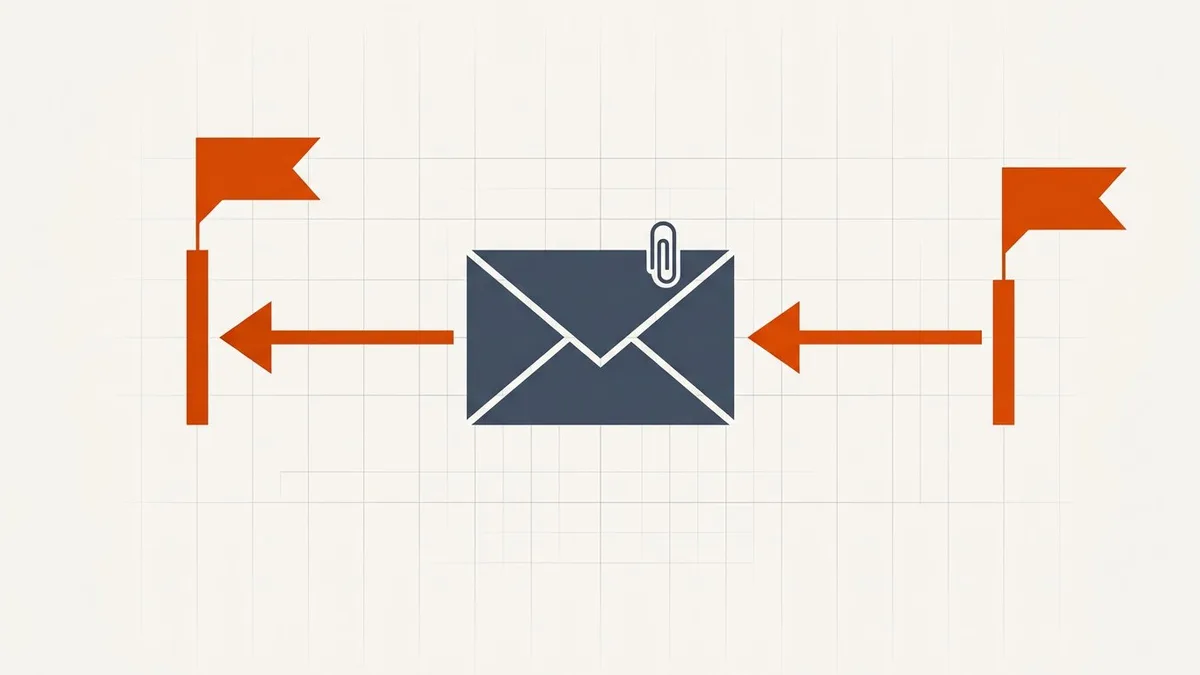
| Limit | Set by | Typical value |
|---|---|---|
| Mailbox policy | Your organisation's administrator | 35 MB send / 36 MB receive by default, configurable 1–150 MB |
| Client cap | The app you are composing in | 150 MB desktop, 112 MB web, 33 MB mobile; 20 MB for POP/IMAP accounts in desktop Outlook |
| Recipient limit | The receiving mail server | Often 10–25 MB, and you cannot see it |
Microsoft's own guidance is explicit that the smaller of the mailbox limit and the client limit is what applies. A 150 MB desktop client cap is irrelevant against a 35 MB mailbox policy — which is why raising the tenant limit is often the only thing that actually helps, and even then only for recipients who can accept it.
What each Outlook client allows
These are Microsoft's published figures for a Microsoft 365 mailbox whose policy has been raised to the maximum. They are ceilings, not what most accounts actually get.
| Client | Published limit |
|---|---|
| Outlook desktop (Windows) | 150 MB |
| Classic Outlook for Mac | 150 MB |
| New Outlook for Mac | Follows the mobile device mailbox policy: the lowest of the attachment, send and request limits your administrator sets |
| Outlook on the web (OWA) | 112 MB |
| Outlook for iOS and Android | 33 MB per message; per-file attachments follow the same mobile policy |
Two details worth knowing:
- The 150 MB figure has a catch. Microsoft notes it is only reachable between users whose messages never leave its datacenters. The moment a message crosses to an external recipient, the 33 percent encoding increase applies and the effective maximum drops to 112 MB — before the recipient's own limit takes over.
- There is also a 250-attachment-per-message cap, which matters if you are sending a large number of small PDFs rather than one large one.
The 20 MB limit nobody mentions: Outlook's own client cap
If you added a Gmail, Yahoo, iCloud or ISP mailbox to Outlook desktop, the Microsoft 365 numbers above do not apply to you. Outlook 2013 and later apply their own 20 MB (20,480 KB) cap to Internet email accounts — POP3, IMAP and HTTP — counting every attachment in the message together. Exceed it and Outlook refuses before anything is sent:
The file you're attaching is bigger than the server allows. Try putting the file in a shared location and sending a link instead.
Microsoft's stated reason is to stop the client from repeatedly trying to upload attachments that most providers would reject anyway. Two consequences follow:
- The same wording appears on Exchange and Microsoft 365 accounts, but there it reflects the mailbox's maximum send size — 10 MB by default on Exchange Server — rather than the 20 MB figure. The message text does not tell you which limit you hit; the account type does.
- Microsoft documents a per-user registry value,
MaximumAttachmentSize, underHKEY_CURRENT_USER\Software\Microsoft\Office\<version>\Outlook\Preferences, expressed in kilobytes, that raises or removes the 20 MB client check. It changes nothing on any server. Raising it to 30 MB for a Gmail account only moves the failure from Outlook's warning to a bounce from Google's 25 MB limit. Unless you know the provider's limit is higher, reduce the file instead.
Outlook.com versus Microsoft 365
These get conflated constantly, but they are different things:
| Outlook.com (personal) | Microsoft 365 / Exchange Online | |
|---|---|---|
| Published sending limit | 25 MB per file on Microsoft's current sending-limits page; older pages said 20 MB | 35 MB by default |
| Receiving limit | Same as sending | 36 MB by default |
| Configurable | No | Yes, 1 MB to 150 MB by an administrator |
| Oversized fallback | OneDrive link, up to 2 GB | OneDrive or SharePoint link |
Exchange Server on-premises is the tightest of all: Microsoft documents a 10 MB default for both maximum send and maximum receive size. If your work email rejects attachments that sail through from your personal Gmail, an on-premises or gateway limit is the usual reason.
Why the same PDF behaves differently in each client
Attachments are base64 encoded before transmission, which expands them by roughly a third. The web client's 112 MB figure is not arbitrary — it is the 150 MB ceiling with encoding headroom already subtracted.
So a "35 MB" mailbox policy is not 35 MB of file on your disk. After encoding, and after the message body, signature, and any inline images are counted, the practical file size is closer to 25 MB.
Reading the error: a warning before sending versus a bounce after
Where the rejection happens tells you whose limit you hit, and therefore what can fix it.
| What you see | What it means | What fixes it |
|---|---|---|
| "The file you're attaching is bigger than the server allows", before you press Send | Outlook's client check: 20 MB on POP/IMAP, or your Exchange / Microsoft 365 mailbox send limit | Reduce the PDF, or attach it as a link |
| A bounce quoting 5.2.3 ("message too large for this recipient") | A per-mailbox limit was exceeded — RFC 3463 defines 5.2.3 as "message length exceeds administrative limit", and in practice it is usually the recipient's mailbox | Only the recipient's administrator can raise it; you can shrink or link |
| A bounce quoting 5.3.4 | A system-wide limit somewhere on the route — RFC 3463's "message too big for system" | Same: shrink or link. The server enforcing it is not yours |
A bounce that arrives hours later is the recipient's server or a gateway in between; an immediate refusal is yours. Sending the message to yourself first is the quickest way to tell them apart.
What to do when the message is too large
Work through these in order:
- Check whether it is really the file. Send the message to yourself first. If it bounces immediately, it is your outbound policy. If it bounces hours later, it was the recipient.
- Compress the PDF locally. Open the compress tool, drop the file in, and reduce it to fit. Processing happens in your browser, so contracts, invoices, and statements are not uploaded anywhere. For choosing a level and checking the result, follow how to reduce PDF file size online for free.
- Shrink the source rather than the output. If the PDF is a scan, rescanning at 200 DPI in grayscale beats compressing a 600 DPI colour file, and the result is usually both smaller and more legible. If you are not sure why the file is large in the first place, start with why is my PDF so big.
- Send a link for anything that must not change. OneDrive and SharePoint links handle signed contracts and fillable forms that compression would damage.
If the document is sensitive — a contract, a statement, a medical record — the kind of tool matters as much as the setting. Online, desktop and AI PDF compression compared sets out which approach keeps the file on your device.
If you are on Microsoft 365, find out your real limit
Rather than guessing, ask whoever administers your tenant — or if that is you, check the transport configuration. The organisation-wide setting and per-mailbox settings can differ, and both cap below the client figures.
Raising the limit is a legitimate fix for internal file sharing, but it does nothing for external recipients. If you regularly send large PDFs outside your organisation, compression or a link is the answer, not a policy change.
Sending to or from another provider
The recipient's provider is the limit you cannot see. The published numbers for the other major services are in Gmail's 25 MB attachment limit and Yahoo, iCloud, Proton and Zoho attachment limits. If the file is going to a messaging app or an upload portal rather than an inbox, the rules are different again — PDF attachment size limits for email, messaging and online forms routes you to the right one.
Official sources
- Exchange Online limits — Microsoft's service description, including the default 35 MB send and 36 MB receive sizes, the per-client ceilings, and the 33 percent encoding note
- Attachment size exceeds the allowable limit error in Outlook — Microsoft's documentation of the 20 MB client cap for Internet accounts, the 10 MB Exchange default, and the MaximumAttachmentSize registry value
- Sending limits in Outlook.com — Microsoft's consumer guidance, currently stating 25 MB
- RFC 3463, Enhanced Mail System Status Codes — the definitions of the 5.2.3 and 5.3.4 codes in bounce messages
Client and tenant limits change with updates. If a delivery matters, test against your own mailbox rather than trusting a table — including this one.
Before you send
- You know which of the limits above actually applies to your account type
- The file is under 25 MB, not just under 35 MB, to survive encoding — or under 18 MB on a POP/IMAP or Outlook.com account
- The recipient is not on a 10 MB corporate gateway
- The PDF is not digitally signed, or it was compressed before signing
- You kept the original file
Frequently asked questions
What is the maximum attachment size in Outlook?
It depends on which limit binds first. Outlook desktop applies its own 20 MB cap to POP and IMAP accounts. A Microsoft 365 mailbox defaults to 35 MB per message, and an on-premises Exchange Server mailbox defaults to 10 MB. Microsoft's client figures of 150 MB for desktop, 112 MB for the web, and 33 MB for mobile only matter once the mailbox policy has been raised above them.
Why does Outlook say the file I'm attaching is bigger than the server allows?
That message is Outlook's own check before anything is sent. On POP and IMAP accounts it appears when the attachments in one message total more than 20 MB. On Exchange and Microsoft 365 accounts it appears when they exceed the mailbox's maximum send size, which is 10 MB by default on Exchange Server and 35 MB on Microsoft 365.
How do I send a PDF larger than 20 MB in Outlook?
Either reduce the PDF below the limit with a margin for encoding, or attach it as a OneDrive or SharePoint link, which Outlook offers automatically for oversized files. Compress scans and image-heavy exports. Send a link for signed contracts and fillable forms, because compression would damage them.
Can I increase the Outlook attachment size limit?
For a POP or IMAP account, Microsoft documents a MaximumAttachmentSize registry value that raises Outlook's 20 MB client check, but the mail server's own limit still applies afterwards. On Microsoft 365 an administrator can set the mailbox limit anywhere from 1 MB to 150 MB. Outlook.com's 25 MB limit is not adjustable, and nothing on your side changes the recipient's limit.
Why is Outlook on the web limited to 112 MB when desktop allows 150 MB?
Outlook on the web restricts you to 25 percent below the configured message-size setting, leaving room for the roughly 33 percent base64 encoding increase that applies once a message leaves Microsoft's datacenters. 150 MB minus that margin is 112 MB.
Why was my 30 MB attachment rejected when my mailbox allows 35 MB?
Because base64 encoding expands it to roughly 40 MB before transmission, and the limit counts the whole message — body, signature, inline images, and headers included. Against a 35 MB policy, plan for about 25 MB of file on disk.
Related comparisons
Source-led comparisons written by BytesPDF, with the conflict of interest disclosed on each page. They link official provider documentation rather than fabricated tests.