
How to Sign a PDF on Your Phone Without Installing an App
Markup is fast; certificates are provable. Your phone can do either without installing anything — pick the one the recipient actually needs.
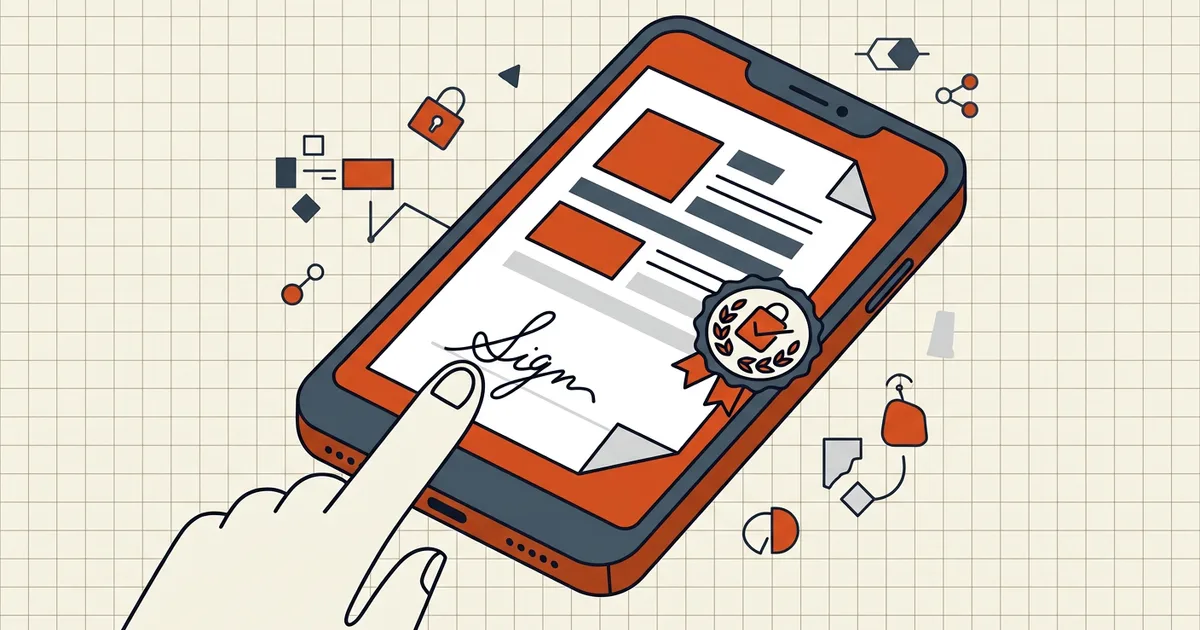
Two very different operations share the word "sign" on a phone, and picking the wrong one is the difference between a form that's accepted and a signature that means nothing. Both can be done without installing anything.
Option A: Markup — the drawn signature (30 seconds)
Built into iOS (Files, Mail, Notes) and mirrored by most Android PDF viewers:
- Open the PDF → Share → Markup (pen icon).
- + → Signature → draw with a finger, save it.
- Place, resize, Done.
This is an electronic signature in the legal sense — an image adopted with intent to sign. It's fine for approvals, acknowledgements, internal paperwork. Its limitation is physical: the image is copyable. Paste-able signatures don't prove which document they were meant for (digital vs electronic, properly).
Option B: certificate signing — cryptographic, from the browser
No app install, runs in the phone's browser:
- Open BytesPDF Sign PDF in Safari/Chrome.
- Choose the PDF.
- Sign with an existing .p12/.pfx certificate, or generate a self-signed identity on-device (valid for internal workflows where both sides know the certificate).
- Sign — the PKCS#7 signature is computed locally over the file's bytes; download the signed copy.
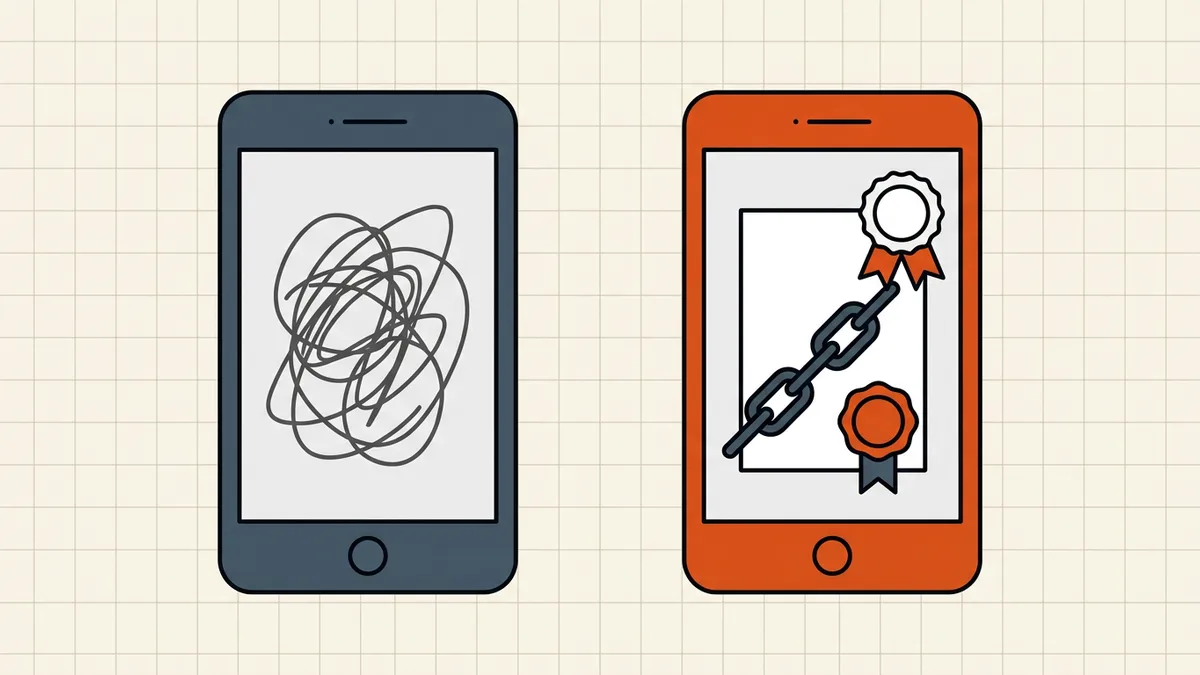
What you get: tamper-evidence. The recipient can open a signature panel and verify — here's how, and what the status icons mean. What you don't get for free: trust display — self-signed certificates show "unknown" until the recipient trusts the certificate once. That's identity plumbing, not failure (why signatures show invalid covers the neighboring confusion).
Which one does the recipient need?
| Recipient expects | Send |
|---|---|
| "Signature on the form" (HR, schools, simple agreements) | Markup / drawn is usually fine — or ask first |
| Verifiable integrity (contracts, amendments, anything disputable later) | Certificate-based digital signature |
| Regulated filing with specified trust | Certificate from the specified authority — neither casual route satisfies qualified-trust requirements on its own |
When unsure, ask one question: "Do you need to verify it hasn't been changed?" Yes → Option B.
The rules that apply either way
- Sign last. Compression, redaction, metadata cleaning — all rewrites, all break certificate signatures. Order: finalize → clean → size → protect → sign → send (the workflow).
- Verify the shipped copy. Send the signed file to yourself, open it elsewhere, check the signature panel — verification steps.
- Mind the password pairing. Protecting after signing breaks the seal; if the file needs both, protect first, then sign (password + signing interaction).
Frequently asked questions
Can I sign a PDF on my iPhone without an app?
Yes — two ways. Markup (built into Files/Mail/Notes) draws a visual signature: quick, fine for acknowledgements and internal forms. For a cryptographic digital signature, open BytesPDF Sign PDF in Safari: import or create a certificate on-device and the signature is computed in the browser. No installs either way.
What's the difference between Markup and a digital signature?
Markup draws an image of your signature — anyone can copy and paste it onto another document. A digital signature binds a certificate to the exact bytes of this file: alter one character and verification breaks. Most everyday forms accept either; regulated filings usually specify certificate-based signatures.
Does signing on a phone make the signature invalid?
No — signatures bind to the file, not the device. What breaks signatures is editing after signing: any rewrite (compression, redaction, even some re-saves) invalidates the seal. Sign last, and re-verify in a signature panel after any later change.
Can the recipient verify a signature made on a phone?
Yes, if it's a certificate-based signature — verification is mathematical and device-independent. Expect the identity display to show 'unknown' for self-signed certificates until the recipient trusts the certificate once ([what that means](/blog/how-to-verify-a-pdf-signature)).
Is my certificate safe on my phone?
On-device processing means the private key never leaves the device during signing — the alternative (uploading your .p12 to a web signer) means trusting someone else's server with the key material. Prefer tools that sign locally; the evaluation questions are in [privacy risks of online PDF tools](/blog/privacy-risks-online-pdf-tools).
Related comparisons
Source-led comparisons written by BytesPDF, with the conflict of interest disclosed on each page. They link official provider documentation rather than fabricated tests.