
Online, Desktop, and AI PDF Compression: How to Choose
The interface label does not tell you where a PDF goes or how it is changed. Compare architecture, capability, evidence, and workflow fit instead.
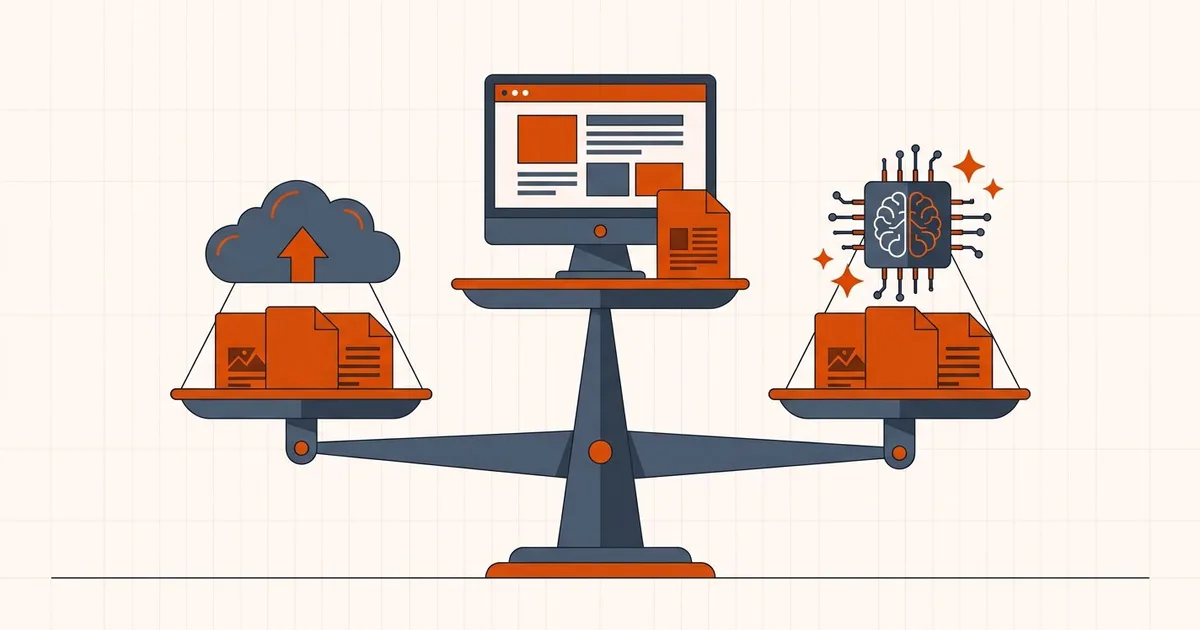
“Online,” “offline,” and “AI” mix together three different questions: where the code runs, where the PDF bytes go, and how the content is optimized. Separate those questions before choosing a tool.
Quick answer
For one ordinary PDF, choose a browser-local compressor when avoiding an upload is the priority. Choose installed desktop software when you need repeatable batch processing, detailed image controls, or print-production checks. Choose a server-based service only when its upload, retention, and account practices are acceptable for the document. An “AI” label does not change that decision: it describes a possible optimization technique, not whether processing is local or remote.
This comparison is about how to choose a compression method, not a claim that every PDF can be reduced by the same amount. A scanned, image-heavy document usually has more room for size reduction than a text-only PDF, and aggressive settings can make signatures, diagrams, or small text harder to read. Keep the original file and inspect the compressed copy before sending it to a portal, client, or archive.
What to compare before choosing
Use the same questions for every product rather than relying on labels or a percentage-size claim:
- Where is the document processed? Is it read in the browser, uploaded to a vendor, or handled by an installed application?
- What changes? Look for image resampling, font handling, metadata removal, downsampling, or conversion—not just a promised file-size percentage.
- What are the limits? Check maximum file size, page count, batch support, encryption, forms, signatures, and whether the result can be downloaded without an account.
- How can you verify the result? Reopen the output, check every page, compare important text and images, and confirm that the destination accepts it.
These checks make the comparison useful for a visa upload, an email attachment, a scanned record, or a print-ready file even when the documents have different quality requirements.
Web interfaces: local or server-based
A browser-local tool downloads application code, then reads and rewrites the selected PDF on the device. A server-based tool transmits the PDF for remote processing. Both can display a file picker and progress indicator, so the interface alone is not evidence of the architecture.
Local processing avoids one document recipient but uses local CPU, memory, and battery. Server processing adds network transfer, vendor, retention, and jurisdiction questions, but can provide remote compute, collaboration, OCR, conversion, account storage, and other services.
Installed desktop software
Desktop products can offer detailed image controls, preflight, print production, OCR, batch workflows, and standards validation. Some operations can remain local. Others may connect to cloud services, licensing systems, storage, or analytics. Check the specific operation rather than treating “installed” as a blanket privacy guarantee.
What an AI label does and does not prove
An AI-assisted product might classify page regions, identify content types, or choose settings. It might also use “AI” as broad marketing language. Without a disclosed method and relevant evaluation, it is not reasonable to assume better compression, better visual quality, faster processing, or safer handling.
- Ask whether document content is sent to a model provider or retained for improvement.
- Check what happens to text, scans, diagrams, signatures, forms, and metadata.
- Prefer reversible workflows and a visible before/after inspection step.
Architecture comparison
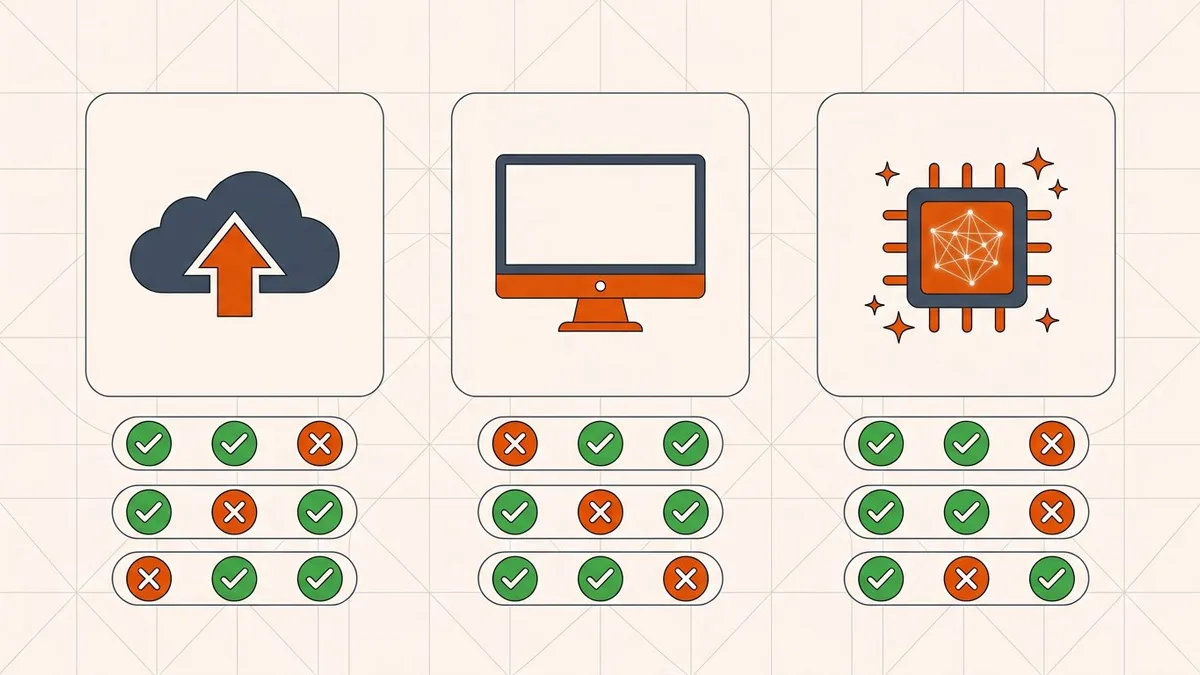
| Question | Browser-local | Server-based web | Installed desktop |
|---|---|---|---|
| PDF transfer | Can avoid operator receipt | Requires upload for the operation | Can be local; connected features vary |
| Compute | User's browser and device | Remote infrastructure | Installed application and device, sometimes cloud |
| Typical strengths | No installation and data minimization | Remote compute and broad services | Detailed controls and specialist workflows |
| Main verification | Network and local-storage behavior | Vendor, retention, contract, and subprocessors | Operation settings and connected services |
AI assistance can appear in any of these columns; it is a technique, not a processing location.
Choosing by scenario rather than by category
The labels matter less than what you are actually trying to do. In practice:
| If you need to… | The better fit | Why |
|---|---|---|
| Shrink one document quickly, from any device | Browser-local | No installation, no upload decision to make |
| Compress a confidential document | Browser-local | Removes the server recipient entirely |
| Process hundreds of files overnight | Installed desktop | Batch workflows and local compute |
| Add OCR to a scan | Either — but not BytesPDF | OCR needs a recognition engine; check where it runs |
| Meet a print or archive standard | Installed desktop | Preflight and validation tooling |
| Work from a locked-down corporate machine | Server-based, with approval | Local installs may be blocked |
Two scenarios deserve their own page rather than a table row. A print job is a different optimisation target from a web upload — the detail you can discard for a screen is exactly the detail a printer needs (compressing a PDF for printing). And when most of the weight is photographs rather than PDF structure, the decision is not which compressor to use but whether to compress the images or the PDF.
Notice that one of these rows has no BytesPDF answer. BytesPDF's toolkit covers compression, merge, rotation, redaction, OCR, signing and more — it does not split PDFs, convert PDF to Word, or certify PDF/A. Choosing a tool that admits what it does not do is more useful than one that claims everything.
How to verify the claim yourself
Marketing language is not evidence, but architecture is checkable. To find out whether a web tool uploads your file:
- Open the tool in a desktop browser.
- Open DevTools and go to the Network tab.
- Filter to Fetch/XHR, or sort by size.
- Process a file and watch what leaves the machine.
A browser-local tool shows requests for application code and assets, but no large transfer of your document. A server-based tool shows an upload. This takes under a minute and settles the question definitively.
Verifying where the file went is only half the check; the other half is whether the output is still usable. How to check a PDF after compression lists what to inspect, and Check PDF reports page count, encryption, text layers and structural problems on the copy you are about to send.
When local processing is the wrong answer
Local is not universally better. It loses when:
- The file is very large and the device is weak. A 400 MB PDF on a phone with limited memory will struggle or fail, where a server would not.
- You need remote compute. OCR, heavy conversion, and large batch jobs are often faster on real infrastructure.
- You need collaboration or account history. That inherently involves a server.
- You are on a device you do not control. Local processing protects you from the vendor, not from a compromised machine.
Decision checklist
- Does the tool support the actual job: simple image reduction, OCR, print preflight, conversion, or a large batch?
- Where do document bytes and derived data go?
- What happens to signed, encrypted, archival, accessible, or form-heavy PDFs?
- What evidence supports quality or performance claims for files like yours?
- Can you keep the original and inspect the output before delivery?
Once the method is chosen, the mechanics are the same whichever tool you use: find out why the file is large, confirm the limit you are aiming for, and follow a workflow that keeps the original and checks the output. If a browser-local tool fits the job, BytesPDF's compressor is one you can verify with the Network-tab test above.
Frequently asked questions
Is an online compressor the same as a server-based compressor?
No. A tool can run in a web browser while processing the selected PDF locally, or it can upload the PDF to a remote service. Some products are hybrid and vary by feature.
Is desktop software automatically more private?
Not automatically. An installed operation may stay local, but software can also use cloud features, telemetry, accounts, updates, or connected services. Verify the specific operation and product configuration.
Does AI-labelled compression produce better output?
The label alone proves nothing. Look for a clear explanation of what the model changes, representative evidence for documents like yours, privacy terms, and a way to inspect or reverse the result.
Can BytesPDF batch-compress multiple PDFs?
No. The current compression workspace handles one selected PDF at a time. The separate merge workspace accepts multiple PDFs within its published file-count and combined-size limits.
Related comparisons
Source-led comparisons written by BytesPDF, with the conflict of interest disclosed on each page. They link official provider documentation rather than fabricated tests.