
How to Reduce PDF Size on Mac: Preview and Browser Options
Two local workflows for a smaller PDF on Mac: Preview's export filter or browser-based quality controls. Keep the original, check the bytes and inspect the copy.
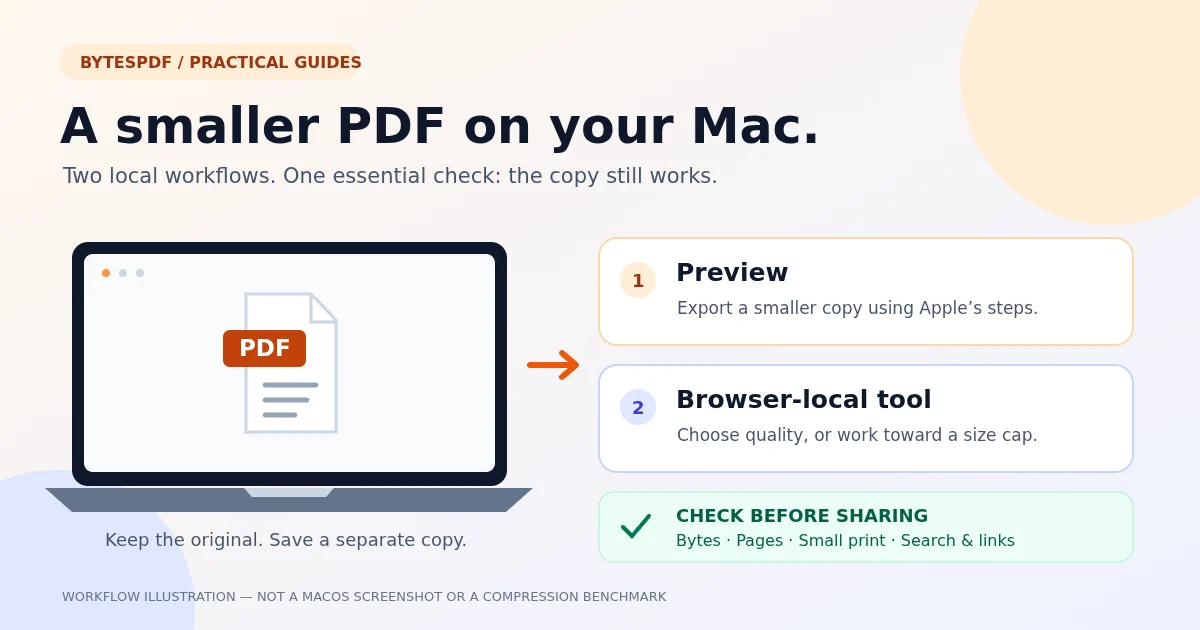
To reduce PDF size on Mac with Preview, open the PDF, choose File > Export, then select Quartz Filter > Reduce File Size and save a separate copy. These are Apple's documented steps, and Apple warns that the output's size and image quality can vary. 1
If you prefer adjustable image-quality presets or need to work toward a named upload limit, use BytesPDF's browser-local compressor or target-size tool. You do not need to upload the PDF to BytesPDF, but you still need to inspect the resulting copy. A smaller file is not automatically a suitable replacement for the original.
Which Mac compression method should you use?
| Your situation | Starting point | What to check |
|---|---|---|
| You want the Preview export route | Follow the source-linked Preview steps below | Save under a new name and inspect image quality |
| You want selectable image-quality presets in a browser | BytesPDF: Less, Recommended or Extreme | Supported images may shrink; results depend on the file |
| Your recipient specifies 500 KB, 2 MB or 5 MB | BytesPDF's target-size workspace | Check exact bytes, unit conventions and the result status |
| The document is digitally signed or an archival master | Keep it unchanged and use the recipient's approved process | A rewrite can invalidate signatures or affect conformance |
This is a workflow choice, not a performance ranking. We have not run a controlled comparison of Preview and BytesPDF on macOS, and we do not promise that one produces the smaller or clearer copy for every document.
Reduce PDF file size in Preview
Apple documents the following export path. Use the version selector on its guide if your installed macOS has different options. 1
- Keep your source PDF unchanged. Work from a duplicate if there is any chance of overwriting an important record.
- Open the PDF in Preview, not just in a browser tab.
- Choose File > Export.
- In Quartz Filter, choose Reduce File Size.
- Give the exported file a different name, such as
report-smaller.pdf, and choose its destination. - Save, then open that new file. If Preview asks to replace the original, cancel and change the export name instead.
The last part is important: the original is your recovery point if the reduced scan loses a faint stamp, small digit or handwritten mark. Apple explicitly warns that the compressed version may have lower quality than the original. 1
Cannot find the filter, or seeing different export options?
Check that the document is open in Preview and that you chose File > Export, the path in Apple's instructions. Its current guide also describes Optimize images for screen, Save images as JPEG and Create Linearized PDF options. Their availability and labels can vary with the macOS version you select in the guide. 1
Do not turn on every option just to chase the smallest number. Image optimization can change detail. Linearization concerns progressive loading in a browser, not a promise to meet a file-size ceiling; see fast web view versus compression for that distinction.
Compress a PDF in your Mac browser without uploading it
For a file that needs image reduction, open Compress PDF. The selected document is processed in browser workers on your device; it is not sent to a compression server.
- Select one local PDF. The desktop input cap is 150 MB, but memory and document complexity can impose a lower practical limit.
- Start with Recommended, or Less when fine scan detail matters more than the size reduction.
- Run compression and compare the reported original and output sizes.
- Download a separate copy. If the tool cannot produce a smaller version, it returns the original rather than presenting a larger rewrite as an improvement.
- Open the downloaded PDF and inspect the pages, not just its filename or size label.
Try the browser-local compressor with a copy of your PDF. Start moderately and inspect the download; image quality and reduction vary.
Open Compress PDF →Browser-local does not mean guaranteed offline. The website first needs its scripts and processing assets. Accounts, consent choices and other site-service data are separate from PDF processing; the privacy policy explains that boundary. For an entirely disconnected or organization-controlled workflow, use the approved desktop software instead.
Need 500 KB, 2 MB or 5 MB rather than just “smaller”?
Use Compress to a Target Size, not the ordinary quality-only compressor. You can choose the ceiling before adding files. The workspace then attempts its quality passes for each PDF and reports whether it reached the target or only found a closest result.
There is a unit detail worth checking before a portal deadline:
| Preset | Bytes in this tool | If the recipient means decimal units |
|---|---|---|
| 500 KB | 512,000 | This is above 500,000 bytes; choose a lower custom target |
| 2 MB | 2,097,152 | This is above 2,000,000 bytes; leave a margin |
| 5 MB | 5,242,880 | This is above 5,000,000 bytes; leave a margin |
For example, a 480 KB custom target is 491,520 bytes. That sits below a 500,000-byte ceiling if the result actually reaches it. These are arithmetic examples, not claims about a particular portal's policy or a measured compression result.
The target-size guide explains the 500 KB, 2 MB and 5 MB workflows in more detail. Avoid forcing a readable file far below a generous limit merely to get a larger percentage reduction.
What if the smaller copy is blurry or still too large?
- Blurry small print or faded handwriting: return to the original. Try a less aggressive setting or a higher target if the recipient permits it. Recompressing an already-degraded copy cannot restore missing detail.
- Little or no size reduction: images may already be efficient, or fonts, attachments and vector content may dominate. Follow the large-PDF diagnosis before trying again.
- A scan needs searchable text: compression does not add OCR. Use the separate Mac searchability guide and proofread recognized text.
- The portal still rejects a small file: size may not be the problem. Check file type, filename, password protection, missing pages and the exact error message. Do not delete required content just to make the number smaller.
- A large scan exhausts the browser: keep the original, close unnecessary tabs or use an approved desktop workflow. The published file cap is not a guarantee that every Mac has enough available memory.
Check the copy before emailing or uploading
Open the exact downloaded or exported file you plan to send. Confirm the page count and orientation, then inspect a detailed page at 100% and a useful higher zoom. Check small text, stamps, diagrams and handwritten marks. Test search, copying, links and form fields if the recipient relies on them.
For email attachments, confirm both mail systems' current rules and allow for message encoding. For a portal, compare its stated byte limit with the actual output and follow its format and document requirements. Keep digitally signed originals and required archival masters unchanged; compression is not signature preservation or PDF/A validation.
Source and scope
Apple's Preview instructions and quality warning were checked on September 27, 2026: 1. Menu details may change, so use the macOS version selector in the official guide.
The browser workflow describes the current BytesPDF implementation. BytesPDF publishes this guide and benefits if you use its tools. The cover is an illustration, not a screenshot of Preview; no Mac performance benchmark or guaranteed file-size reduction is implied.
Frequently asked questions
Do I need Adobe Acrobat to reduce a PDF on Mac?
No. This guide covers a Preview export workflow and BytesPDF's browser-local compressor. Choose according to your document and check the output; neither route guarantees a particular file size or perfect preservation of complex PDF features.
Can I reduce PDF size on Mac without uploading the document?
BytesPDF processes supported PDF images inside the browser tab rather than sending the document to a conversion server. The website still needs to load its code and has separate site services. If you require a fully disconnected workflow, use an approved desktop tool rather than assuming a website will work offline.
Why is my PDF still large after trying compression?
The file may already contain efficient images, or its size may come from fonts, vector drawings, attachments or other data that the chosen compressor does not reduce. Start again from the original and identify the cause before applying stronger image settings.
Can I make any PDF smaller without losing quality?
No. Some structural optimizations can be lossless, but reducing image quality or resolution changes those images. In BytesPDF, born-digital vector text is not rasterized; text photographed into a scan is image data and can become less legible.
How do I get under a 500 KB or 5 MB upload limit?
Use Compress to a Target Size, select the appropriate preset or a lower custom value, then compare the exact output bytes with the recipient's rule. BytesPDF uses 1,024 bytes per KB and 1,048,576 per MB. A Closest possible result may still be above the limit; do not submit it without checking.
Does reducing a scan also make its text searchable?
No. Compression and OCR are different jobs. Compression may reduce the page images, while OCR adds recognized text. Use a separate OCR workflow if needed and check recognition carefully; a heavily blurred scan is a poor input for later OCR.
Related comparisons
Source-led comparisons written by BytesPDF, with the conflict of interest disclosed on each page. They link official provider documentation rather than fabricated tests.