
PDF Still Too Large After Compressing? Diagnose Before You Compress Again
A second compression pass is usually the wrong answer. Find what's still eating the bytes — page by page, object by object — then fix the cause instead of the setting.
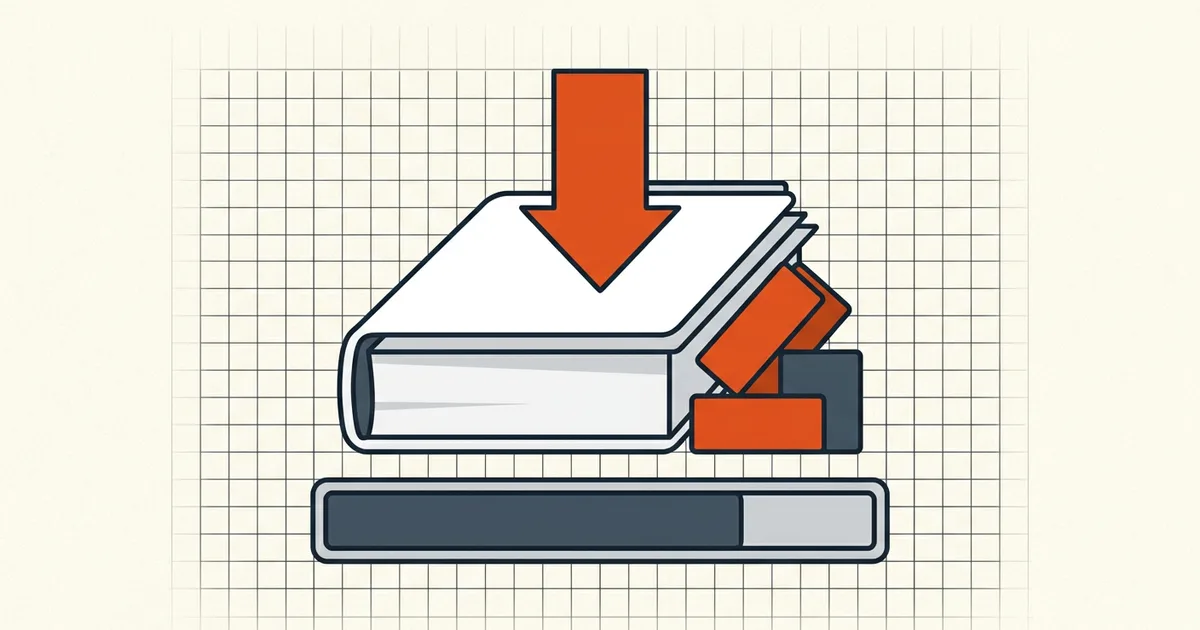
You ran the compressor. The dial moved from 8.4 MB to 7.9 MB. The portal wants 2. Before you touch the preset again, understand what the tool actually compresses — and what it deliberately leaves alone.
What compression touches (and what it can't)
BytesPDF-style compression re-encodes supported embedded images and clears some metadata. It does not:
- re-flow or shrink text content;
- subset fonts that the source already embedded fully;
- rebuild vector artwork into simpler geometry;
- shrink files that are already mostly efficient — hence returning the source when output isn't smaller.
So the post-compression size is a map of non-image weight: vectors, fonts, text streams, attachments, page-structure overhead. That map tells you the next move.
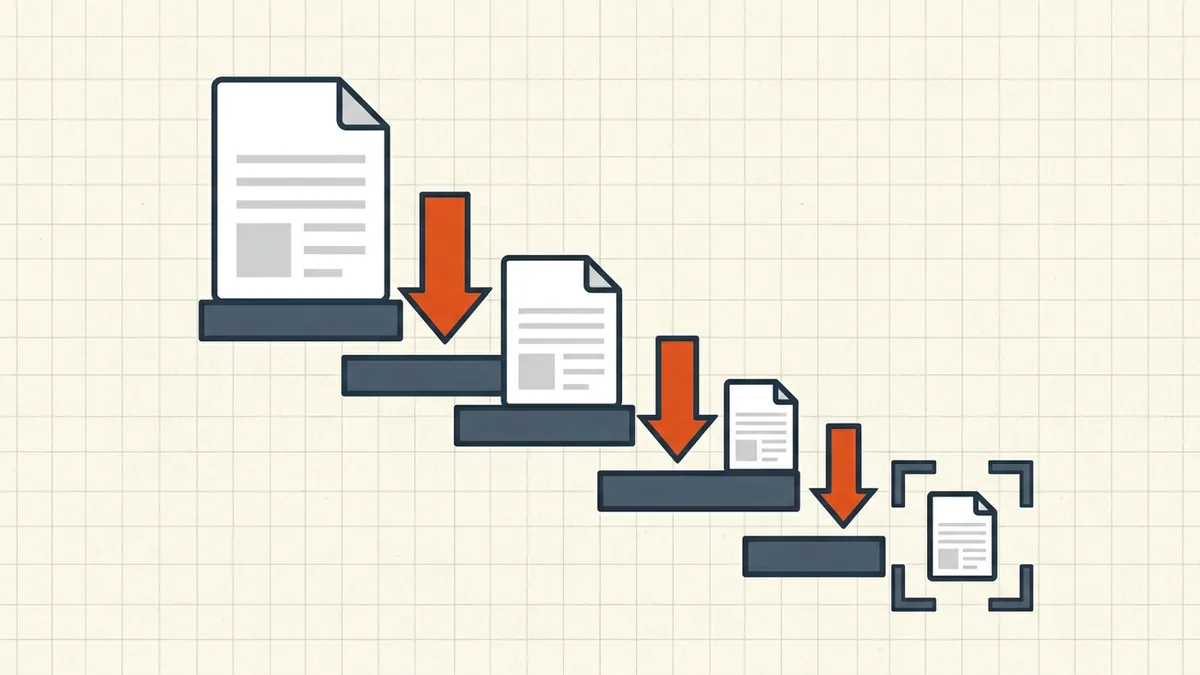
Diagnosis order (cheap → invasive)
- Confirm image share. Flip through the document: if it's born-digital text with a chart or two, images were never the bulk — stop expecting magic (why PDFs get large).
- Find heavy pages. In a scratch copy, delete half the pages, check size, bisect. The space inspection question has lighter checks for quick passes.
- Check for attachments and revisions. Embedded files and incremental-save history live outside page content — hidden data cleanup drops them (and invalidates signatures — plan order accordingly).
- Vector offenders: one logo with a thousand curves, a CAD plot, mesh gradients. Nothing in image compression touches these. Rasterize that page in the source tool at target DPI, or simplify upstream.
- Already-lossy images: photos saved at quality 40 from a phone pipeline — recompressing mostly adds artifacts. Downsample in the source, then compress once (double-compression math).
Strategy swaps that actually move bytes
| Remaining bulk | Move |
|---|---|
| Full-color scans of text pages | Grayscale / lower preset once; or rescan at moderate DPI |
| Page count | Cut pages at the source; don't compress a document that shouldn't be that long |
| Vectors | Source-side simplify/rasterize one page |
| Fonts (rare, huge CJK/embeds) | Re-export from source with subsetting on |
| Attachments | Strip via cleanup |
| Mixed / unknown | Target-size mode will tell you honestly when it can't hit the number — believe it |
Sequence beats strength
If the file still needs to shrink after merge, you may have ordered steps backwards: merge → compress → verify is one pass on the real send-file. Compressing five sources then merging often forces a sixth pass on the bundle anyway — quality pays for that habit.
Know the floor
Some documents have a hard floor above the portal's ceiling: dense vector exhibits, long color reports, forensic-quality scans. At that point the honest options are structural — split (where the portal allows multiple uploads), request an exception, provide a born-digital original, or pick a different destination. Shipping an unreadable file that "fits" fails the actual goal (legibility vs limits).
Frequently asked questions
Why didn't compression shrink my PDF much?
Because what's left isn't compressible image data: vector art, embedded fonts already subset, pure text streams, or images already at their lossy floor. Compression re-encodes supported embedded images — when those are a small share of total bytes, output size barely moves. The tool returning the source when output isn't smaller is a feature, not a failure.
Should I compress the PDF again more aggressively?
Rarely. A second pass recompresses already-lossy images for diminishing returns while quality drops faster ([compressing twice](/questions/can-you-compress-pdf-twice)). First identify the heavy pages; then either drop/downsample content at the source, switch strategy (grayscale, lower preset once), or accept that this file has hit its floor.
How do I find which pages or objects are largest?
Page-by-page: export or print page ranges to measure, or use a PDF object/space inspector if you have one — remove pages in a scratch copy and watch the size drop. The [what's taking space](/questions/how-to-check-what-takes-space-in-pdf) question covers lighter-weight checks. Usual winners: a few full-bleed scans, embedded attachments, or one giant vector diagram.
What if it's vector graphics bloating the file?
Vector complexity (mesh gradients, meshed logos, CAD exports) doesn't respond to image recompression. Options: simplify in the source app, rasterize that one page at print resolution through the source tool, or leave it and hit the size cap another way (fewer pages, different destination). Honest answer: BytesPDF's compressor won't fix vector bloat — it re-encodes images.
When should I give up on fitting a size limit?
When the content requirement and the byte budget are mathematically incompatible — dense vector plans under 200KB, twenty color scans under 100KB. Change the content plan (split what the portal allows, request an exception, submit born-digital instead of scans) rather than shipping illegible output. The [100KB family guide](/blog/compress-pdf-to-100kb) covers that cutoff directly.
Related comparisons
Source-led comparisons written by BytesPDF, with the conflict of interest disclosed on each page. They link official provider documentation rather than fabricated tests.