
How to Compress a PDF to 100KB (Without Landing in Rejection Retry Hell)
A 100KB cap is a byte budget, not a quality setting. Learn where PDF bytes actually go, how to compress to a named target, and the honest cutoffs when a scan simply won't fit.
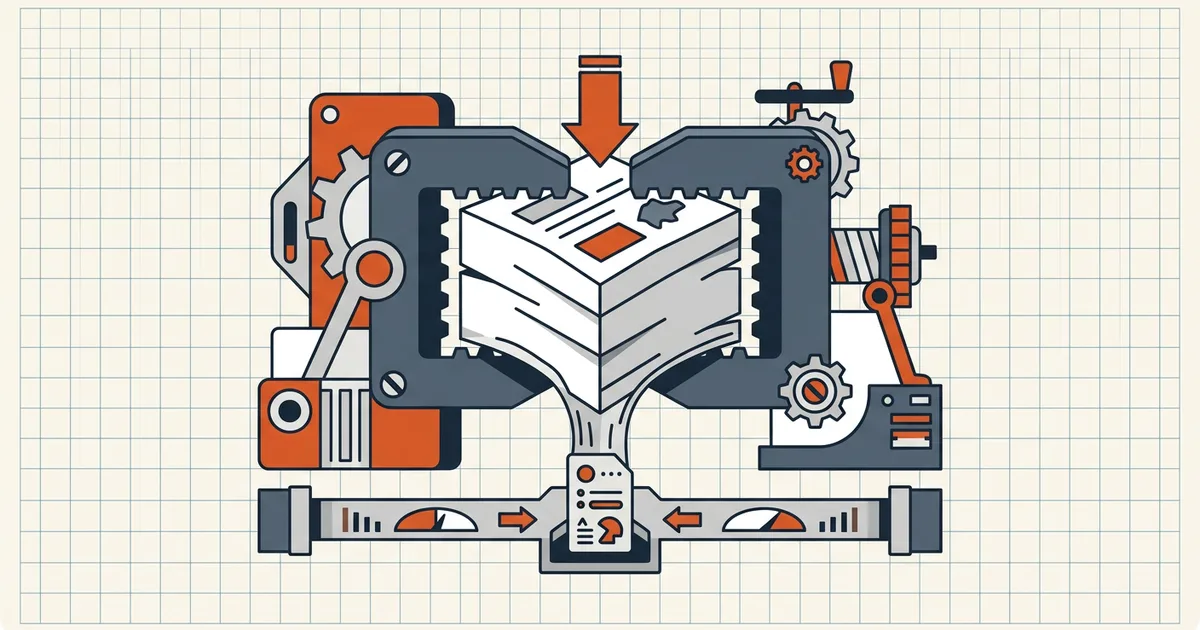
Application_bundle.pdf — 2.4MB. The portal wants ≤100KB. That gap isn't a reason to hammer the compress button; it's a byte budget you plan against. Here's how to land under 100KB (and its common cousins, 200KB and 500KB) without guessing.
Where the bytes go (so you know what to cut)
PDF size is dominated by a few things, in typical order:
- Embedded images — scans, photos, screenshots. A single full-page camera scan can blow the entire 100KB budget on its own.
- Page count — every page repeats fonts, content streams, and structure overhead.
- Fonts — subset fonts are usually fine; fully embedded unused fonts are not common in modern exports but show up in design-tool files.
- Object bloat — duplicate objects, uncompressed streams, leftover edit history. Metadata cleaning helps a little; it is not the main event (hidden data guide).
Text-first documents (Word exports, born-digital invoices) often sit near or under 100KB already. Scanned image documents fight the limit from page one.
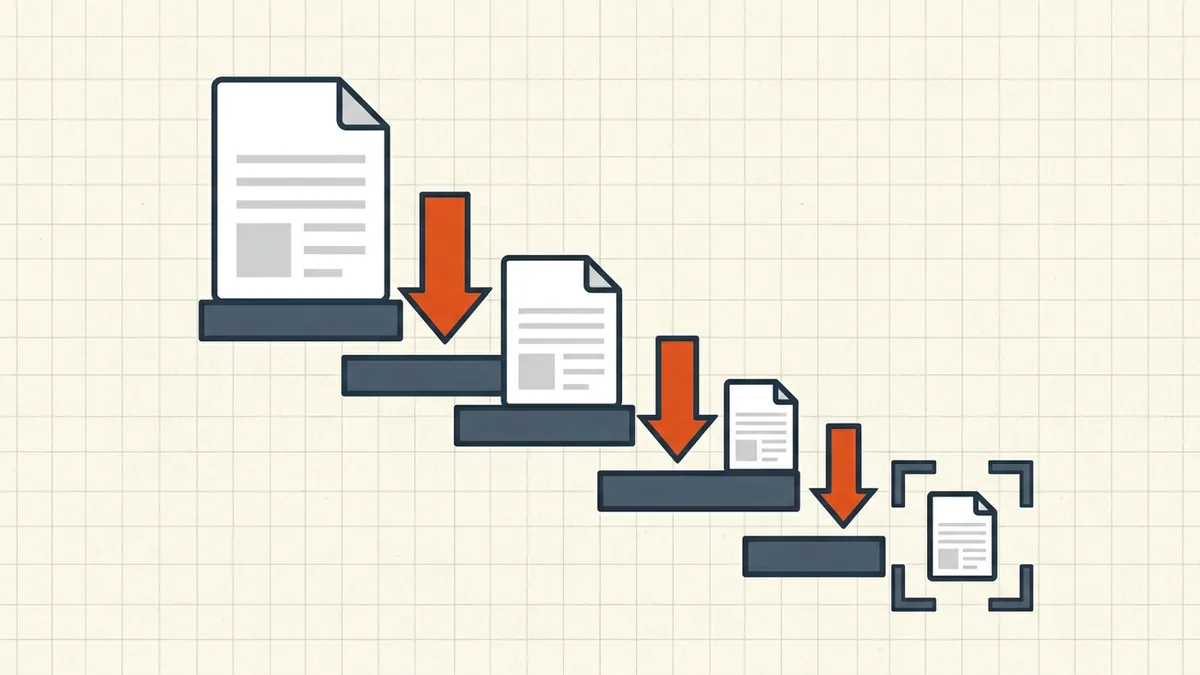
The workflow: merge → target → verify
- Finalize content first. Rotate, normalize page sizes, resolve comments/annotations — every later pass should be the last byte-changing step (merge order).
- Name the real limit. Not "smaller please" —
100KB(or whatever the portal states). Target-size compression treats that as a hard ceiling (exact-size guide). - Run one pass on the file you will actually upload — not each source, not a test page.
- Verify honestly:
- file properties → size under the cap (leave a small margin: aim for ~95KB against a 100KB wall);
- open every page — signatures, stamps, and fine print still legible;
- portal dry-run if it offers a pre-check.
- If over: diagnose before retrying (what's taking space). Usual fixes, in order of payoff: downsample images → drop non-required pages → re-export from source at lower image DPI → only then consider a second compression pass (with quality re-check; double compression explained).
Name your portal's limit and compress the merged file in one pass — verify the byte count before you upload.
Open Compress PDF →100KB vs 200KB vs 500KB: same play, different caps
| Cap | Typical source that fits | Usual failure mode |
|---|---|---|
| 100KB | 1–3 page text memo; single low-res scan page | One camera scan exceeds it alone |
| 200KB | Short born-digital form; 2–3 clean scan pages | Image-heavy ID + form combos |
| 500KB | Small multi-page text pack; modest scan bundle | Full statement runs, photo docs |
These are planning ranges, not guarantees — always verify against your file. The point: as the cap loosens, the fix moves from "resample images" toward "you're fine, stop compressing." Over-shooting quality loss to hit 500KB when the limit is 2MB is free damage.
When 100KB is the wrong fight
Some documents don't survive the budget:
- High-detail scans (long forms, handwriting, stamps): readable resolution × page count ≠ 100KB. Options: split across multiple uploads (if the portal allows), request an exception, or submit a born-digital version.
- Documents where legibility is legal (signatures, seals, medical fine print): an unreadable file that "fits" is a rejected file — or worse, an ignored one. Portal rejection patterns cover the size-vs-clarity traps.
Honest sequence every time: **check the real cap → merge → one targeted pass → verify bytes and pixels → upload.** If verification fails on legibility, change the content plan, not the compression setting.
Frequently asked questions
How do I compress a PDF to exactly under 100KB?
Use target-size compression: name 100KB as the cap, run one compression pass over the merged final file, then verify the achieved size is under the limit before uploading. Undershoot slightly — portals count bytes strictly, and '99.8KB' in a browser view can still mean over the cap in binary size.
Why is my PDF too big for a 100KB limit?
Almost always embedded images. A few phone-camera scans can each be multiple megabytes; text-only documents usually clear 100KB without drama. Check what's taking space first, then either downsample images, drop pages, or rebuild from a born-digital source instead of a scan.
Is 100KB always achievable without ruining the document?
No. A five-page text memo: yes. A twenty-page scanned form at readable resolution: often not, without making text illegible. Know the cutoff — if aggressive compression would blur signatures or fine print, reduce pages or ask whether the portal accepts a slightly larger quality tier before shipping an unreadable file.
Should I compress to 100KB, 200KB, or 500KB?
Match the destination's number, not a habit. Many portals publish 100KB–2MB caps by field; email and chat limits are larger (see the attachment cheat sheet). Compressing far below a generous limit just burns quality for nothing — target the cap you actually face, minus a small safety margin.
Does compressing twice help me hit 100KB?
Usually not — the second pass recompresses already-lossy images and degrades quality faster than it saves bytes. One well-targeted pass beats three blind ones; if one pass can't reach the cap, the content (image resolution, page count) is the problem, not the number of retries.
Related comparisons
Source-led comparisons written by BytesPDF, with the conflict of interest disclosed on each page. They link official provider documentation rather than fabricated tests.