
How to Remove a Password from a PDF When You Know It
Removing a password you know is just decrypting and re-saving. Here's how it works, the safe routes — and the honest truth about forgotten ones.
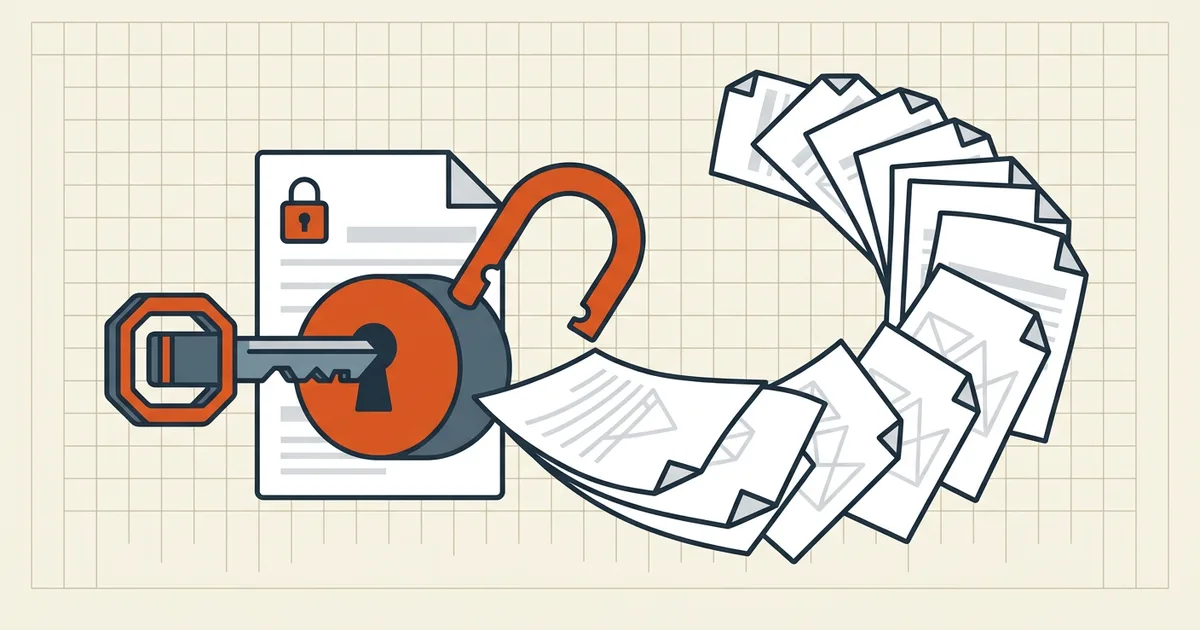
The statement archive, the ebook sample, the tax document with a birthdate password — some PDFs you unlock twenty times a week. Removing the prompt from your own copy is ordinary and safe. Understanding why it works (and where the line is) takes two minutes.
What "removing" a password actually means
An open password encrypts the PDF's content streams. To make a password-free copy, software decrypts the file with the password you supply and writes the plaintext streams into a new PDF. Same pages, same everything — minus the lock. You're not breaking anything; you're using the key and declining to re-lock.
This is the fundamental asymmetry explained in owner password vs. user password: encryption removal needs the password; permission-flag removal needs nothing, because the content was never locked — only the buttons were.
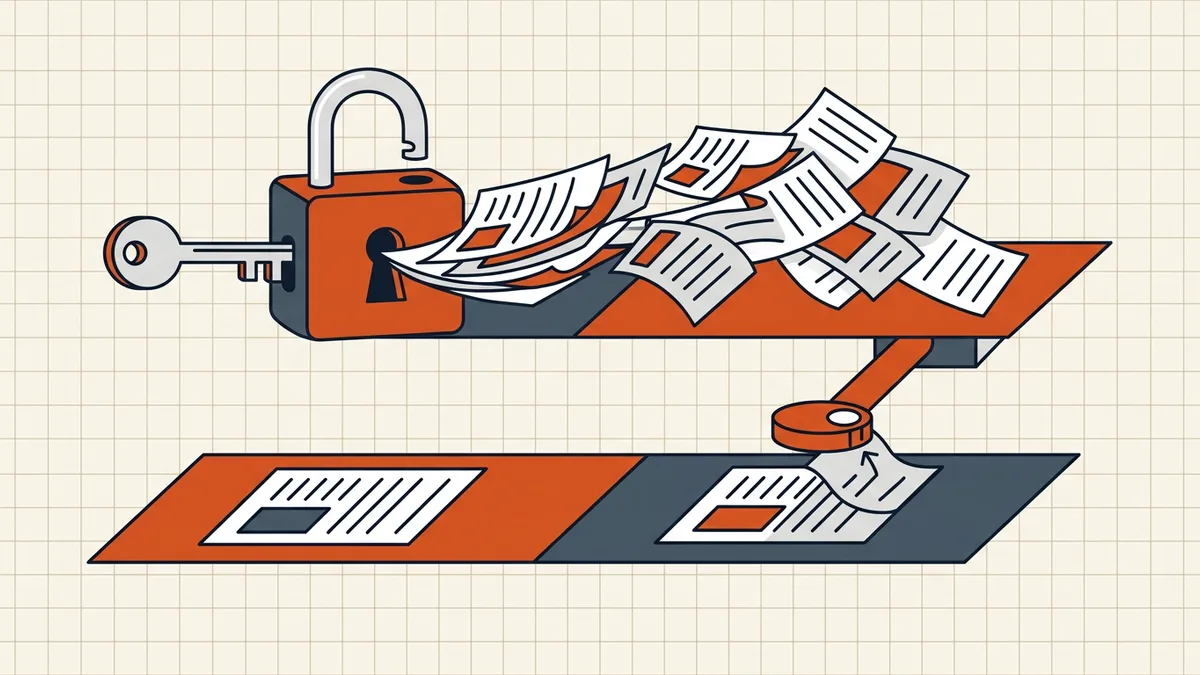
The routes, best-first
1. The document's own security settings (Acrobat)
File → Properties → Security → Security Method: No Security (confirm with the owner password), then save a new copy. Clean, lossless, no re-rendering.
2. Command line: qpdf (free, exact)
qpdf --password=YOUR_PASSWORD --decrypt locked.pdf unlocked.pdfPure decryption — pages, fonts and structure pass through untouched. (mutool clean -p YOUR_PASSWORD -D does the same in the MuPDF toolchain.) These tools work because you supplied the password; without it they stop at the door, by design.
3. Open-and-export fallback (any viewer)
Open the file, then export or print to a new PDF. This re-renders pages: expect scanned text layers to flatten into images, some quality change, and any digital signature to be void in the output. Acceptable for a reading copy; wrong for an archive master.
The forgotten-password reality
For an AES-256-encrypted PDF with a strong password, there is no legitimate recovery — the math is the point. Practical fallbacks for your own files:
- check where the password came from (senders often state it: a DOB, last-4 of an account, a case number);
- ask the sender to resend unprotected or restate the password;
- restore from a backup taken before the encryption was added.
Anything marketed as a "PDF password cracker" is either attacking weak/guessable passwords (dictionary and brute-force attempts against short keys) or is a scam. Legitimate tooling — including everything in the BytesPDF toolkit — refuses encrypted inputs rather than pretending to break them.
Once it's open: decide if it should stay open
Password-free copies drift. If the file is sensitive at rest (shared drives, email backups), the better end-state is often the opposite move — a fresh strong password applied once and stored in your password manager (protection guide). If you're preparing it to send onward, the full outbound pass lives in the pre-send checklist.
Frequently asked questions
How do I remove the password from a PDF if I know it?
Open the file with the password and save an unencrypted copy: in Acrobat use File → Properties → Security → No Security; command-line users can run `qpdf --password=... --decrypt in.pdf out.pdf`; or open-and-export/print-to-PDF as a fallback. The output is a normal PDF that opens without prompting.
Can you remove a PDF password without knowing it?
Not legitimately. Modern PDF encryption (AES-256) has no backdoor; tools claiming to 'recover' strong passwords either exploit genuinely weak ones or misrepresent what they do. If you forgot your own password, the practical answer is a backup or the sender.
What's the difference between removing an open password and removing restrictions?
An open password encrypts the content — you must decrypt with the password first. Restrictions (permission flags) sit on a file that already opens; 'removing' them means re-saving without the owner-password policy. The second is routine; the first requires the key.
Is it legal to remove a password from a PDF?
For your own files, or files you were given the password for, creating a password-free copy for your own use is ordinary file management. Circumventing access controls on content you weren't granted is a different matter — know your rights to the document.
Why do some methods change my file?
Decryption-only rewrites (qpdf, Acrobat security removal) preserve pages and structure. Print-to-PDF and rasterizing routes re-render pages: scanned text layers die, quality can drop, and any digital signature is invalidated. Prefer true decryption when the file is yours.