
How to Lock a PDF from Editing (Make It Read-Only, Honestly)
'Read-only PDF' can mean three different locks with three different strengths. Pick the right one — and know what the others don't stop.
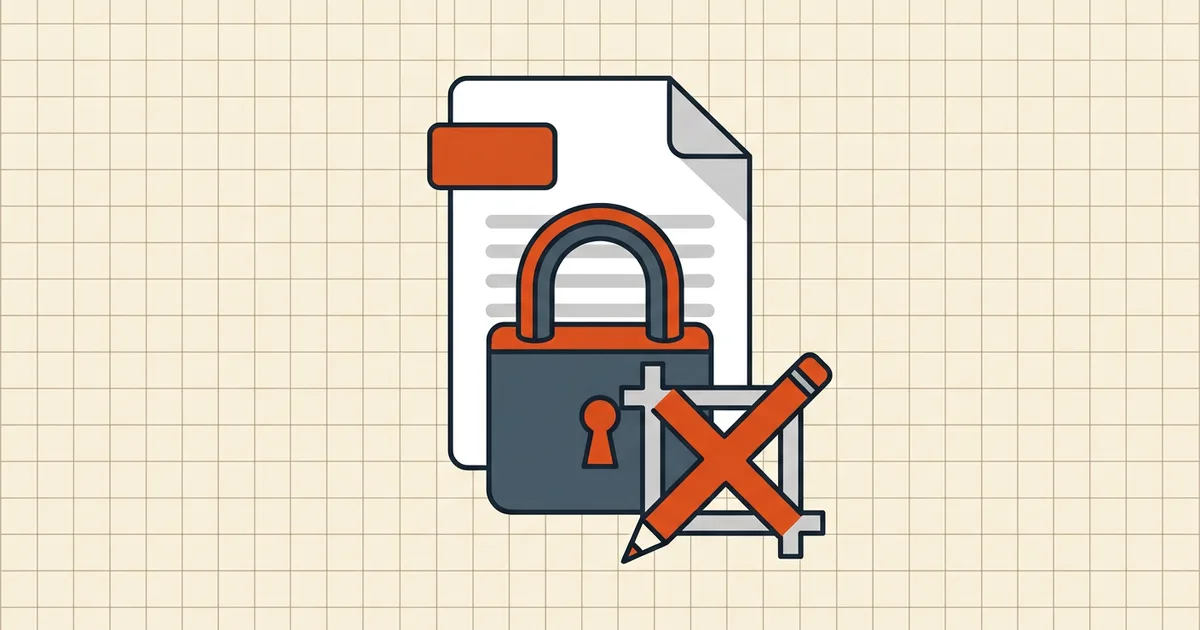
"Make it read-only" is three different requests wearing one phrase. Prevent casual edits? Stop unauthorized people from opening it at all? Prove whether anyone changed it? The right lock depends on the answer — and each lock's honest limits matter.
The three locks
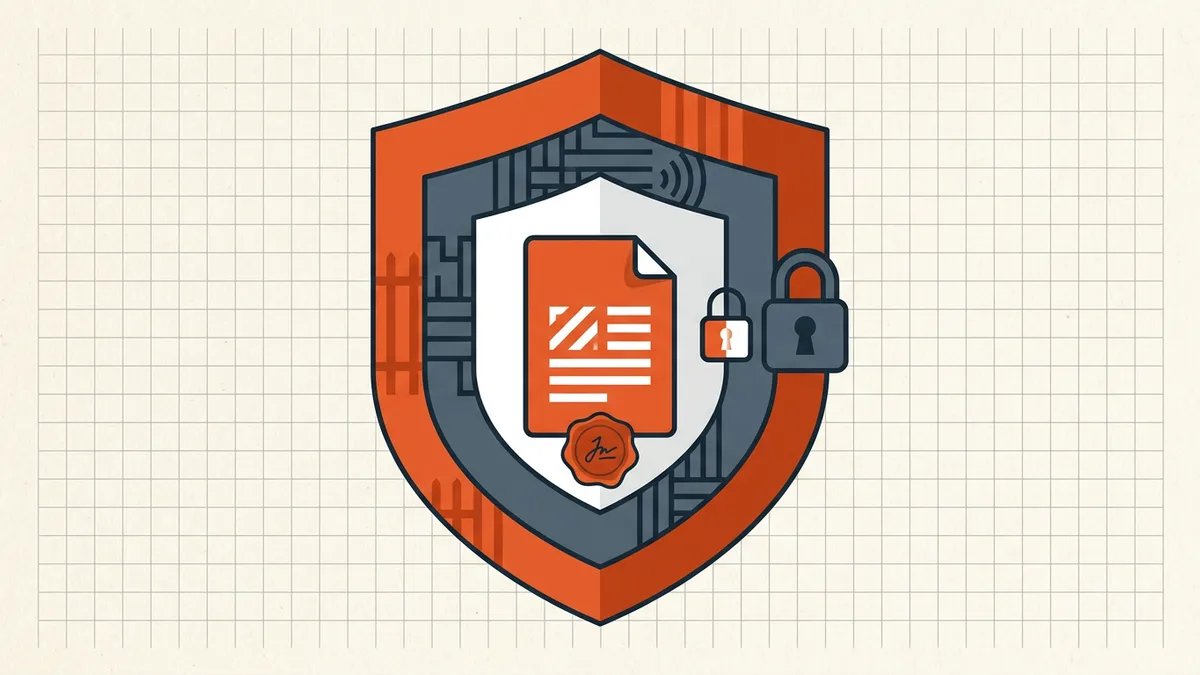
1. Permission flags — "please don't edit" (and mainstream readers won't)
When you password-protect a PDF with an owner password and clear the "edit" permission, compliant readers gray out their editing tools. This is the everyday read-only switch: quick, per-action (printing and commenting are set separately), honored by Acrobat, Preview and browsers.
Honest limit: the flags are instructions to software, not a cryptographic barrier — content that can be displayed can be re-saved by tools that choose to ignore policy. Right use: workflow guardrails, template discipline, deterring casual tampering. Wrong use: treating flags as the confidentiality boundary (that's the open password's job — the distinction).
2. Open password — "don't open it"
AES-256 encryption with a document-open password is the real lock: no key, no content, no edits of any kind. If read-only is really "only my team may see this," stop here and add permissions on top for flavor. Setting it is covered in how to password protect a PDF; the enforcement math in remove a password you know shows why this layer is different in kind.
3. Digital signature — "change it and everyone will know"
A digital signature doesn't prevent editing; it makes undetected editing mathematically impossible. Any post-signing rewrite breaks verification — visibly (why signatures go invalid). For contracts, approvals and distributed finals, "signed and sealed" beats "locked": the recipient can check, not just hope.
The practical recipes
Daily documents / forms going out: Protect with editing denied, printing and commenting allowed. Done in a minute with BytesPDF Protect PDF — AES-256 in your browser, file never uploaded.
Contracts and finals that must prove integrity: Finalize → clean (hidden data) → protect → sign last. The signature is the tamper alarm; the password is the door.
Templates and boilerplate you share widely: Permission flags plus a clear "unofficial copy" header beat technical locks you can't enforce downstream. Save your energy for the signature layer on versions that matter.
Whatever you lock, say so in the cover note ("protected read-only — call me for edits"). A lock that surprises the recipient generates support tickets; a lock that's communicated looks like diligence.
Frequently asked questions
How do I make a PDF read-only?
Set editing permissions when protecting the file: an owner password with 'editing disallowed' grays out editing in compliant readers (BytesPDF Protect PDF exposes these flags with AES-256). For tamper-*evidence* rather than tamper-prevention, add a digital signature instead — or both.
Does locking a PDF from editing actually prevent changes?
Permission flags deter and block editing in mainstream readers but are enforced voluntarily — determined tools can ignore them. What nobody can undetectably change is a digitally signed file: the signature verification fails visibly after any rewrite.
What's the strongest way to lock a PDF?
Combine an AES-256 open password (real encryption) with a digital signature applied last. Encryption controls who can open the file; the signature proves whether anything changed. Permission flags add convenient day-to-day guardrails on top.
Can I lock a PDF from editing without a password?
Yes — permission-only restrictions and digital signatures work without a document-open password. Understand the trade: permission flags without encryption are advisory, and a signature's protection is detection, not prevention.
Does locking a PDF affect printing?
Only if you say so. Permissions are per-action: allow printing while denying editing is the most common setup. Avoid blanket 'deny all' — it can block assistive-technology access alongside casual copying.